 SCREEN
📌 Quick Summary: The Galaxy Z Fold 8 is a marvel of engineering, but its folding OLED panel introduces a new set of failure points that regular phones don't have. In my workshop, I've seen dead pixels appear along the crease, touch digitizers fail on one half of the screen, and corners that flex under pressure. This guide gives you the exact 5-minute test sequence I use to check a foldable before the return window closes. Run it on day one. Your $1,800 investment deserves it.
I still remember the first Galaxy Fold I ever opened. It was a repair job for a customer who had owned it for six months. The crease looked fine. The screen turned on. But when I ran a solid gray image, there it was: a faint, jagged line of dead pixels running exactly along the fold. She hadn't noticed it during normal use. She only saw it when I showed her.
That is the problem with foldable phones. The most critical part of the screen, the hinge and the crease, is also the part most prone to hidden defects. And unlike a regular iPhone or Galaxy S, where a dead pixel is just a dead pixel, a defect on a foldable can be a sign of structural failure that will get worse over time.
The Galaxy Z Fold 8 is a stunning device. Samsung has sold millions of them, and the sales numbers in Europe alone are up 45% year-over-year [citation:6]. But with that success comes a larger pool of users discovering that foldable screens are not immune to manufacturing defects.
This guide is not a review. It is a diagnostic checklist, written by a technician, for anyone who just unboxed a Z Fold 8 and wants to make sure they didn't get a lemon.
The folding OLED is the most fragile component on the Z Fold 8.
Why Foldable Screens Are Different (And Why You Must Test)
Before we get into the test itself, you need to understand what makes a foldable display unique. This is not a standard glass sandwich.
The Galaxy Z Fold 8 uses a Dynamic AMOLED 2X panel with a resolution of 1848 x 2448 and a 120Hz refresh rate [citation:3][citation:9]. That is a beautiful screen. But it is also a flexible screen. It bends thousands of times. And every bend puts stress on the pixels, the touch layer, and the protective coating.
This stress creates three specific failure modes that you will not find on a regular phone:
- Crease-line defects: Dead or stuck pixels that appear exactly along the fold. These are often the first sign of panel fatigue.
- Touch digitizer failures: One half of the screen stops registering touch, or a specific strip along the hinge becomes unresponsive.
- Corner flex issues: Some Z Fold 8 units have corners that flex under light pressure. Samsung claims this is a deliberate "shock absorption" design, but it can also be a sign of poor adhesion [citation:16][citation:22].
If you catch any of these on day one, you have the 14-day return window. After that, you are dealing with Samsung's warranty process, which can be slow and, in some cases, expensive [citation:15].
The Pre-Test Checklist (Do This First)
If you skip these steps, your results will be inaccurate.
1. Clean Both Screens
The Z Fold 8 has two screens: the large inner display and the smaller cover screen. Clean both with a microfiber cloth. Dust on a white screen looks exactly like a dead pixel [citation:1].
2. Turn Off Adaptive Brightness and Eye Comfort Shield
Go to Settings > Display. Turn off Adaptive Brightness and Eye Comfort Shield. These features change the color temperature and brightness based on your environment. If they are active, you will not see the true colors, and you might miss a uniformity issue [citation:14].
3. Set Brightness to Maximum
Defects are easiest to spot at 100% brightness. Pull down the quick settings panel and slide the brightness slider to the maximum. Testing at full brightness mimics the worst-case scenario.
Step 1: The Black Screen Test (For Stuck Pixels)
Open our free Screen Medic diagnostic tool in Samsung Internet or Chrome. Enter fullscreen mode and display a pure black screen.
Take the phone into a completely dark room. Open the inner display fully, so the crease is flat. Hold the phone at your normal viewing distance.
What you are looking for: A bright red, green, blue, or white dot. These are stuck pixels. They are receiving power but the liquid crystals are frozen. On a foldable, a stuck pixel along the crease is a red flag for panel stress [citation:10].
What you should see: A perfectly black screen. If you see a faint glow around the edges of the inner display, that is normal for OLED. But a sharp, distinct dot of color is a defect.
If you find a stuck pixel, do not panic yet. About 70% of stuck pixels can be fixed at home using a software cycling method. I cover the exact process in my guide on The Stuck Pixel Fix That Actually Works [citation:1].
Step 2: The White Screen Test (For Dead Pixels and Crease Damage)
Switch the tool to display a pure white screen. Keep the brightness at 100% and stay in the dark room.
Scan the inner display slowly. Pay special attention to the crease area. Look at the corners, the edges, and the area around the under-display camera.
What you are looking for: A tiny black dot. This is a dead pixel. The transistor that controls it has failed completely. It is permanent [citation:1].
On a foldable, you are also looking for something else: A faint gray line or a cluster of dark spots running vertically along the crease. This can be a sign of micro-cracking in the flexible substrate. It may not be a dead pixel yet, but it is a structural defect that will likely get worse [citation:8].
If you find a dead pixel or a crease-line defect on a brand-new Z Fold 8, you should return it immediately. For a full breakdown of Samsung's warranty policy and your options, read my Complete Dead Pixel Guide.
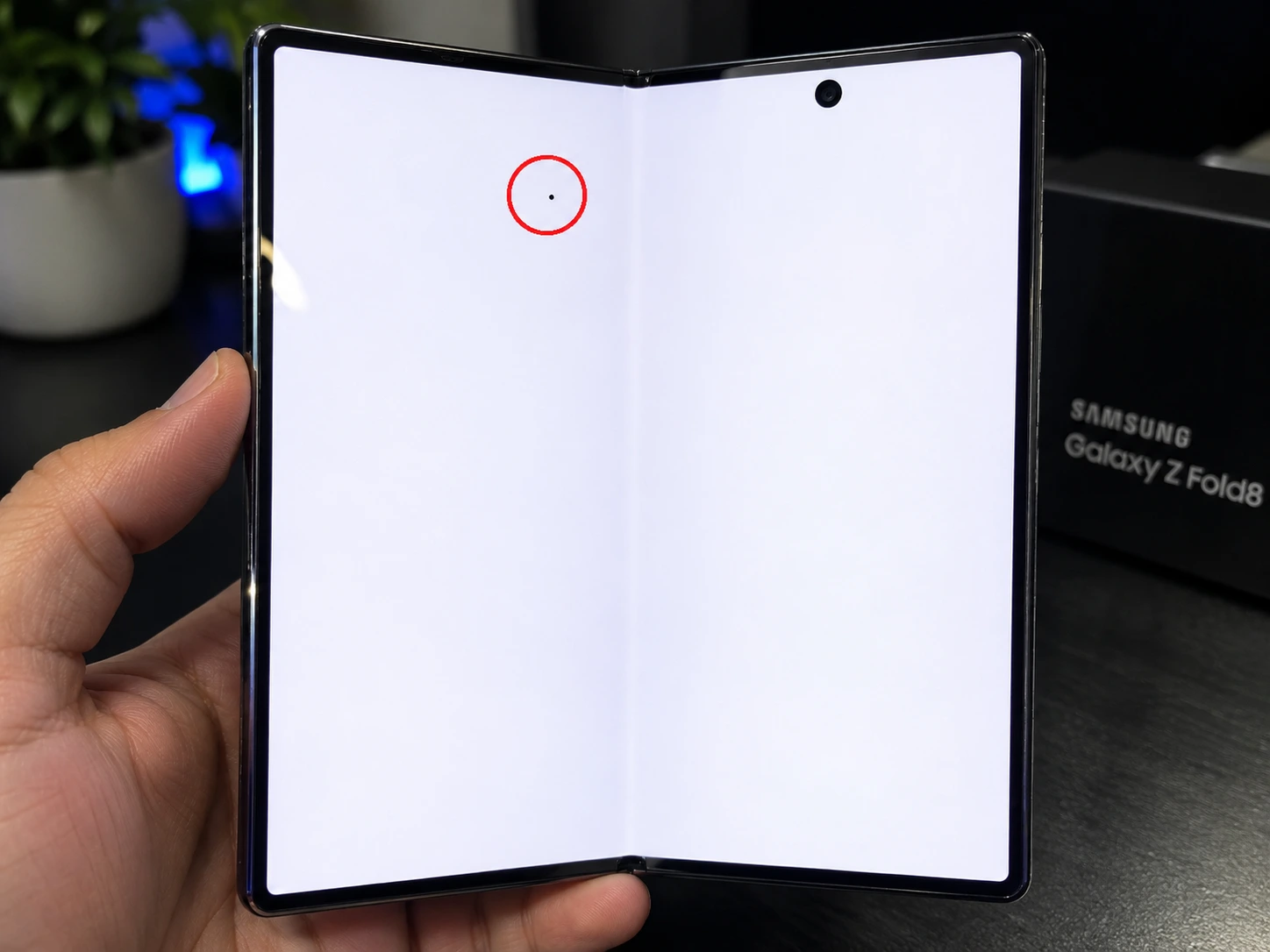
The white screen test is the fastest way to reveal a dead pixel or crease damage.
Step 3: The Gray Screen Test (For Uniformity and Burn-in)
This is the step most people skip, and it is the most important one for a foldable.
Switch the tool to a 50% gray screen. Stay in the dark room.
What you are looking for: Faint, ghostly outlines. A ghost of the status bar. A faint square where the keyboard usually sits. Or an uneven, blotchy texture across the screen, some areas looking slightly pinker or dimmer than others [citation:1].
On a foldable, you are also looking for a "wave" or "ripple" effect along the crease. The gray screen is the best way to see if the crease is becoming physically deeper or if the pixels around it are aging unevenly.
If the gray screen looks uneven, with a "dirty" patch in one corner or a yellow tint on one edge, that is a uniformity issue. This is unacceptable on a new device. For a deep dive into the difference between temporary image retention and permanent burn-in, read my Complete Screen Burn-in Guide.
Step 4: The Touch Test (The Foldable's Weak Spot)
This is the test that most reviewers ignore, and it is the one that matters most on a foldable.
Open the Notes app (or any drawing app) and select a thick pen. Draw a continuous line across every inch of the inner display. Go around the edges, through the corners, and across the crease.
What you are looking for: A break in the line. If the line stops or jumps, the touch digitizer is not registering your finger in that specific spot. On a foldable, the digitizer is integrated into the flexible panel. A failure here is a hardware defect that requires a screen replacement [citation:8].
Pay special attention to the area just above and below the crease. This is where the touch layer experiences the most stress during folding. If you see a dead zone there, return the phone.
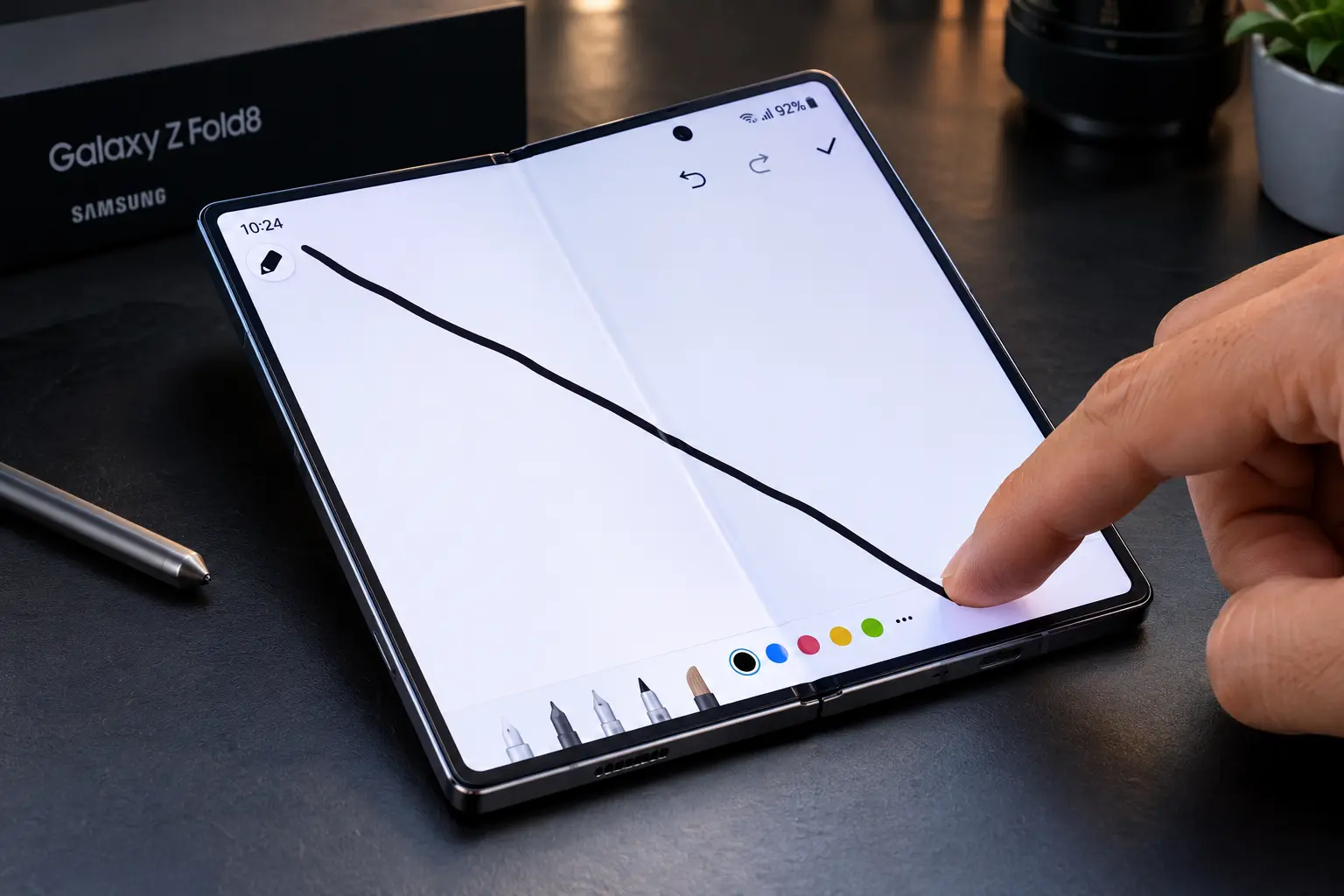
The touch test reveals digitizer failures that color tests cannot detect.
Step 5: The Corner Flex Test (The Z Fold 8 Specific Issue)
This is a controversial one, but it is essential for the Z Fold 8.
Some Z Fold 8 units have corners on the inner display that flex or "give" slightly when you press them with a finger. Samsung has stated publicly that this is a deliberate design feature, intended to absorb shock and protect the screen from debris like sand [citation:16][citation:22].
However, not all units exhibit this behavior. Some are completely rigid. If your unit has one corner that flexes significantly more than the others, or if the flex creates a visible gap between the display and the bezel, that is a potential quality control issue.
How to test it: With the phone open and the screen on, apply very gentle pressure to each corner of the inner display. Do not press hard. You are not trying to break it. You are just checking for consistency.
- All four corners feel the same: Normal.
- One corner feels noticeably softer: Potential defect. Document it with a video and contact Samsung.
- The display separates from the bezel: Definite defect. Return immediately.
This is not a test you can run with software. It is a physical inspection. And it is one that many Z Fold 8 owners wish they had done on day one.
What to Do If You Find a Defect
Here is the honest, no-nonsense advice I give to every customer who walks into my workshop with a defective foldable.
If you are within 14 days (New Purchase)
Return it. Do not accept a repair. Do not accept a "within spec" excuse. Samsung and its authorized resellers have a 14-day return policy in most regions. Use it. A new $1,800 phone should have a perfect screen [citation:11].
If you are past 14 days but within the 1-year warranty
File a warranty claim. Samsung is generally good about replacing screens with visible dead pixels or severe crease defects. However, they may refuse a claim if they determine the damage was caused by physical impact or pressure. Document the defect with clear photos on a solid gray background, and be persistent. Note that foldable screen repairs can be expensive, often in the $400–$700 range for the main display assembly [citation:27].
If you bought the phone used
You are in a tougher spot. If you have a dead pixel, you might have to live with it. If you have crease-line damage, it will likely get worse over time. For a complete guide to buying used devices safely, read my article on How to Test a Used Monitor Before Buying.
The One Mistake Everyone Makes
The biggest mistake I see is people testing their foldable screen using a static image they found on Google. They zoom in on a photo of a white screen, and the compression artifacts make it look like there are defects everywhere.
Do not do this. Use a proper diagnostic tool like Screen Medic. It generates true full-screen colors without compression artifacts.
Another mistake is testing with the phone in its case. A poorly fitted case can press on the edges of the inner display and create false pressure marks. Remove the case before testing.
Why I Built This Tool for Foldable Owners
I built Screen Medic because I was tired of seeing people get ripped off. I was tired of hearing the same story: "I bought a new foldable and it had a dead pixel along the crease, but I didn't notice until it was too late."
Our tool is free, it runs in your browser, and it doesn't track your data. It is the same diagnostic sequence I use in my workshop. Whether you are checking a new Z Fold 8, a used one, or a phone you just got back from repair, you can run the test in under 5 minutes.
If you want to test other devices, we also have a Universal Screen Test Guide that covers laptops, monitors, and TVs.
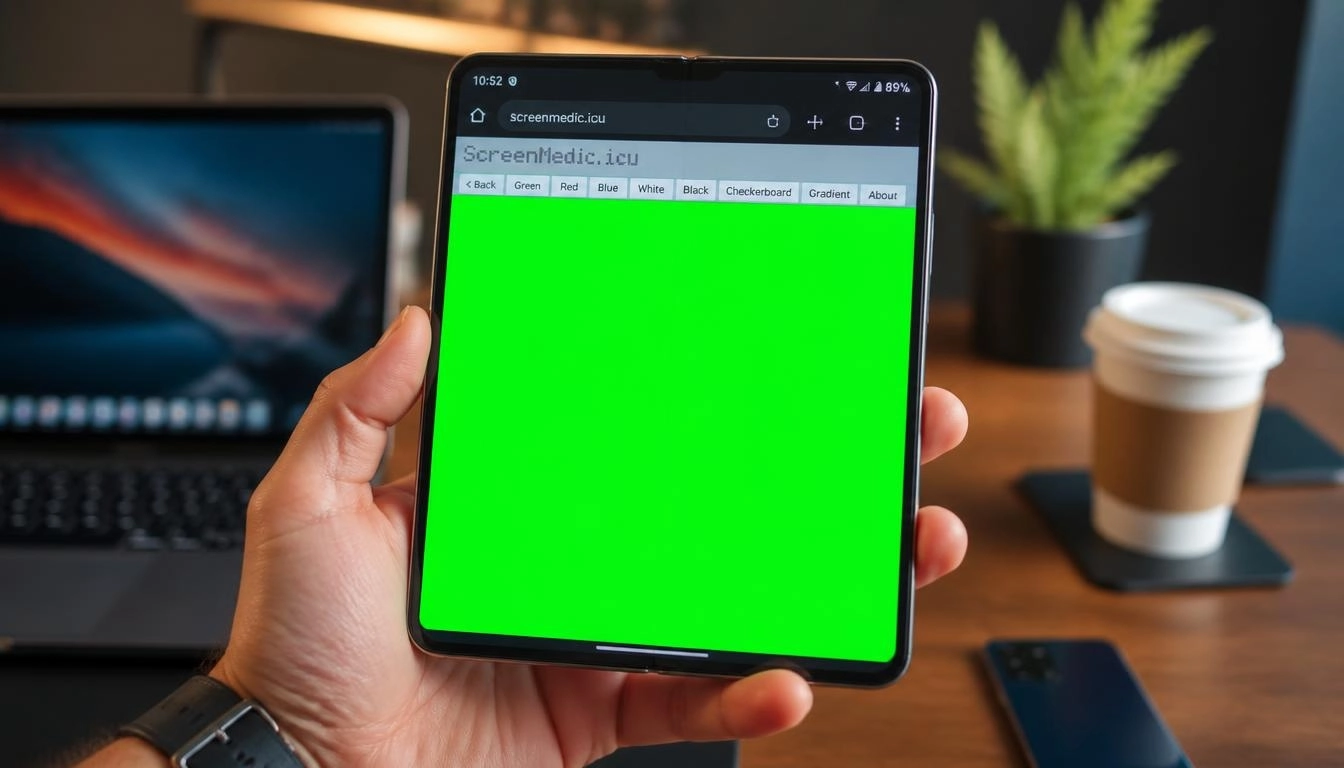
The free Screen Medic tool works on any foldable, no download required.
Frequently Asked Questions (FAQ)
Can I fix a dead pixel on a Galaxy Z Fold 8?
No. A dead pixel is a permanent hardware failure. No software, no pressure, and no app can fix it. The only solution is a screen replacement by Samsung or an authorized repair shop [citation:10].
Is the crease on the Z Fold 8 a defect?
No. Every foldable has a crease. It is a natural result of the folding mechanism. However, if the crease develops a visible line of dead pixels or if the touch stops working along the crease, that is a defect and should be covered by warranty [citation:8].
Why do the corners of my Z Fold 8 flex when I press them?
Samsung claims this is a deliberate design feature to absorb shock and protect the screen from debris [citation:16][citation:22]. However, if the flex is inconsistent (one corner feels different from the others) or if the display separates from the bezel, it is a quality control issue. Document it and contact Samsung.
How much does it cost to replace a Z Fold 8 screen?
Out of warranty, a main foldable display replacement can cost between $400 and $700 or more, depending on your region and whether you use Samsung's official service or a third-party repair shop [citation:27]. This is why testing on day one is so important.
Can I use a regular screen protector on the Z Fold 8?
No. The Z Fold 8 has a pre-installed protective film that is designed for the flexible display. Do not peel it off. If it gets damaged, have Samsung replace it. Using a generic screen protector can damage the panel when the phone folds [citation:27].
What is the difference between a dead pixel and a stuck pixel on a foldable?
A dead pixel is permanently black and never lights up. A stuck pixel is a bright red, green, blue, or white dot that stays on one color. Stuck pixels can sometimes be fixed; dead pixels cannot [citation:1].
Final Thoughts: Peace of Mind is Worth 5 Minutes
You spend a lot of money on a Galaxy Z Fold 8. You deserve to know that the screen is perfect. My challenge to you is simple: take 5 minutes right now, open our tool, and test your screen.
If it passes, you have peace of mind. If it fails, you have a clear case for a return or a warranty claim. And if you have any questions, my team and I are always here to help.
🔍 Test Your Galaxy Z Fold 8 Screen Now
Related Guides
- iPhone Screen Test: The Technician's Guide to Spotting Hidden Defects
- Dead Pixel vs Stuck Pixel: What's the Difference?
- The Stuck Pixel Fix That Actually Works
- What is a Dead Pixel? The Complete 2026 Guide
- What is Screen Burn-in? How to Detect, Prevent, and Fix It
- How to Test a Used Monitor Before Buying
- How to Test Your Monitor Like a Pro: 5 Essential Checks
- Screen Tests for Every Device: A Technician's Complete Guide
- OLED vs LCD: Which Display Technology Is Better?
- The Ultimate Monitor Buying Guide 2026
💬 Leave a Comment
Have a question or something to add? Share your thoughts below.
Loading comments...