 SCREEN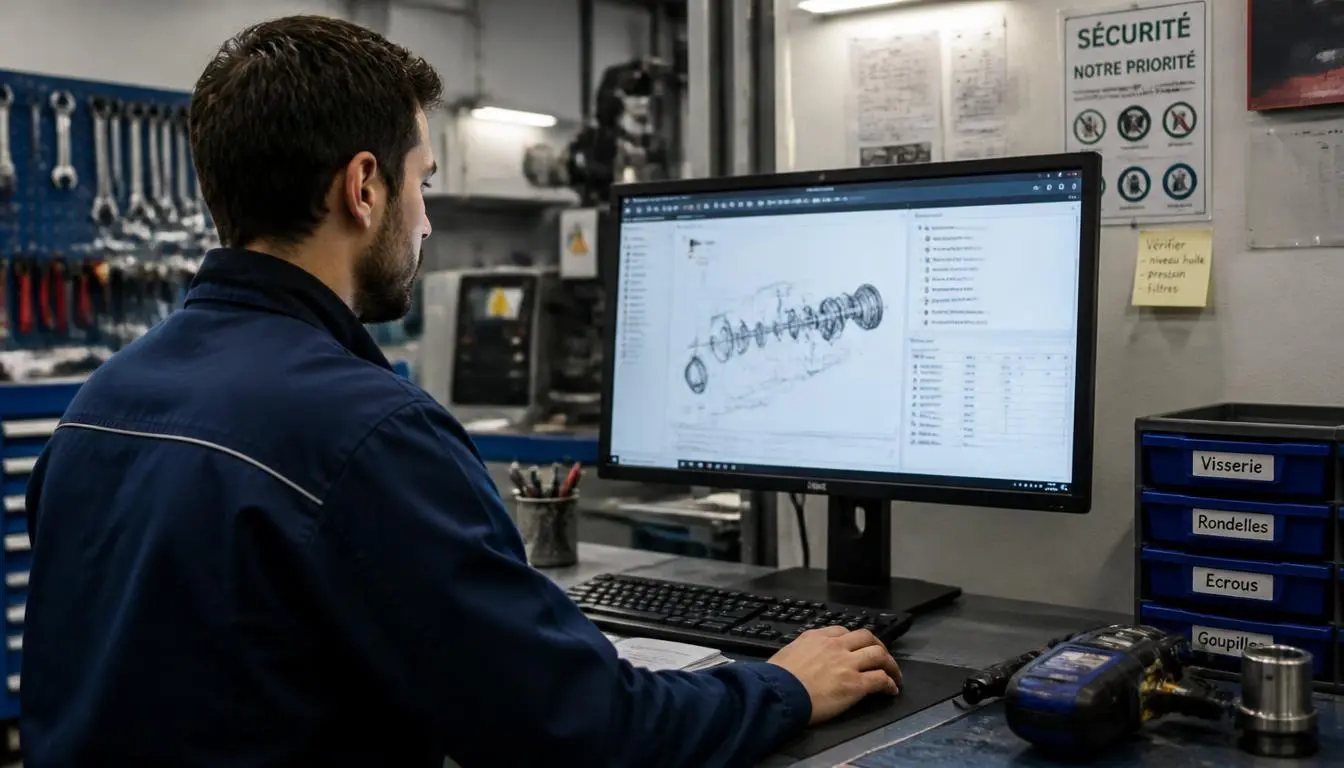
📌 Quick Summary: Every screen laptop, monitor, phone, tablet, TV, OLED can be tested using the same 5 minute method. I have run this test over 5,000 times in my workshop. This guide gives you the exact sequence, the device specific quirks, and the tools I actually use.
Why I Test Every Screen That Comes Through My Door
Twelve years ago, I almost lost a customer because of a single pixel. She brought me a used ThinkPad she had just bought online. The seller swore the screen was perfect. I turned it on, opened a white document, and there it was a tiny black dot in the upper-left quadrant. She had not noticed it. The seller claimed it was "shipping damage." It took me three hours to prove otherwise.
That day, I built my first proper screen test. Since then, I have refined it into a universal process that works on any device with a screen laptops, monitors, phones, tablets, TVs, OLED panels, even medical displays. I have run it more than 5,000 times. And I can tell you this with absolute confidence: every screen has a story, and the test tells you exactly what it is.
This guide is not a list of tools. It is the exact sequence I use, day after day, to decide whether a screen is worth buying, keeping, returning, or repairing. If you own a screen any screen this is the method you should be using.
The Universal Test: Same Method, Different Devices
Here is the truth most guides will not tell you: a screen test does not depend on the device. It depends on the screen technology and on what you are looking for. A laptop screen and a desktop monitor are the same panel behind different glass. A phone screen is a smaller version of the same. A TV is a larger version of the same. An OLED panel is a different technology, but the test sequence is almost identical.
So forget the device. Focus on the test. Here is the exact sequence I run every time, on every screen:
- Dead pixel and stuck pixel detection: the first test, always
- Uniformity check: the test that reveals quality
- Ghosting and motion clarity: the test that matters for gaming
- Refresh rate verification: the test most people skip
- Burn in scan: the test every OLED owner must run
If you own a device with a screen, you can run all five in under five minutes using our free Screen Medic diagnostic tool. No download. No signup. No data collection.
Now let me walk you through each test, and then I will tell you how the test changes slightly depending on the device.
Test 1: Dead Pixel and Stuck Pixel Detection
Time required: 60 seconds
Devices: All
Difficulty: Easy
This is the first test I run on every screen, without exception. It is also the test that most people get wrong, because they do not know what they are looking for.
A dead pixel is a pixel that never lights up. It appears as a tiny black dot, visible on every background including a full white screen. A stuck pixel is a pixel that stays on a single color red, green, blue, or white and does not change. The difference matters enormously, because one is permanent and the other is often fixable.
To run this test, display five solid colors in fullscreen: white, black, red, green, blue. Inspect each one carefully, quadrant by quadrant. A dead pixel will stay black on all five. A stuck pixel will disappear on one specific color the one matching its own stuck color.
If you find a stuck pixel, do not panic. Read my guide on 5 Methods to Fix Stuck Pixels. About 70% of stuck pixels can be fixed at home in under 20 minutes. If you find a dead pixel, the situation is different and I cover it fully in my Complete Dead Pixel Guide.

A dead pixel revealed on a white background — the first test I run on every screen
Test 2: Uniformity Check (The Test That Reveals Quality)
Time required: 60 seconds
Devices: All, but especially important on LCD
Difficulty: Easy
Uniformity is the most overlooked screen quality on the market. It refers to how evenly your screen displays brightness and color across its entire surface. A perfect screen shows a pure, even white from corner to corner. In reality, most screens have some degree of non-uniformity and the question is how much is acceptable.
To test uniformity, display three solid fullscreen images: pure white, 50% gray, and pure black. Inspect each one in a dark room.
- On white: look for color tinting yellow, pink, or blue patches
- On gray: look for blotchy patches, called "clouding"
- On black: look for light leaking from the edges, called "backlight bleed"
IPS panels are especially prone to backlight bleed in the corners. VA panels often show clouding on gray. OLED panels almost never show uniformity issues one of their biggest advantages.
If the uniformity issue is severe and you are still within the return window, return the screen. Do not accept a "within spec" answer from a manufacturer. You paid for a quality product hold them accountable. For more on this, read my guide on choosing the perfect screen.
Test 3: Ghosting and Motion Clarity (The Gamer's Test)
Time required: 30 seconds
Devices: Monitors, laptops, phones, TVs
Difficulty: Easy
Ghosting is a motion artifact where moving objects leave a blurry trail behind them. It is the single most common complaint I hear from gamers, and it is almost always fixable but only if you know how to test for it and how to fix it.
To test ghosting, display a fast-moving object a square, a UFO, a racing car and watch for trailing. Our free diagnostic tool includes a dedicated ghosting test with moving patterns. You can also use the Blur Busters UFO Test at testufo.com.
Here is how to interpret what you see:
- Faint trail behind moving objects → regular ghosting, response time too slow
- Bright halos around moving objects → inverse ghosting, overdrive too high
- Sharp, clean motion → your screen is well configured
If you see ghosting, do not blame your screen yet. The fix is usually a single setting in the monitor's on-screen display called "overdrive," "response time," or "trace free." I cover this in detail in my Monitor Ghosting Explained guide. In 9 out of 10 cases, ghosting disappears in under five minutes of tweaking.

The ghosting test — a fast-moving pattern reveals motion blur and trailing
Test 4: Refresh Rate Verification (The Test Everyone Skips)
Time required: 10 seconds
Devices: Monitors, laptops, phones, TVs
Difficulty: Easy
This is the test that makes the biggest difference for the smallest effort. Most people who buy a 144Hz or 240Hz monitor never actually enable the higher refresh rate in their operating system. They pay for premium hardware and use it at 60Hz for years without realizing it.
To verify your refresh rate:
- Windows: Right-click desktop → Display settings → Advanced display settings → Choose a refresh rate
- macOS: System Settings → Displays → Refresh Rate
- Phone: Settings → Display → Refresh rate (or "Smooth display")
- TV: Settings → Picture → Motion → Refresh rate
If the option is grayed out or missing, you likely need a better cable. HDMI 1.4 caps at 144Hz for 1080p. For 4K at 120Hz or 1440p at 240Hz, you need DisplayPort 1.4 or HDMI 2.1. For a full breakdown of refresh rates, read my Refresh Rate Guide.
One quick note for phone owners: most modern phones have a "smooth display" toggle hidden in the battery settings. Apple and Samsung often disable it by default to save battery. If you own a 120Hz phone, check this setting first.
Test 5: Burn-In Scan (The Test Every OLED Owner Must Run)
Time required: 60 seconds
Devices: OLED TVs, OLED monitors, OLED laptops, AMOLED phones
Difficulty: Easy
If you own an OLED display, this is the test you must run every month. OLED panels can develop burn in permanent ghost images left behind by static content like logos, taskbars, or game HUDs. Burn-in is not fixable. But it is preventable, and it is often confused with a temporary problem called "image retention," which is fixable.
To test for burn-in, display five solid colors in fullscreen white, gray, red, green, blue and inspect each one for ghost images. A faint logo, a menu bar, or a taskbar silhouette visible on gray is the classic sign of uneven pixel aging.
Here is how to tell the difference:
- If the ghost disappears after 1 hour off → image retention. Fixable.
- If the ghost persists after 1 hour off → true burn-in. Not fixable, but manageable.
I cover every prevention and mitigation strategy in my Complete Screen Burn-In Guide. If you have confirmed burn-in and want to try reducing it, my 5 Proven Methods to Fix Screen Burn-In walks you through every option.
How the Test Changes by Device
The five tests above are universal but the way you run them changes slightly depending on the device. Here is what I do differently on each one.
Laptop Screens
Laptops are the most common device I test. The main difference is brightness control: laptop screens often limit brightness on battery, which can mask uniformity issues. Plug the laptop in, set brightness to 100%, then run the tests. Also: laptop screens are smaller, so dead pixels are harder to spot. Move your face closer to the screen during the dead pixel test.
Desktop Monitors
Monitors are the easiest to test larger screen, more controls, and usually a built-in on-screen display (OSD) with overdrive and color settings. The one thing to watch for on monitors is black frame insertion, a feature that can interfere with the ghosting test. Disable it before testing.
Phone Screens
Phone screens are tricky because of auto-brightness and adaptive color. Turn both off before testing. Also, phones often have a hidden "smooth display" or "120Hz" toggle that must be enabled manually check your settings. Dead pixels on phones are rare but stuck pixels are surprisingly common on older AMOLED panels.
Tablet Screens
Tablets are a hybrid some have LCD panels, some have OLED, and the test sequence is the same as for phones and laptops. The main quirk is true tone or adaptive color, which changes color temperature based on ambient light. Turn these off before running the uniformity test.
TV Screens
TVs are the hardest to test, because most of them lack a built-in solid-color test mode. The trick is to use a USB stick with fullscreen color images loaded onto it, or to open our free diagnostic tool in the TV's browser. Also, disable motion smoothing before running the ghosting test it interferes with the result.
OLED Displays
OLED panels require all five tests, but with extra attention to the burn-in scan. They also do not need the ghosting test as much OLED pixel response is near-instant. Skip the ghosting test on OLED and spend the extra time on the burn-in scan instead.
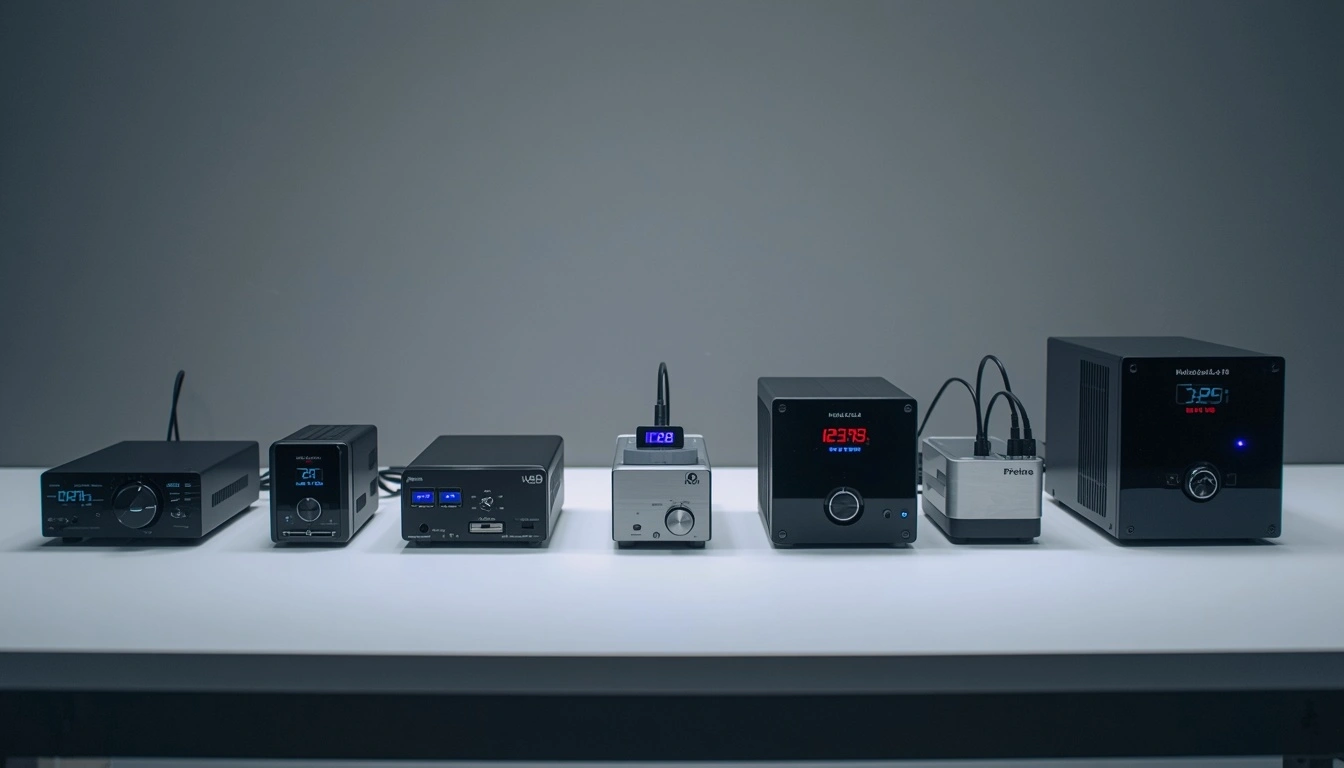
The same method, applied to every device that comes through my workshop
What I Do With the Results
Here is how I use the results, in the real world:
- If the screen is new (under 30 days): any defect means return. Do not try to fix it. Do not accept a "within spec" answer. Return it.
- If the screen is under warranty: dead pixels above the brand threshold (usually 3+) qualify for a warranty replacement. Document everything with photos.
- If the screen is out of warranty: stuck pixels can often be fixed. Dead pixels cannot. Burn-in can be managed but not reversed.
- If the screen is being sold used: run the full test before buying. A single dead pixel can reduce a monitor's value by 30–50%. Use it as a negotiating tool.
The Tools I Actually Use
People always ask me what software I use in the workshop. Here is the honest answer: almost none. The five tests above run entirely in a browser, using our free Screen Medic diagnostic tool. I do not need dedicated software, and neither do you.
The only paid tool I recommend is a hardware colorimeter like the Datacolor Spyder or X-Rite i1Display but only if you do professional color work. For 95% of people, the five tests above are all you need.
If you want a broader view of the display testing process, I recommend my guide on how to test your monitor like a pro. It covers the same five checks with more detail on each one.
Final Thoughts: Every Screen Has a Story
After 5,000 tests, I still find each one interesting. A screen tells you everything about its history whether it was handled roughly, whether it was exposed to heat, whether it was used for gaming or for spreadsheets, whether it sat in a dark room or next to a window. The five tests above are the fastest way to read that story.
If you remember only one thing from this guide, remember this: the test is universal. The device is not. Run the five checks, adapt slightly for the device in front of you, and you will know more about your screen in five minutes than most people learn in five years.
And if you want to run all five checks in one go, use our free Screen Medic diagnostic tool. It takes 60 seconds, costs nothing, and works on every screen you own.
🔍 Run the Universal Screen Test Now
Related Guides
- What is a Dead Pixel? The Complete 2026 Guide
- 5 Methods to Fix Stuck Pixels: Proven Solutions
- Monitor Ghosting Explained: Causes & Fixes
- What is Screen Burn-In? Detect, Prevent, Fix
- Refresh Rate Guide: 60Hz vs 120Hz vs 144Hz vs 240Hz
- How to Test Your Monitor Like a Pro: 5 Essential Checks
- The Ultimate Monitor Buying Guide 2026
💬 Leave a Comment
Have a question or something to add? Share your thoughts below.
Loading comments...