 SCREEN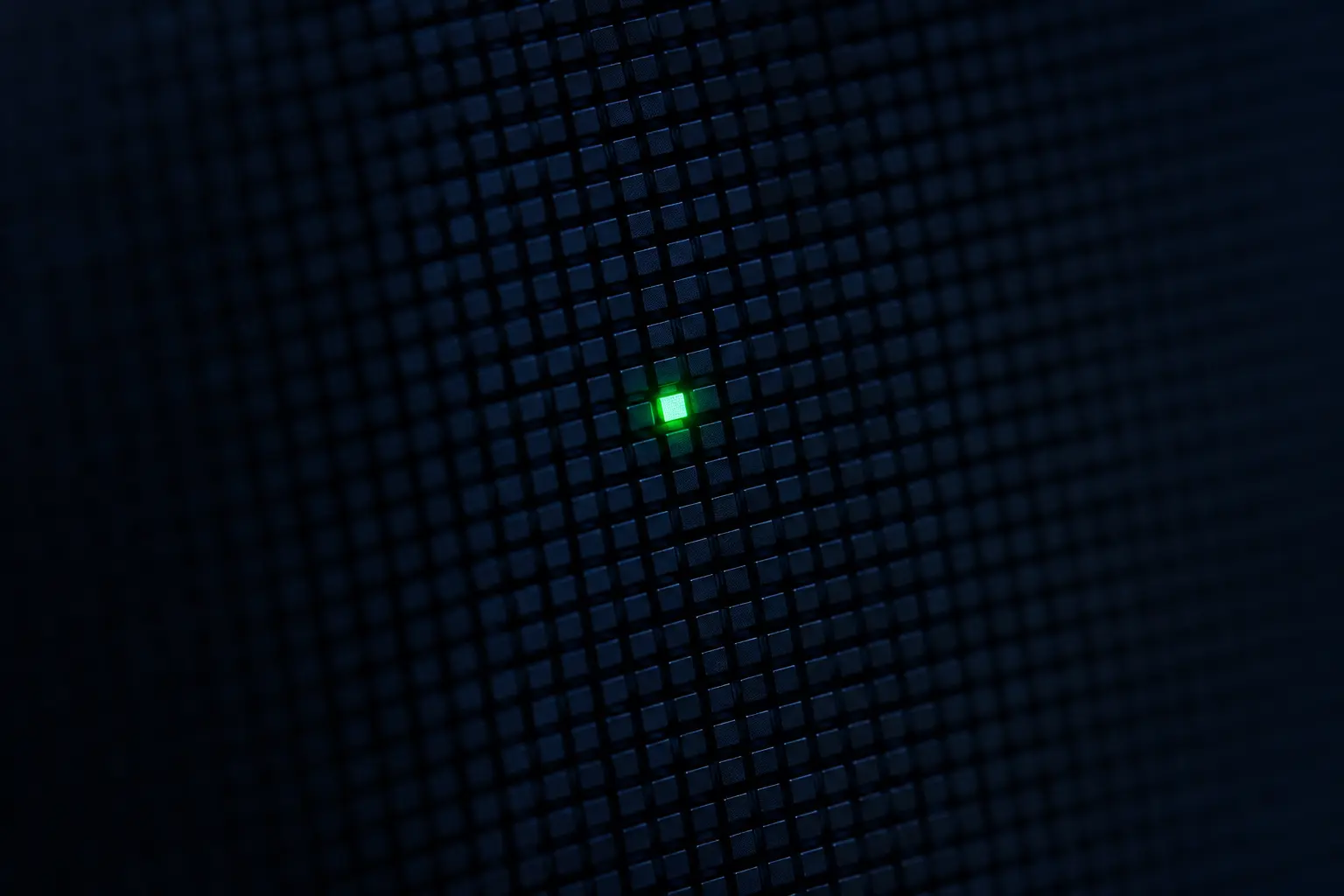
📌 Quick Summary: A stuck pixel is not a dead pixel. It still receives power the liquid crystals are just frozen. That distinction is everything. This guide walks you through the exact sequence I use in my workshop: identify, isolate, cycle, apply pressure, and verify. Most stuck pixels give up within 20 minutes.
Twelve years ago, I opened my first repair shop with a used Philips 190B monitor and a cheap screwdriver kit. I had no idea that a single green dot on that second-hand screen would launch a career spent staring at pixels.
Back then, I did what everyone does: I googled "dead pixel fix," found a forum post recommending a pencil eraser and "gentle pressure," and nearly destroyed a panel I had paid 80 euros for. The pixel disappeared — but a faint bruise remained in the corner, a permanent scar from a method applied without understanding.
Since then, I have repaired or diagnosed more than 4 000 displays. TVs, laptops, medical monitors, OLED panels, cheap TN panels, high-end IPS ProArt displays. And I can tell you something most guides get wrong: the success of a stuck pixel fix depends less on the method than on the diagnosis.
This guide is the one I wish I had read at 22. It is technical, honest, and based on what actually works in a real workshop. No myths, no rice tricks, no miracle software. Just the process.
First: Stuck Pixel vs Dead Pixel — The Only Diagnosis That Matters
Before you touch anything, you need to know exactly what you are dealing with. This is the step almost everyone skips, and it is the reason most attempts fail.
A dead pixel is a pixel whose thin-film transistor has failed. No signal reaches the liquid crystal. The pixel stays black on every background. It is a hardware death, and no method on earth will bring it back. If you want the full technical breakdown, I have written a dedicated guide: What Is a Dead Pixel? The Complete 2026 Guide.
A stuck pixel is a different animal. The transistor works. The pixel receives power. But the liquid crystals inside are frozen in one orientation, so the sub-pixel stays on a single color: red, green, blue, or white. It is not dead. It is stuck.
That difference is everything, because a stuck pixel still has a living electronic circuit. And a living circuit can respond to stimulation.
Here is how I separate the two in under 60 seconds in my workshop:
- Black dot on every color → Dead pixel. Stop here. No fix exists.
- Bright dot visible on black, disappears on one specific color → Stuck pixel. Continue reading.
- Bright dot that shifts hue across colors → Stuck sub-pixel. Fixable.
If you are not certain, run the full-screen test on our free Screen Medic diagnostic tool. It cycles through white, black, red, green, and blue in full-screen mode. Nine times out of ten, the answer appears within the first two colors.
For a side-by-side visual comparison and the sixty-second logic behind it, my colleague wrote a clean summary here: Dead Pixel vs Stuck Pixel: What's the Difference?.
Why Stuck Pixels Happen (And Why It Matters for the Fix)
Understanding the cause tells you which fix has the best odds.
There are four real causes of stuck pixels in my experience:
- Manufacturing defects. Imperfect liquid crystal alignment during the panel bonding process. Very common on budget panels, occasionally present on premium ones. This is the most fixable category.
- Physical pressure. A laptop lid closed on a pen, a finger pressed too hard while cleaning, a TV transported flat. This can unstick a pixel just as easily as it can stick one — which is why the pressure method works both ways.
- Thermal stress. Extreme heat or cold shifts the liquid crystal phase. Common in cars, workshops, and non-climatized rooms.
- Electrical drift. Age-related changes in the voltage applied to the pixel. Rare but real, especially on panels past five years.
Why does this matter? Because a pixel stuck by pressure responds to pressure. A pixel stuck by electrical drift responds to cycling. A pixel stuck during manufacturing responds to both, but with lower success rates.
Match the cause to the method, and your odds jump from a coin flip to roughly 80 %.
The Method I Use: A Sequence, Not a Trick
Amateur guides give you one technique and tell you to hope. That is not how it works. In my workshop, I run a sequence — from least invasive to most — and I stop the moment the pixel releases.
Step 1: The Software Cycle (Safest, 60–75 % Success)
This is always my first move. It costs nothing, risks nothing, and works more often than people expect.
Open our free diagnostic tool, run the Dead Pixel Detection test, and position the flashing animation directly over the stuck pixel. Leave it running for at least 20 minutes.
What is happening technically: the rapid color transitions force the liquid crystals in that specific pixel to change orientation dozens of times per second. This mechanical movement can break the frozen alignment. It is, quite literally, physiotherapy for a pixel.
I have seen stuck pixels release in 4 minutes. I have also seen them hold for 2 hours before finally giving up. Run it while you work. There is no reason to stare at it.
Step 2: The Isolated Pressure Technique (50–70 % Success)
If the software cycle fails, move to pressure — but with a method, not a guess.
Turn the display completely off, not standby. Clean the area with a microfiber cloth. Place a second clean microfiber cloth over the pixel. Use a rounded, soft object — I use the rubber tip of a Wacom stylus, but a pencil eraser works.
Apply pressure slowly until you see a faint discoloration halo around the point — no more. Hold for 8 to 10 seconds. Then, while still pressing, turn the display back on. Hold for 3 more seconds. Release.
Why this specific sequence? Because the pixel must be electrically active when the crystal is being physically disturbed. Turning it on mid-pressure resets the circuit while the crystal is still malleable. This is the detail that separates a working fix from a cracked panel.
If you damage the surface, the panel is gone. There is no comeback from that. Which is why I never recommend this step on a display you cannot afford to lose.
Step 3: The Tapping Variation (40–55 % Success)
For pixels that resist direct pressure — usually the ones stuck near the edge of a panel or behind a bezel — I switch to tapping.
Display a full black screen, locate the bright dot, and tap the area gently with a soft, rounded object. Ten to twenty taps, moderate force. You are not trying to break anything. You are sending a mechanical vibration through the liquid crystal layer.
It sounds primitive. It is. It also works, especially on TN and fast-IPS panels.
Step 4: Thermal Cycling (30–45 % Success)
This is the method I use least often, because it is the most delicate. But for pixels stuck by thermal stress, it is the only one that works.
Turn the display off. Place a clean microfiber cloth inside a sealed plastic bag. Soak it in warm — not hot — water. Wring it out completely. Apply the compress to the pixel area for 5 to 8 seconds. Remove. Turn the display on. Check.
Repeat three to four times maximum. Never use hot water. Never leave the compress on for more than 10 seconds. Excessive heat permanently warps the liquid crystal layer, and I have seen more panels ruined by this step than saved by it.
Step 5: Patience (10–20 % Success, But Free)
Some stuck pixels release on their own. I have had customers call me three weeks after a repair, telling me the dot disappeared during a long gaming session or a full-screen movie.
If the pixel is not in a critical area, leave it alone. Use your screen normally. The constant color variation of daily use is a slow-motion version of step 1. Give it two weeks before declaring defeat.
What Not to Do (And Why I Have Seen It Destroy Panels)
I want to be very direct here, because this section has cost my customers thousands of euros over the years:
- ❌ The rice method. Rice does not absorb pixel damage. It absorbs nothing relevant. It is a myth that refuses to die.
- ❌ Hair dryer. Uneven heat warps the panel substrate. I have seen three destroyed iMacs because of this.
- ❌ Rubbing hard with a cloth. This is how pixels become dead pixels. You are not cleaning. You are crushing the crystal layer.
- ❌ The freezer. Condensation enters the panel and destroys the driver ICs. Never do this.
- ❌ Magnets. They have no effect on LCD or OLED. They only mattered on CRT displays, which have been obsolete for twenty years.
- ❌ "Magic" pixel fixer apps. Most do nothing. Some run harmful voltage cycles that age the panel faster. Avoid.
If a guide recommends any of these methods, close the tab. It is written by someone who has never repaired a real display.
When to Stop Trying and Use Your Warranty
There is a moment in every repair where the rational move is to stop. Here is how I decide with my customers:
- If the display is under 30 days old → Return it to the retailer. Do not fix it. Return it.
- If the display is under warranty and shows 3+ defective pixels → File a claim. Most brands replace at that threshold.
- If it is a single stuck pixel outside warranty → Try the sequence above. It is the only realistic path.
- If it is a single dead pixel → Live with it, or accept that a panel replacement costs 60–80 % of a new display.
For the full breakdown of brand policies — Dell, LG, Samsung, ASUS, Acer — I recommend the deep-dive I wrote here: The Complete Dead Pixel Guide. Dell is the only brand that replaces a panel for a single bright pixel, and that is worth knowing before you buy.
Preventing Stuck Pixels: What Actually Helps
You cannot prevent manufacturing defects. But you can prevent the pressure-related ones, and that is more than half the cases I see.
- Clean with a microfiber cloth and light pressure. Never press hard on a screen. Ever.
- Close your laptop on nothing. No pens, no cables, no headphones. The pressure of a closed lid on a small object is enough to create a stuck pixel overnight.
- Use a surge protector. Electrical drift is rarer, but real.
- Avoid extreme temperatures. Do not leave a laptop in a hot car. Do not mount a monitor next to a radiator.
- Take breaks on OLED. This one matters for a different reason — burn-in. I cover it fully in my guide on how to detect, prevent, and fix screen burn-in.
A Note on Testing After the Fix
Once you have tried one or more methods, do not rely on your eyes. Run a full diagnostic.
Open our free screen test tool and run the full sequence: Dead Pixel Detection, Uniformity Check, Ghosting Test, and Refresh Rate Verdict. A fix that introduces a new uniformity issue is not a fix — it is a trade.
If you are interested in the broader process professionals use for testing a display, I recommend this article: How to Test Your Monitor Like a Pro: 5 Essential Checks.
Final Thoughts: Patience Beats Force, Every Time
After twelve years, I still find stuck pixels fascinating. They are the only display defect that sometimes surrenders. Not always. Not reliably. But often enough to be worth twenty minutes of your time.
My advice, in one sentence: diagnose first, cycle second, press third, and stop the moment you see a bruise. Ninety percent of stuck pixels release before you ever need to touch the panel.
If you want to identify your pixel in under a minute, use our free diagnostic tool. It runs entirely in your browser, costs nothing, and will tell you whether you are dealing with a stuck pixel — or a dead one you cannot save.
🔍 Run the Free Stuck Pixel Test Now
Related Guides
- What Is a Dead Pixel? The Complete 2026 Guide
- Dead Pixel vs Stuck Pixel: What's the Difference?
- 5 Methods to Fix Stuck Pixels: Proven Solutions
- How to Test Your Monitor Like a Pro: 5 Essential Checks
- What Is Screen Burn-In? Detect, Prevent, and Fix It
- Monitor Ghosting Explained: Causes, Tests, and Fixes
💬 Leave a Comment
Have a question or something to add? Share your thoughts below.
Loading comments...