 SCREEN
📌 Quick Summary: You do not need an app or a computer to run a professional iPhone screen test. In my workshop, I use a 5-minute, 6-step visual inspection that reveals dead pixels, OLED burn-in, and touch unresponsiveness. This guide walks you through the exact process, the defects to look for, and the truth about Apple's warranty policy.
Every week, someone brings me an iPhone with a screen defect they discovered too late. The return window is closed, the warranty claim is denied, and they are left with a $300 repair bill for a problem that was there on day one.
As a display technician, I can tell you that the vast majority of iPhone screen defects are not random failures. They are manufacturing imperfections that were present from the factory but invisible to the naked eye. They only become noticeable weeks later, when the user is watching a dark movie or reading a white webpage.
That is why I developed this specific iPhone screen test. It is not a generic color flasher. It is a targeted sequence designed to expose the specific weaknesses of the OLED panels Apple uses in modern iPhones. It takes five minutes, it requires no downloads, and it could save you hundreds of dollars.
A professional inspection reveals defects that are invisible in daily use
Before You Start: The 3 Rules of a Valid iPhone Screen Test
If you run a test without following these three rules, you will get false results. I have seen people panic over dust particles or conclude their screen is perfect when it is not.
Rule 1: Clean the Screen (Properly)
Microfiber cloth only. No paper towels, no tissues, no harsh chemicals. A single speck of dust on a white background looks exactly like a dead pixel. A smudge on a black background can look like a bright stuck pixel. Clean the screen, then clean it again.
Rule 2: Disable True Tone and Night Shift
These are Apple's automatic color temperature features. They change the white balance of your screen based on the ambient light in the room. If they are active during your test, the colors will be inaccurate, and you might misdiagnose a uniformity issue that does not exist. Go to Settings > Display & Brightness and turn both off.
Rule 3: Set Brightness to 100%
Defects are easiest to spot at maximum brightness. More importantly, testing at 100% brightness mimics the worst-case scenario for OLED degradation. If a defect is invisible at maximum brightness, it is not a significant problem.
Step 1: The Dead Pixel and Stuck Pixel Test
This is the foundational test. It is the one everyone knows, but it is also the one most people do wrong. They cycle through the colors for 10 seconds and call it a day. You need to be methodical.
Open our free iPhone Screen Test tool and enter fullscreen mode. The tool will cycle through five colors: White, Black, Red, Green, and Blue.
On the White screen: Look for black dots. These are dead pixels. They will not change color. Pay special attention to the edges and the area around the Dynamic Island.
On the Black screen: Look for bright dots (red, green, blue, or white). These are stuck pixels. They are receiving power but are frozen on a single color. For a complete breakdown of the difference, read our guide on Dead Pixel vs Stuck Pixel.
On the Red, Green, and Blue screens: Look for dots that appear in a different color than the background. For example, on a red screen, a dead pixel will be black, but a stuck green sub-pixel will appear as a bright green dot. This test reveals sub-pixel failures that are invisible on white or black.
Step 2: The Dark Room OLED Burn-In Test
This is the step that most people skip, and it is the most critical test for any modern iPhone. Every iPhone since the X uses an OLED display. OLEDs are beautiful, but they are vulnerable to burn-in.
Burn-in is the permanent ghost image left behind by static content. The status bar at the top of your screen, the keyboard at the bottom, or a game HUD. Over hundreds of hours, those pixels age faster than the rest of the screen. The result is a faint, permanent shadow.
How to test for it: Take your iPhone into a completely dark room. A closet or a windowless bathroom is perfect. Set the brightness to 100%. Open our tool and display a solid 50% gray image.
Look for ghostly outlines. A faint rectangle where the keyboard usually sits? A ghost of the battery icon in the corner? A subtle shape of a TikTok or Instagram logo?
- If the ghost fades after 10 minutes: This is image retention, a temporary condition. It is not permanent damage.
- If the ghost remains sharp and visible: This is true burn-in. It is permanent. If your phone is under warranty, document it immediately and file a claim.
For a complete guide to preventing and managing this, read our article on Screen Burn-In: Detect, Prevent, and Fix It.
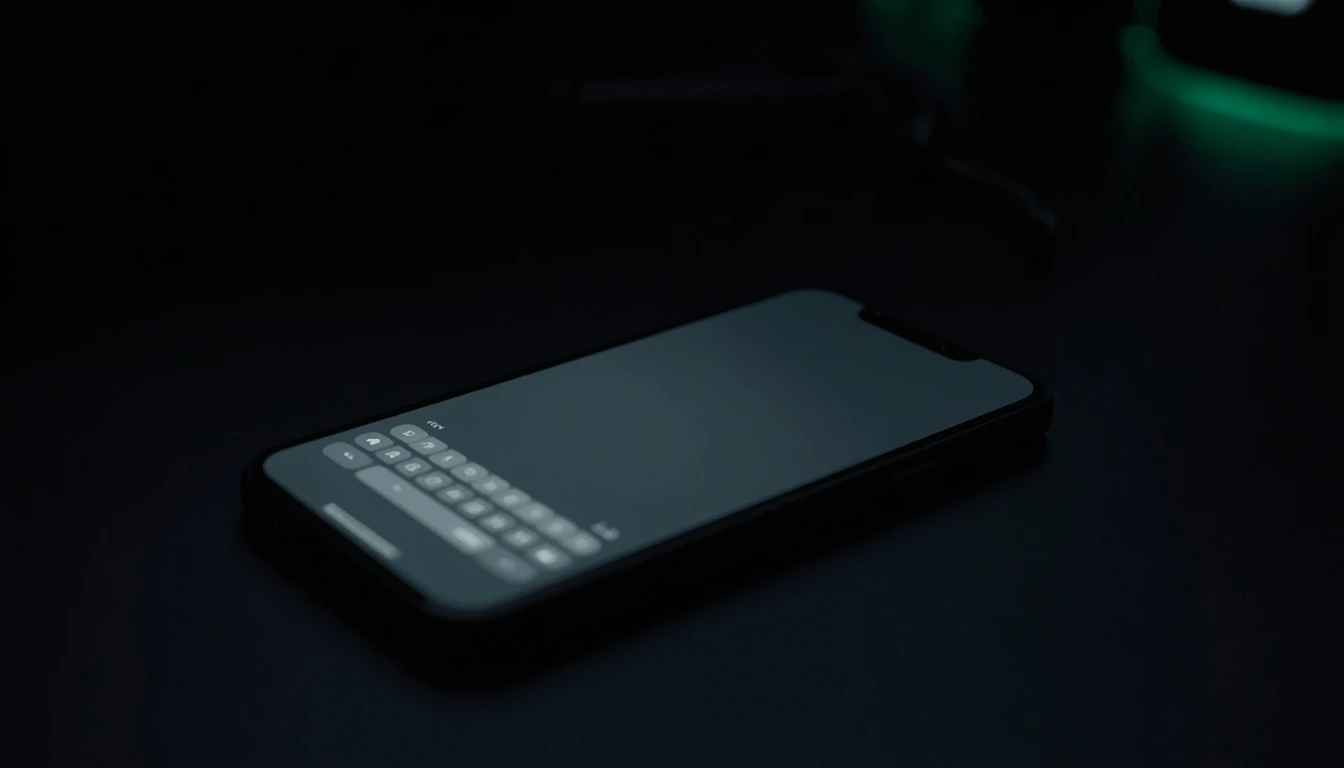
The gray screen test reveals OLED burn-in that is invisible on white backgrounds
Step 3: The Uniformity Test
A high-quality OLED panel should display colors evenly. If one area of the screen is slightly dimmer, or has a different color tint than another area, it is a sign of uneven pixel aging.
Display a pure white screen and a 50% gray screen again. Look at the screen from straight on.
Does the top edge look slightly yellow while the bottom looks blue? Is there a "dirty" patch in one corner? This is common on older, used iPhones, but it should not be present on a new device. If you see this on a phone you just bought, return it.
Step 4: The Touch Response Test (The Overlooked Step)
Your iPhone screen is not just a display. It is a touch digitizer. A defect in the digitizer will not show up in any color test, but it can make your phone frustrating to use.
Open the Notes app and select a thick pen. Draw a continuous line across every inch of the screen. Go around the edges, through the corners, and across the center.
Look for breaks in the line. If the line stops or jumps, it means the touch panel is not registering your finger in that specific spot. This is a hardware defect that requires a screen replacement. It is rare, but it happens, especially on phones that have been dropped or repaired with low-quality parts.
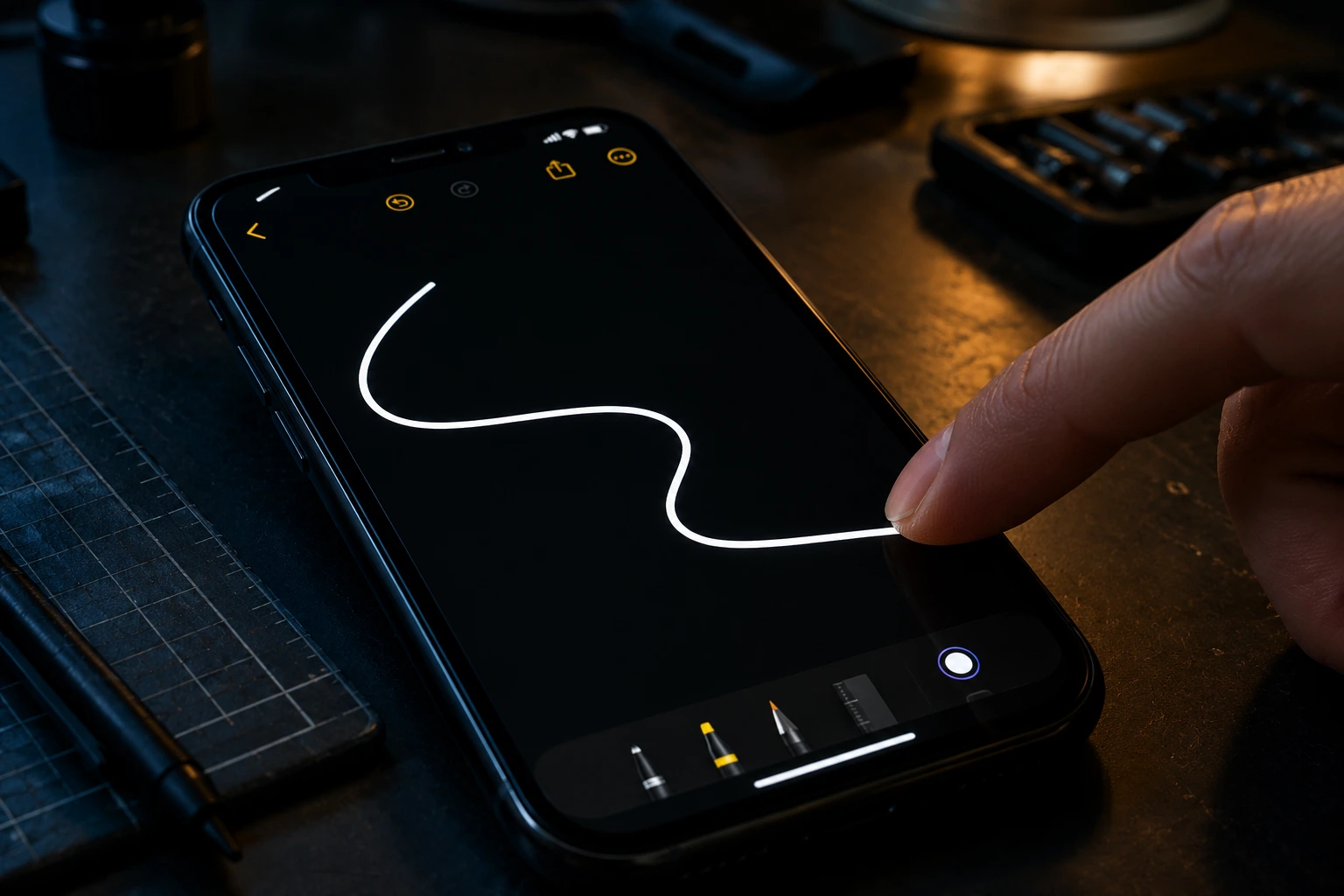
The touch test reveals digitizer issues that color tests cannot detect
Step 5: The "True Tone" Test (For Used iPhones)
If you are buying a used iPhone, this is the most important test on this list. Apple locks the True Tone feature to the original screen. If the phone has been repaired with a third-party screen, True Tone will often be disabled.
Go to Settings > Display & Brightness. Look for the True Tone toggle. If it is missing, or if it is present but does nothing when you toggle it, the screen is not original. This is a major red flag for a used purchase, as it indicates a previous repair. It does not necessarily mean the screen is bad, but it means you should negotiate the price down.
Step 6: The Color Shift Test (For OLED iPhones)
OLED screens are known for their excellent viewing angles. If you tilt your phone slightly, the colors should remain accurate. If you notice a significant color shift (for example, the whites turn blue or pink) when you tilt the phone even a few degrees, it could be a sign of a low-quality replacement panel or a defective OLED layer.
What to Do If You Find a Defect
This is where most guides give you bad advice. They tell you to try to "fix" the defect. Do not do that. Here is the truth about iPhone screen defects.
If the Phone is Under 14 Days Old
Return it. Do not accept a repair. Do not accept a "within spec" excuse. Apple and its authorized resellers have a 14-day return policy. Use it. A new phone should have a perfect screen.
If the Phone is Under Warranty (1 Year)
File a warranty claim. Apple is generally good about replacing screens with visible dead pixels or severe burn-in under the standard one-year warranty. However, they may refuse a claim for a single dead pixel that is considered "within spec." Document the defect with clear photos and be persistent.
If the Phone is Out of Warranty
You have two options: live with it, or pay for a replacement. A screen replacement for an iPhone 15 Pro costs between $229 and $379 at a repair shop [citation:4]. For older models, it is cheaper. If the defect is a single dead pixel in a corner, most people choose to live with it. If it is a large patch of burn-in in the center of the screen, a replacement is the only real solution.
If you want to try a last-resort software fix for a stuck pixel, read our guide on The Stuck Pixel Fix That Actually Works. Just do not expect miracles for a dead pixel.
Frequently Asked Questions (FAQ)
Can a dead pixel on an iPhone fix itself?
No. A dead pixel is a permanently failed transistor. It will not come back to life. A stuck pixel, however, can sometimes be revived with software cycling. You can read our guide on how to do that.
Does Apple warranty cover dead pixels?
Yes, but with conditions. Apple typically replaces screens with multiple dead pixels or a single dead pixel in a central, highly visible area. They may refuse a claim for a single dead pixel near the edge. The return window (14 days) is your best opportunity to get a replacement without hassle.
Is it normal for an OLED iPhone screen to look slightly grainy?
On a pure white screen at low brightness, some OLED panels can exhibit a very subtle "grain" or texture. This is a normal characteristic of the technology and is not a defect. However, if the grain is severe or accompanied by visible lines, it could be a sign of a faulty panel.
How do I know if my iPhone screen is original?
The most reliable way is to check for the True Tone toggle in Settings > Display & Brightness. If it is missing, the screen has likely been replaced with a non-original part. You can also check the serial number with Apple, but that is a more involved process.
Can I use an app to test my iPhone screen?
Yes. There are apps on the App Store that offer screen tests. However, our browser-based tool is faster, requires no download, and runs entirely in your browser. It is the same tool I use in my workshop.
Final Thoughts: The 5-Minute Investment
An iPhone screen test is not about being paranoid. It is about being smart. You spent hundreds of dollars on this device. Five minutes of testing is a small investment to ensure that you got what you paid for.
Run the test when you unbox a new phone. Run it when you buy a used phone. Run it if you notice a weird dot or a faint shadow. The information you gain is worth the time.
If you want to run the full test right now, use our free diagnostic tool. It takes less than 60 seconds, costs nothing, and works on any iPhone.
💬 Leave a Comment
Have a question or something to add? Share your thoughts below.
Loading comments...