 SCREEN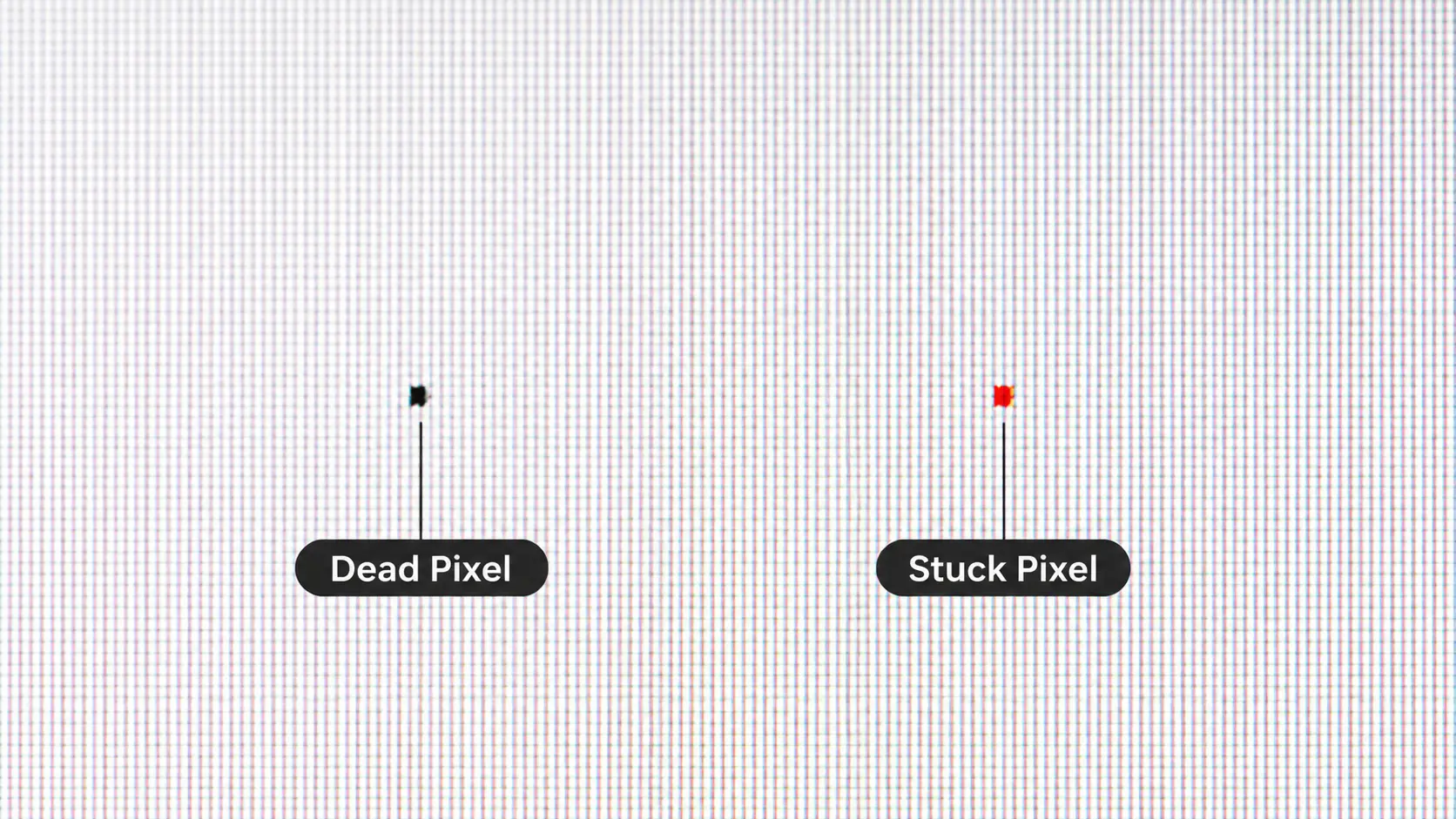
📌 Quick Summary: Dead pixels appear as black dots (always off). Stuck pixels show a single color (red, green, blue, or white) and can often be fixed. The difference matters — one is permanent, the other is often repairable.
You just unboxed a brand-new monitor. You plug it in, turn it on, and there it is — a tiny dot that shouldn't be there. You rub the screen. You restart the computer. You even tilt your head at different angles like that's going to change anything.
Nothing works.
The panic sets in: is this a dead pixel? A stuck pixel? Will it spread? Can I fix it, or do I need to return the whole thing?
I've been there. And after helping thousands of users diagnose their screens with our free diagnostic tool, I can tell you this — most people panic before they even know what they're dealing with. The truth is, dead pixels and stuck pixels are two very different problems, with completely different fixes and outcomes.
This guide will walk you through the exact difference, how to identify each one in under 60 seconds, and what you can realistically do about it.
What is a Dead Pixel?
A dead pixel is a pixel that has completely stopped working. No light, no color, no nothing. It appears as a tiny black dot that stays black on every background — including a full white screen.
Here's what's actually happening inside your screen: each pixel is made of three sub-pixels (red, green, and blue). When a pixel is "dead," all three sub-pixels have failed. The thin-film transistor that controls them has stopped receiving or transmitting electrical signals. Think of it like a light switch that's permanently broken in the "off" position.
Dead pixels are usually caused by:
- Manufacturing defects — the most common cause, especially on cheaper panels
- Physical damage — pressure, drops, or impact
- Transistor failure — the electronic switch inside the pixel simply burns out
Here's the hard truth: dead pixels cannot be fixed. They are permanent hardware failures. No software, no gentle rubbing, no "rice trick" (yes, that's a thing) will bring them back. The only real solution is a screen replacement.
For a complete guide to dead pixels — including warranty policies and brand-specific coverage — read our Complete Dead Pixel Guide.
What is a Stuck Pixel?
A stuck pixel is a pixel that's still receiving power, but the liquid crystals inside it are frozen in one position. Instead of turning on and off as they should, they stay locked — showing one constant color.
This is why stuck pixels appear as bright red, green, blue, or white dots. The pixel is technically "on," it's just stuck on the wrong color.
Here's how each type looks:
- Bright red dot — the red sub-pixel is stuck ON, others OFF
- Bright green dot — the green sub-pixel is stuck ON, others OFF
- Bright blue dot — the blue sub-pixel is stuck ON, others OFF
- White dot — all three sub-pixels are stuck ON
- Cyan, magenta, or yellow dot — two sub-pixels stuck ON
The good news: stuck pixels can often be fixed. Because the pixel is still receiving power, several methods can potentially unstick the liquid crystals and restore normal function.
Dead Pixel vs Stuck Pixel: The Key Differences
Here's a quick comparison table to help you identify which one you have:
How to Tell the Difference in 60 Seconds
Use our free screen diagnostic tool and run the Dead Pixel Detection test. It cycles through solid colors — white, black, red, green, blue — and reveals exactly what you're dealing with.
Here's how to interpret the results:
- If the dot stays black on EVERY color → Dead pixel. Not fixable.
- If the dot disappears on one specific color → Stuck pixel. Often fixable.
- If the dot is bright on dark backgrounds → Stuck pixel (likely red, green, blue, or white).
That's it. No complex tools. No technical knowledge required. Just run the test and observe.
For a complete step-by-step guide to testing your monitor for all types of defects, read our How to Test Your Monitor Like a Pro article.
Can Stuck Pixels Be Fixed?
Yes — and often quite easily. Here are the most effective methods, in order of safety:
1. Software Method (Safest)
Run rapid color cycling on the affected area. Our free diagnostic tool includes this feature. Let it run for 10–20 minutes focused on the stuck pixel.
2. Gentle Pressure Method
Turn off the screen. Place a soft cloth over the pixel and gently press with a pencil eraser. Turn the screen back on while maintaining pressure, then release after a few seconds.
3. Tapping Method
Display a black image. Gently tap the stuck pixel area with a soft, rounded object 10–20 times.
4. Heat Method
Apply a warm (not hot) damp cloth over the pixel area for 5–10 seconds. Repeat 3–4 times.
5. Wait It Out
Some stuck pixels resolve on their own after a few days of normal use.
For a complete step-by-step guide, read our article: 5 Methods to Fix Stuck Pixels.
What About Dead Pixels?
I'll be honest with you: dead pixels cannot be fixed. They are permanent hardware failures. No software, no pressure, no heat, no "rice trick" will bring them back.
If you have a dead pixel and your monitor is still under warranty, check your manufacturer's pixel policy. Most brands require 3+ dead pixels for replacement — but some (like Dell) have zero-tolerance for bright pixels.
If you're within the return window, return the monitor. Don't wait. Dead pixels don't fix themselves.
For a complete breakdown of dead pixel warranty policies by brand, read our Complete Dead Pixel Guide.
When to Return a Monitor
Here's a simple timeline:
- Within 14–30 days — Return to the retailer. No questions asked. This is the easiest option.
- After 30 days, within warranty — Contact the manufacturer. Check their pixel policy first. Most require 3+ dead pixels.
- After warranty — Live with it, or replace the panel (usually not worth the cost).
Always document the defect with photos and keep your receipt. Well-documented claims have a much higher success rate.
For a complete guide to testing your monitor before the return window closes, read our How to Test Your Monitor Like a Pro article.
What Causes Dead and Stuck Pixels?
Understanding the causes helps you prevent future issues:
Dead Pixel Causes
- Manufacturing defects — the most common cause
- Physical damage — pressure, drops, impact
- Transistor failure — age, heat, or electrical issues
- Electrical surges — power fluctuations
Stuck Pixel Causes
- Manufacturing defects — imperfect liquid crystal alignment
- Physical pressure — pressing on the screen
- Temperature extremes — heat or cold affecting liquid crystals
- Electrical issues — voltage fluctuations
- Age — liquid crystals can degrade over time
How to Prevent Dead and Stuck Pixels
While you can't prevent manufacturing defects, you can reduce the risk of new pixel issues caused by damage:
- Clean gently — Use a microfiber cloth with light pressure. Never press hard on the screen.
- Close your laptop carefully — Nothing should be on the keyboard when you close the lid.
- Use a surge protector — Protects against electrical damage.
- Avoid extreme temperatures — Heat and cold can affect pixel behavior.
- Enable screensavers — Reduces the risk of burn-in (different issue, but related).
- Don't leave static content for hours — Especially on OLED displays. Learn more in our Complete Screen Burn-In Guide.
Should You Buy a Monitor with a Dead Pixel Policy?
Here's the honest answer: yes, if you care about pixel perfection.
When shopping for a new monitor, look for these features:
- Dell Premium Panel Exchange — Zero-tolerance for bright pixels. Best in the industry.
- Extended warranty options — Some retailers (Amazon, Best Buy) offer their own pixel guarantees.
- Return windows — Amazon, Best Buy, and most major retailers offer 14–30 day returns. Test your new monitor immediately after delivery.
- Reviews and reputation — Some brands have higher QC standards than others. Check user reviews before buying.
For a complete breakdown of what to look for, see our Monitor Buying Guide 2026.
Final Thoughts: Know What You're Dealing With
Dead pixels and stuck pixels look similar but are very different problems. Here's what you need to remember:
- Dead pixel — Black dot, permanent, not fixable. Return if possible.
- Stuck pixel — Bright dot, often fixable. Try software methods first.
- Test immediately — Use our free diagnostic tool to identify which one you have.
- Return window — If it's a dead pixel and you're within 14–30 days, return it.
- Document everything — Photos and receipts make warranty claims easier.
If you're still not sure which type of pixel defect you have, run our free diagnostic now. It takes less than a minute and could save you from unnecessary returns — or help you fix a stuck pixel before giving up.
And if you're in the market for a new monitor, our Monitor Buying Guide 2026 covers everything you need to know.
Related Guides
Expand your screen health knowledge with these related articles:
- What is a Dead Pixel? The Complete 2026 Guide to Detection, Warranty, and Fixes
- 5 Methods to Fix Stuck Pixels: Proven Solutions
- How to Test Your Monitor Like a Pro: 5 Essential Checks (2026 Guide)
- Monitor Ghosting Explained: Causes, Tests, and How to Fix It (2026 Guide)
- What is Screen Burn-In? How to Detect, Prevent, and Fix It (2026 Guide)
- OLED vs LCD: Which Display Technology Is Better in 2026?
💬 Leave a Comment
Have a question or something to add? Share your thoughts below.
Loading comments...