 SCREEN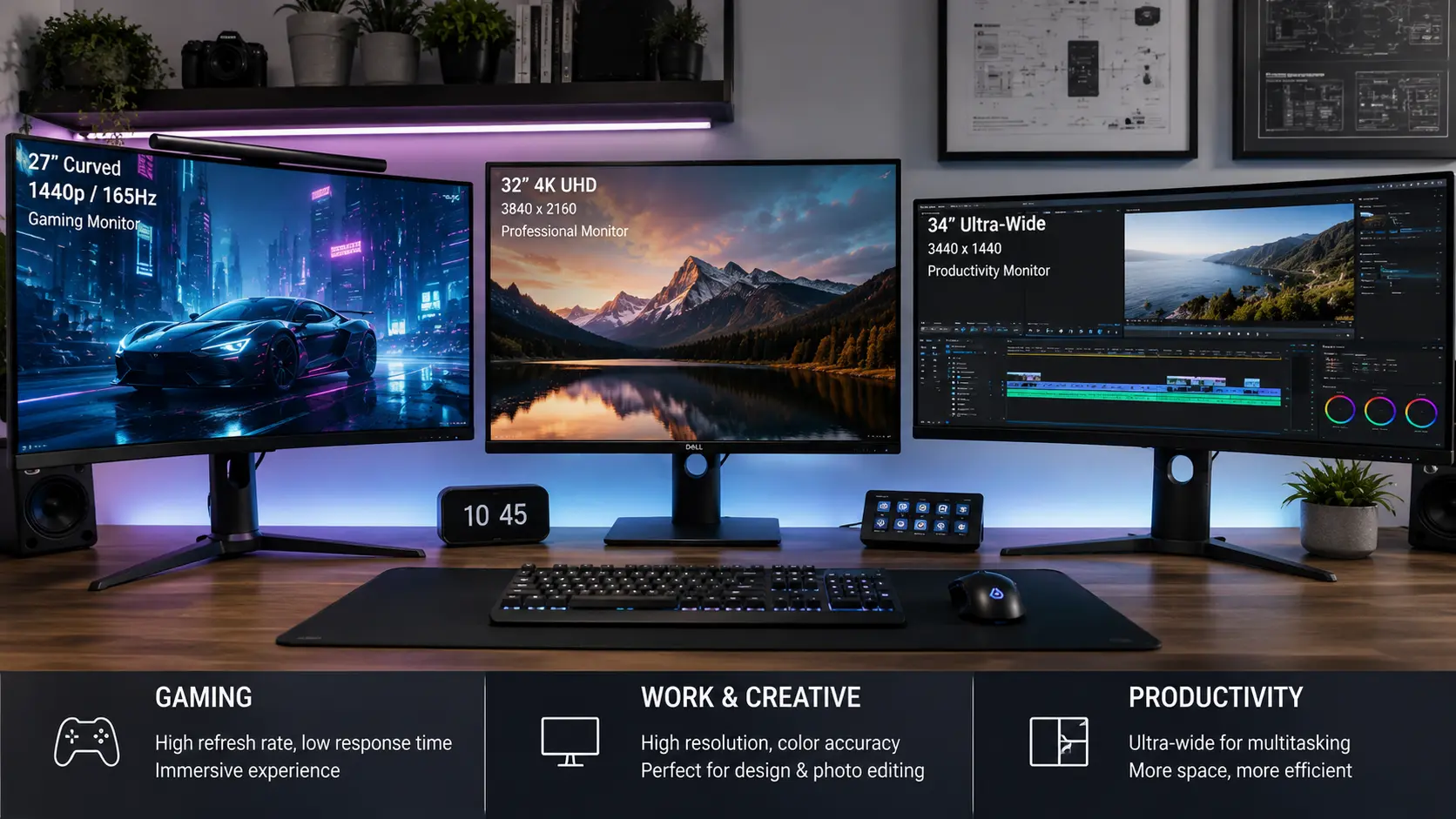
📌 Quick Summary: Buying a monitor in 2026 is overwhelming — dozens of specs, conflicting advice, and marketing jargon. This guide cuts through the noise. You'll learn exactly which specs matter, which ones don't, and how to test your new monitor before the return window closes.
I still remember the first time I tried to buy a "good" monitor. I spent three weeks reading reviews, watching YouTube videos, and comparing spec sheets. I ended up buying a 4K monitor with terrible response time, paired it with a GPU that couldn't handle 4K gaming, and returned it five days later.
That experience cost me time, money, and a lot of frustration. And it's the reason I'm writing this guide today.
Here's the truth nobody tells you upfront: there is no "best" monitor. There's only the best monitor for your specific needs, your specific setup, and your specific budget. A $1,500 OLED that's perfect for a video editor might be overkill for someone who just checks email. A $200 budget monitor might be perfect for a student but a disaster for a competitive gamer.
This guide will help you figure out exactly what you need — and what you don't. No fluff, no affiliate-driven recommendations, no "top 10" lists that don't explain why. Just the honest, practical advice I wish someone had given me years ago.
By the end, you'll know exactly which specs matter, which ones are marketing hype, and how to test your new monitor before your return window closes. Let's dive in.
Step 1: Define Your Primary Use Case
Before you look at a single spec sheet, answer this question: what will you actually do with this monitor?
This matters more than any spec. A monitor optimized for competitive gaming has different priorities than one optimized for photo editing. And a monitor for general office work has different priorities than both.
The Four Main Use Cases
1. General Productivity (Office, Web, Email, Coding)
Your priorities: text clarity, comfortable brightness, good ergonomics, and reasonable color accuracy. Refresh rate matters less. Response time barely matters. You can save money here.
2. Gaming (Casual and Competitive)
Your priorities: refresh rate, response time, adaptive sync (G-Sync or FreeSync), and low input lag. Resolution matters less than frame rate. Panel type matters a lot — ghosting is your enemy.
3. Creative Work (Photo Editing, Video Editing, Design)
Your priorities: color accuracy, color gamut coverage (sRGB, Adobe RGB, DCI-P3), uniformity, and resolution. Refresh rate and response time are secondary. A hardware calibrator is often necessary.
4. Media Consumption (Movies, Streaming, YouTube)
Your priorities: contrast ratio, HDR performance, and size. Refresh rate is secondary. OLED excels here — but comes with burn-in risk.
Most people fall into two categories: productivity + casual gaming, or creative work + media consumption. Figure out your primary use case first, and the rest of this guide will make much more sense.
Step 2: Choose Your Panel Type
Panel type is the single most important decision you'll make. It affects everything: color accuracy, contrast, viewing angles, response time, and price.
There are three main panel technologies in 2026, plus a few variations:
IPS (In-Plane Switching)
Best for: Creative work, general productivity, mixed use
Strengths: Excellent color accuracy, wide viewing angles, good uniformity
Weaknesses: Lower contrast ratio, IPS glow (especially in corners), backlight bleed
IPS is the safe, versatile choice. It's not the best at anything, but it's good at almost everything. Modern "Fast IPS" panels have largely solved the response time problem — some now offer 1ms GtG response times that rival TN panels.
If you're unsure what to buy, buy IPS. You won't regret it.
VA (Vertical Alignment)
Best for: Media consumption, immersive gaming, dark-room use
Strengths: High contrast ratio (often 3000:1 or higher), deep blacks
Weaknesses: Slower response times (especially in dark transitions), ghosting and smearing, narrower viewing angles
VA panels are the contrast kings. If you watch a lot of movies in a dark room, or play atmospheric games like Cyberpunk or Elden Ring, VA offers a cinematic experience that IPS can't match.
But beware: VA ghosting is real, especially in dark scenes. If you're a competitive gamer, avoid VA. If you're a casual gamer or media enthusiast, VA might be perfect.
OLED (Organic Light-Emitting Diode)
Best for: High-end gaming, professional creative work, media enthusiasts
Strengths: Perfect blacks, infinite contrast, near-instant response times, wide viewing angles
Weaknesses: Burn-in risk, lower peak brightness than high-end LCD, higher price
OLED is the premium option. It offers the best picture quality you can buy, period. The blacks are truly black. The contrast is infinite. The motion clarity is unmatched.
But OLED comes with responsibility. Static content — taskbars, logos, HUDs — can cause permanent burn-in if you're not careful. Modern OLED panels are more resistant than their reputation suggests, but the risk is real.
If you're a careful user who varies content, OLED is worth the investment. If you leave the same app open for hours, look elsewhere.
For a deeper comparison, read our OLED vs LCD article.
Step 3: Pick Your Resolution
Resolution determines how much detail your monitor can display. Higher resolution = sharper image, more screen real estate, but also higher GPU demand.
Common Resolutions in 2026
- 1080p (1920×1080) — Budget-friendly, good for 24" and below. Great for gaming on mid-range GPUs.
- 1440p (2560×1440) — The sweet spot for most users. Sharp enough for productivity, manageable for gaming. Ideal for 27" monitors.
- 4K (3840×2160) — Stunning detail. Best for 32" and above. Requires a powerful GPU for gaming. Ideal for creative work.
- Ultrawide (3440×1440 or 5120×1440) — Immersive for gaming and productivity. Great for multitasking.
My recommendation: For most people, 1440p is the sweet spot. It's noticeably sharper than 1080p without the GPU demands of 4K. If you're on a tight budget or play competitive esports, 1080p is still viable. If you're a creative professional or have a high-end GPU, 4K is worth it.
Important: Match resolution to screen size. A 27" 1080p monitor will look pixelated. A 24" 4K monitor will have microscopic text. Here's a quick guide:
- 24" → 1080p or 1440p
- 27" → 1440p or 4K
- 32" → 4K
- 34"+ ultrawide → 3440×1440 or higher
Step 4: Understand Refresh Rate and Response Time
These two specs are the most misunderstood in the monitor world. Let's clear up the confusion.
Refresh Rate (Hz)
Refresh rate determines how many times per second your monitor updates the image. Higher refresh rates = smoother motion.
- 60Hz — Fine for office work and casual use. Noticeably less smooth in gaming.
- 120Hz–144Hz — The sweet spot for gaming. Significantly smoother than 60Hz.
- 165Hz–240Hz — Competitive gaming. Requires a powerful GPU to hit these frame rates.
- 360Hz+ — Esports only. Diminishing returns for most users.
Reality check: A higher refresh rate only helps if your GPU can actually output enough frames. A 240Hz monitor paired with a GPU that delivers 60fps is wasted money. For a complete guide, read our Refresh Rate Guide.
Response Time (ms)
Response time determines how quickly a pixel can change color. Lower = less ghosting and motion blur.
But here's the catch: advertised response times are often misleading. A "1ms" monitor is usually measured in Gray-to-Gray (GtG) transitions — partial color changes. Full black-to-white-to-black transitions are much slower.
Don't obsess over response time numbers. Instead, look for real-world reviews and test for ghosting yourself using our free diagnostic tool.
Step 5: Consider Adaptive Sync (G-Sync and FreeSync)
Adaptive sync eliminates screen tearing and stuttering by matching your monitor's refresh rate to your GPU's frame rate.
- NVIDIA G-Sync — Works with NVIDIA GPUs. Two versions: G-Sync (hardware module) and G-Sync Compatible (software). The hardware version is better but more expensive.
- AMD FreeSync — Works with AMD GPUs (and often NVIDIA via G-Sync Compatible). Generally cheaper.
- FreeSync Premium / Premium Pro — Higher tiers with additional features like HDR and low framerate compensation.
My recommendation: If you game, adaptive sync is worth it. It's one of the most noticeable quality-of-life improvements you can make. Look for a monitor that's compatible with your GPU.
Step 6: Decide on HDR
HDR (High Dynamic Range) is one of the most confusing specs in the monitor world. Here's the honest truth: most "HDR" monitors don't deliver real HDR.
True HDR requires:
- High peak brightness (600+ nits, ideally 1000+)
- Local dimming (full-array or edge-lit with many zones)
- Wide color gamut (90%+ DCI-P3)
- 10-bit color depth
Most monitors labeled "HDR400" or "HDR10" fail these requirements. They accept an HDR signal but display it with washed-out colors and no real contrast improvement. It's marketing, not reality.
Real HDR monitors are expensive. Look for VESA DisplayHDR 1000 certification or higher, or an OLED panel. If HDR matters to you, budget accordingly.
Step 7: Don't Forget the Extras
These details don't show up in big headlines, but they matter for daily use:
- Ergonomics: Height adjustment, tilt, swivel, and pivot are essential for comfort. Don't buy a monitor with a fixed stand.
- Ports: HDMI, DisplayPort, USB-C. USB-C with power delivery is a game-changer for laptop users.
- VESA mount: If you plan to use a monitor arm, check for VESA compatibility.
- Bezel size: Thin bezels matter for multi-monitor setups.
- Warranty: Check the pixel policy. Some brands (like Dell) have zero-tolerance for bright pixels. For more details, read our Complete Dead Pixel Guide.
Step 8: Test Your New Monitor Immediately
This is the step most people skip — and it's the most important one.
Once you unbox your new monitor, test it within the return window. Most retailers offer 14–30 days with no questions asked. That's your leverage.
Here's what to test:
- Dead pixels and stuck pixels — Use our free diagnostic tool to check all solid colors.
- Uniformity — Look for clouding, backlight bleed, and color tinting.
- Ghosting — Test motion clarity with fast-moving objects.
- Refresh rate — Verify your monitor is actually running at its advertised Hz.
- OLED burn-in — If you bought OLED, run a burn-in scan immediately.
For a complete step-by-step guide, read our article: How to Test Your Monitor Like a Pro: 5 Essential Checks.
If you find a defect, return the monitor. Don't wait. Don't hope it gets better. Don't accept "within spec" as an answer. You paid for a quality product — hold the manufacturer accountable.
Common Monitor Buying Mistakes to Avoid
I've made most of these mistakes myself. Learn from my pain:
- Buying 4K without the GPU to drive it — 4K gaming requires a high-end GPU. If you don't have one, stick with 1440p.
- Ignoring response time — A cheap 144Hz monitor with 10ms response time will ghost more than a 60Hz monitor with 1ms. Response time matters.
- Falling for "HDR" marketing — HDR400 is not real HDR. Don't pay a premium for it.
- Buying a monitor with a bad stand — You'll regret it within a week. Ergonomic stands are essential.
- Not testing within the return window — This is the biggest mistake. Test immediately. Always.
- Assuming "more expensive = better" — A $400 monitor can be better for your needs than a $1,000 one. Match the monitor to your use case.
Quick Recommendations by Use Case
Here's a quick summary of what to look for based on your primary use:
- Office / Productivity: 24–27" IPS, 1440p, 60–75Hz, USB-C, ergonomic stand. Budget: $200–400.
- Casual Gaming: 27" IPS or VA, 1440p, 144Hz, FreeSync/G-Sync Compatible. Budget: $300–500.
- Competitive Gaming: 24–27" Fast IPS or TN, 1080p or 1440p, 240Hz+, 1ms response, adaptive sync. Budget: $400–800.
- Creative Work: 27–32" IPS, 1440p or 4K, 99% sRGB, hardware calibration support. Budget: $400–1,000.
- Premium / Enthusiast: 27–32" OLED, 1440p or 4K, 240Hz, perfect blacks, HDR. Budget: $800–1,500.
Final Thoughts: The Best Monitor Is the One That Fits Your Life
Here's the truth I wish someone had told me years ago: the best monitor isn't the one with the best specs. It's the one that fits your actual needs, your actual setup, and your actual budget.
Don't buy a 4K OLED if you mostly check email and watch YouTube. Don't buy a budget VA panel if you're a competitive esports player. Don't buy a monitor based on a spec sheet alone — read reviews, watch videos, and if possible, see it in person.
And whatever you buy, test it immediately. Your return window is your leverage. Use it. The 60 seconds you spend running a diagnostic could save you months of frustration — or hundreds of dollars in unnecessary repairs.
Use our free Screen Medic diagnostic tool to run all 5 essential checks in under a minute. No download, no signup, no data collection. Just a fast, accurate picture of your new monitor's health.
Related Guides
Expand your display knowledge with these related articles:
- How to Test Your Monitor Like a Pro: 5 Essential Checks (2026 Guide)
- What is a Dead Pixel? The Complete 2026 Guide to Detection, Warranty, and Fixes
- OLED vs LCD: Which Display Technology Is Better?
- Refresh Rate Guide: 60Hz vs 120Hz vs 144Hz vs 240Hz
- Monitor Ghosting Explained: Causes, Tests, and How to Fix It (2026 Guide)
- What is Screen Burn-In? How to Detect, Prevent, and Fix It (2026 Guide)
💬 Leave a Comment
Have a question or something to add? Share your thoughts below.
Loading comments...