 SCREEN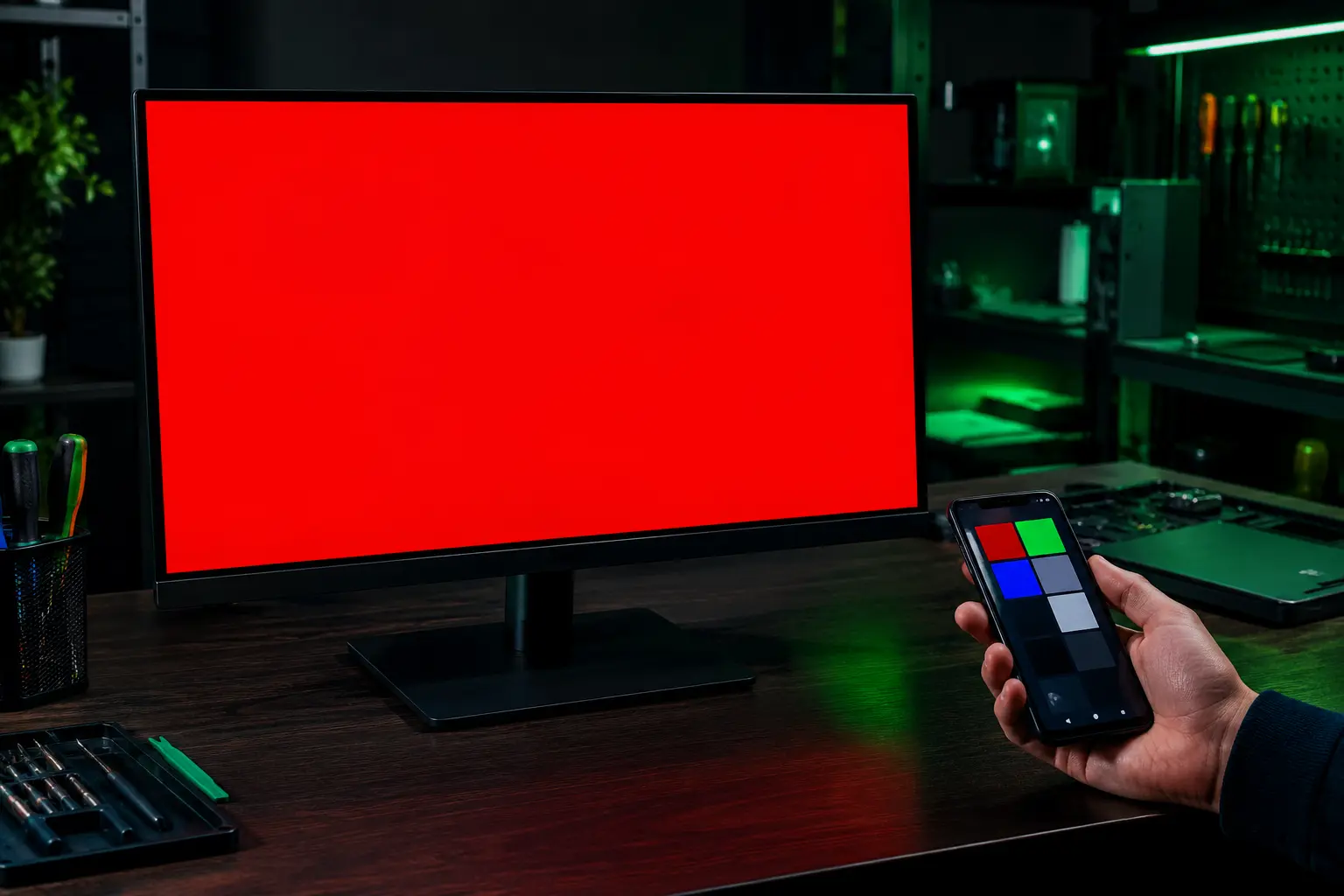
📌 Quick Summary: Buying a used monitor is the smartest way to get a premium display for half the price. But it is also a minefield of hidden defects. I have bought and tested over 500 used monitors in my workshop. This is the exact 10-minute checklist I use before handing over my money.
I still remember the first used monitor I ever bought. It was a 27-inch IPS panel I found on a local marketplace for a third of its retail price. The seller was friendly. The photos looked great. The deal was too good to be true.
I drove an hour to pick it up, handed over the cash, and drove home with a smile on my face. Two days later, the smile disappeared.
There was a faint, yellowish bruise in the bottom-left corner. It was invisible on a white background, but on dark movies, it looked like someone had left a flashlight on behind the panel. That was the day I learned a hard lesson: never buy a used monitor without testing it first.
That experience is why I built the Screen Medic diagnostic tool. I wanted to give people a way to test any screen, anywhere, without carrying around software or equipment. And it is why I am writing this guide today.
Here is the exact 10-minute checklist I use every time I buy a used monitor.

My workshop bench, where every used monitor gets tested before it is sold
Before You Meet the Seller: What to Ask
Your test starts before you even see the monitor. The questions you ask will tell you more than any spec sheet.
1. "Why are you selling it?"
The answer matters. "I upgraded to 4K" is a good sign. "I am moving and need to sell everything" is neutral. "I bought it for a project and do not need it anymore" is fine. But "It has been sitting in my garage for two years" is a red flag. Dust, humidity, and temperature changes are not kind to electronics.
2. "Can I see it powered on?"
This is non-negotiable. If a seller refuses to show you the monitor turned on, walk away. There is no legitimate reason to refuse a demonstration. This applies to every marketplace: eBay, Facebook, Craigslist, Leboncoin, or anywhere else.
3. "Do you have the original box and cables?"
Having the original box is a sign the seller took care of the monitor. It also makes transport easier. But it is not mandatory. Cables, however, are another story. A missing power cable or DisplayPort cable can cost you $20 to $40 to replace.
The 10-Minute On-Site Test
Once you are in front of the monitor, the clock starts. You have 10 minutes to find any hidden defects. Here is exactly what to do.
Step 1: The Physical Inspection (2 Minutes)
Before you even turn it on, look at the monitor. This is where I find 30 percent of defects.
- Screen surface: Look for scratches, scuffs, or pressure marks. A faint pressure mark might disappear, but a deep scratch never will.
- Bezel and corners: Check for cracks, especially near the corners. These can spread.
- Stand and mount: Check for wobbles. If the stand is broken or bent, the monitor may have taken a fall.
- Ports: Look for bent pins, loose connections, or debris inside the HDMI and DisplayPort connectors.
- Smell: A burnt electronic smell is a huge red flag. If you smell anything unusual, walk away.
Step 2: The Dead Pixel and Stuck Pixel Test (2 Minutes)
This is the most important test. Dead pixels are permanent. Stuck pixels are often fixable, but they indicate a defect. Use our free diagnostic tool on your phone or a USB stick to run the Dead Pixel Detection test. It cycles through white, black, red, green, and blue.
Here is what you are looking for:
- Black dot on every color: Dead pixel. This is a defect. If you are buying a premium monitor, walk away. If you are buying a budget monitor, use it as a negotiating tool.
- Bright dot that disappears on one color: Stuck pixel. Often fixable, but still a defect.
- Faint discoloration on white: This is a sub-pixel defect. It may not be fixable.
For a full guide on identifying these defects, read our article on Dead Pixel vs Stuck Pixel.

The white screen test is the fastest way to reveal a dead pixel
Step 3: The Backlight Bleed Test (2 Minutes)
Backlight bleed is the most common defect on used IPS and VA monitors. It appears as bright, uneven patches along the edges or corners of a dark screen.
Ask the seller to dim the lights, or do this at night if possible. Display a full black screen using our diagnostic tool. Look for:
- Bright corners or edges: This is backlight bleed. Mild bleed is normal and acceptable. Severe bleed that covers a third of the screen is not.
- Cloudy patches in the center: This is called clouding. It is a sign of uneven pressure on the panel.
- Yellow or pink tinting: This is a sign of panel aging. Avoid it.
If the bleed is severe and you are buying from a store, ask for a discount. If you are buying from a private seller, use it to negotiate or walk away.
For a complete guide to telling the difference between normal glow and a real defect, read our article on Backlight Bleed vs IPS Glow.
Step 4: The Uniformity Test (1 Minute)
Uniformity is how evenly your screen displays color and brightness. A perfect screen shows a pure, even white from corner to corner. In reality, most used monitors have some degree of unevenness.
Display a pure white and a 50% gray screen. Look for:
- Yellow or blue patches: This is color tinting. It is usually a sign of panel aging.
- Dirty screen effect (DSE): This is a subtle texture visible during motion. It is a sign of panel degradation.
Step 5: The Refresh Rate and Ghosting Test (3 Minutes)
If you are buying a gaming monitor, this is the most important test after the dead pixel check.
First, check the refresh rate. On a laptop or desktop, right-click the desktop, go to Display Settings, and check the refresh rate. It should match the advertised Hz. If it is stuck at 60Hz, it might be a cable issue, a GPU issue, or a defect.
Second, run the ghosting test. Our free diagnostic tool has a dedicated ghosting test. You can also use testufo.com. Look for:
- Faint trails behind moving objects: This is regular ghosting. It can usually be fixed by adjusting the overdrive setting.
- Bright halos around moving objects: This is inverse ghosting. It is a sign the overdrive is set too high.
- Sharp, clean motion: This is what you want to see.
If ghosting persists after adjusting the overdrive, it may be a panel defect. For a full guide, read our article on Monitor Ghosting Explained.
What About OLED Monitors?
OLED monitors are a different beast. They offer the best picture quality you can buy, but they are prone to burn-in, a permanent ghost image left by static content.
When testing a used OLED, you must run the burn-in scan. Use our diagnostic tool to display a solid gray screen. Look for:
- Faint logos or menu bars: This is image retention. It may fade. It may be permanent.
- Sharp, permanent ghost images: This is true burn-in. It is not fixable.
For a complete guide to testing OLED burn-in, read our article on How to Detect, Prevent, and Fix Screen Burn-In.
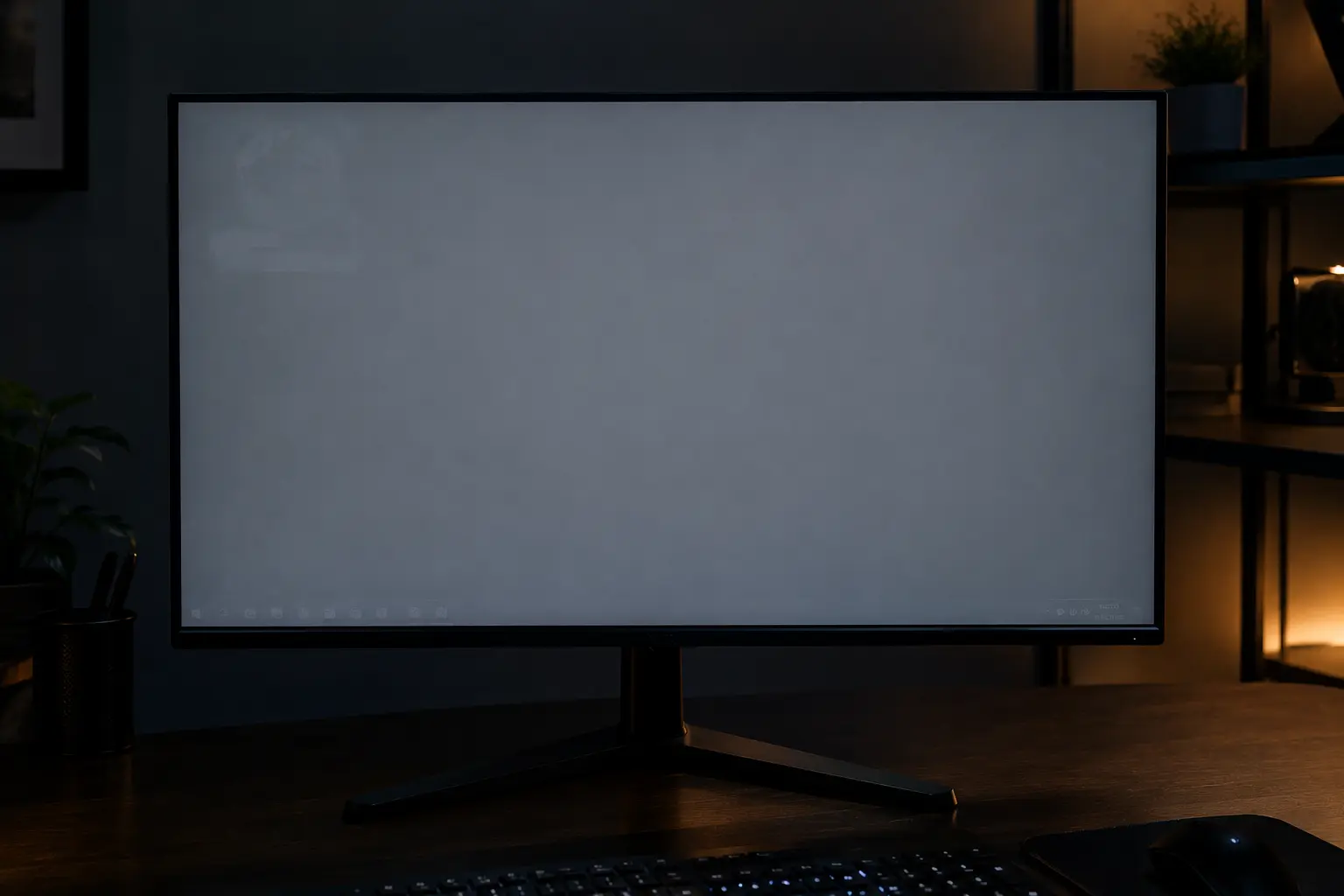
The gray screen test reveals OLED burn-in that is invisible on white backgrounds
The Negotiation: How to Use Defects as Leverage
If you find a defect, do not walk away immediately. Use it to negotiate.
Here is how I negotiate a used monitor with defects:
- Dead pixel: A single dead pixel can reduce a monitor's value by 20 to 30 percent. If it is a cluster, walk away.
- Mild backlight bleed: A 10 to 15 percent discount is reasonable.
- Severe backlight bleed: Walk away. It will only get worse.
- Scratches: A deep scratch on the screen is a dealbreaker. A scratch on the bezel is a minor discount.
If the seller refuses to negotiate, walk away. There is always another monitor.
When to Walk Away
There are some defects you should never accept, no matter the price:
- Cracks in the panel: This is a sign of impact damage. It will spread.
- Severe burn-in on OLED: It is permanent and unfixable.
- Burnt electronic smell: This is a sign of internal damage.
- Refusal to power on: There is no legitimate reason to refuse a demonstration.
- Flickering or blackouts: This is a sign of a failing power supply or a bad cable. It is a defect.
If you see any of these, thank the seller for their time and leave.
Why I Built Screen Medic (And Why It Matters for Used Monitor Buyers)
I built Screen Medic because I was tired of seeing people get ripped off on used monitors. I was tired of hearing the same stories: "I bought a monitor on eBay and it had three dead pixels," or "The seller said it was perfect, but there was a massive backlight bleed."
I wanted to give people a way to test any screen, anywhere, for free. That is why our tool is browser-based, requires no download, and works on any device. Whether you are meeting a seller in a coffee shop or buying from a store, you can run the test in 10 minutes.
If you want to run the full diagnostic before you buy, use our free Screen Medic diagnostic tool. It takes 60 seconds, costs nothing, and could save you hundreds of dollars.
Final Thoughts: The 10-Minute Rule
Buying a used monitor is one of the smartest ways to get a premium display for half the price. But it is also a minefield of hidden defects.
My advice, in one sentence: never hand over your money without a 10-minute test. The questions you ask, the physical inspection, the dead pixel check, the backlight bleed test, and the ghosting test will tell you everything you need to know.
If the seller refuses to let you test it, walk away. There is always another monitor.
And if you want to test your own monitor (or a used one you just bought), use our free diagnostic tool. It takes 60 seconds, costs nothing, and will tell you whether you are dealing with a defect or a perfect screen.
🔍 Run the Free Monitor Test Now
Related Guides
- The Ultimate Monitor Buying Guide 2026
- How to Test Your Monitor Like a Pro: 5 Essential Checks
- Dead Pixel vs Stuck Pixel: What's the Difference?
- Backlight Bleed vs IPS Glow: How to Test and Tell Them Apart
- What is Screen Burn-In? How to Detect, Prevent, and Fix It
- Monitor Ghosting Explained: Causes, Tests, and How to Fix It
💬 Leave a Comment
Have a question or something to add? Share your thoughts below.
Loading comments...