 SCREEN
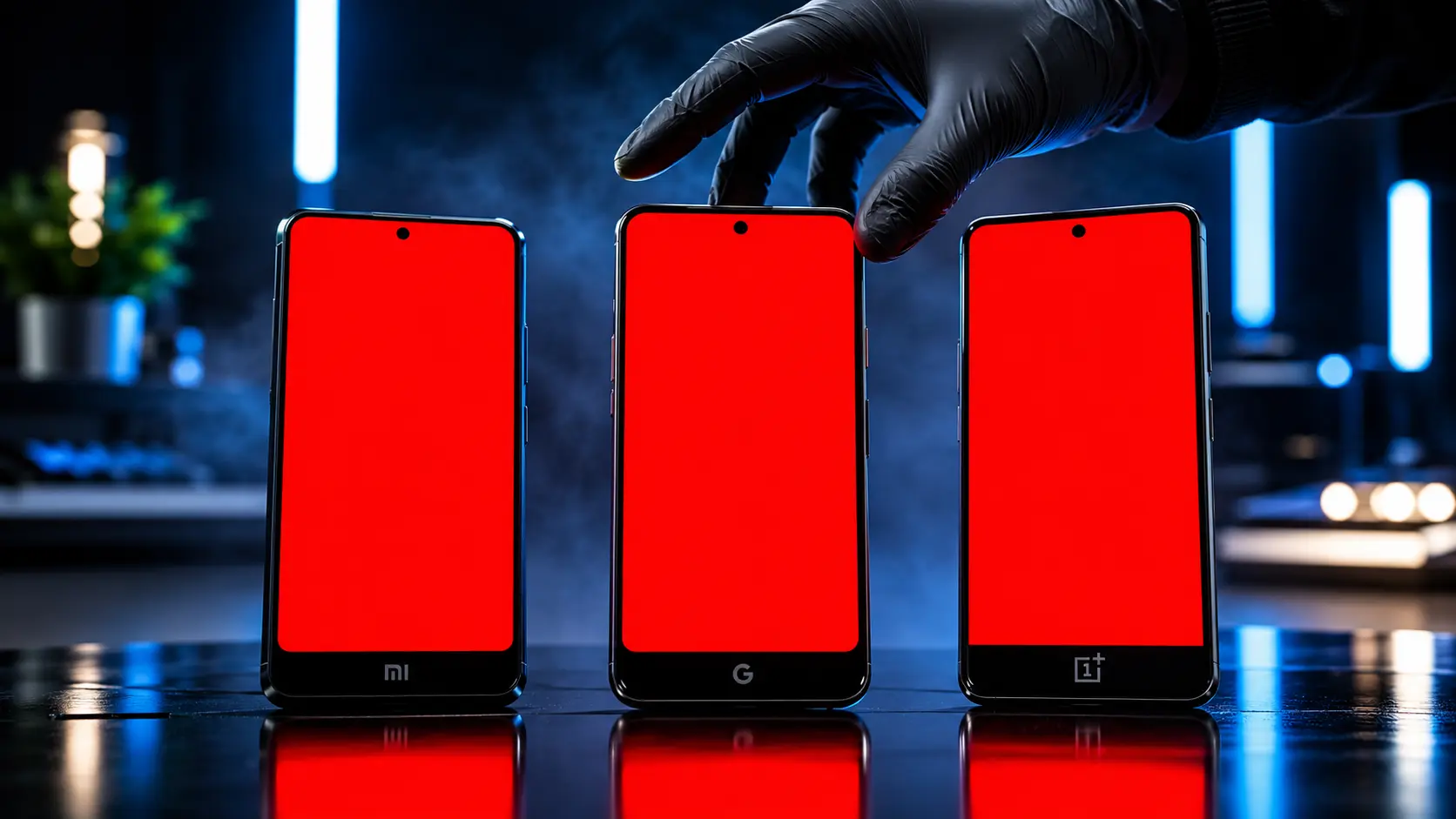
📌 Quick Summary: You have probably already run a screen test on your Samsung Galaxy or your iPhone. Those are the two biggest names in the game. But what if you own a Xiaomi, a Google Pixel, or a OnePlus? Here is the uncomfortable truth: every brand has its own signature display failure modes. A generic "dead pixel test" will not catch a Xiaomi green line, a Pixel flicker, or a OnePlus ghost touch. This guide is the missing chapter. It is a brand-by-brand diagnostic sequence for the three Android manufacturers that are quietly stealing market share from Samsung — and the defects that come with them.
I have been repairing screens for over a decade. In that time, I have seen the smartphone market shift. Samsung and Apple still dominate the conversation. But when I look at the repair tickets that come through my workshop, a different story emerges. Xiaomi, Google, and OnePlus are everywhere. And their screens fail in ways that are completely different from a Galaxy or an iPhone.
Why does this matter? Because the internet is flooded with screen tests designed for Samsung and iPhone. They check for dead pixels, burn-in, and touch. That is fine. But they miss the brand-specific defects that are actually common on other devices.
A Xiaomi user does not need a generic burn-in test. They need to know about the green vertical line that signals AMOLED panel failure [citation:2]. A Google Pixel user does not need a white screen check. They need to know that screen flicker is often a software issue fixed by an update, not a hardware defect [citation:10]. A OnePlus user needs to understand ghost touch and how to tell if it is a charger problem or a cracked digitizer [citation:5].
This guide is the missing chapter. It is the brand-by-brand diagnostic that I wish existed when I started seeing these phones in my workshop.
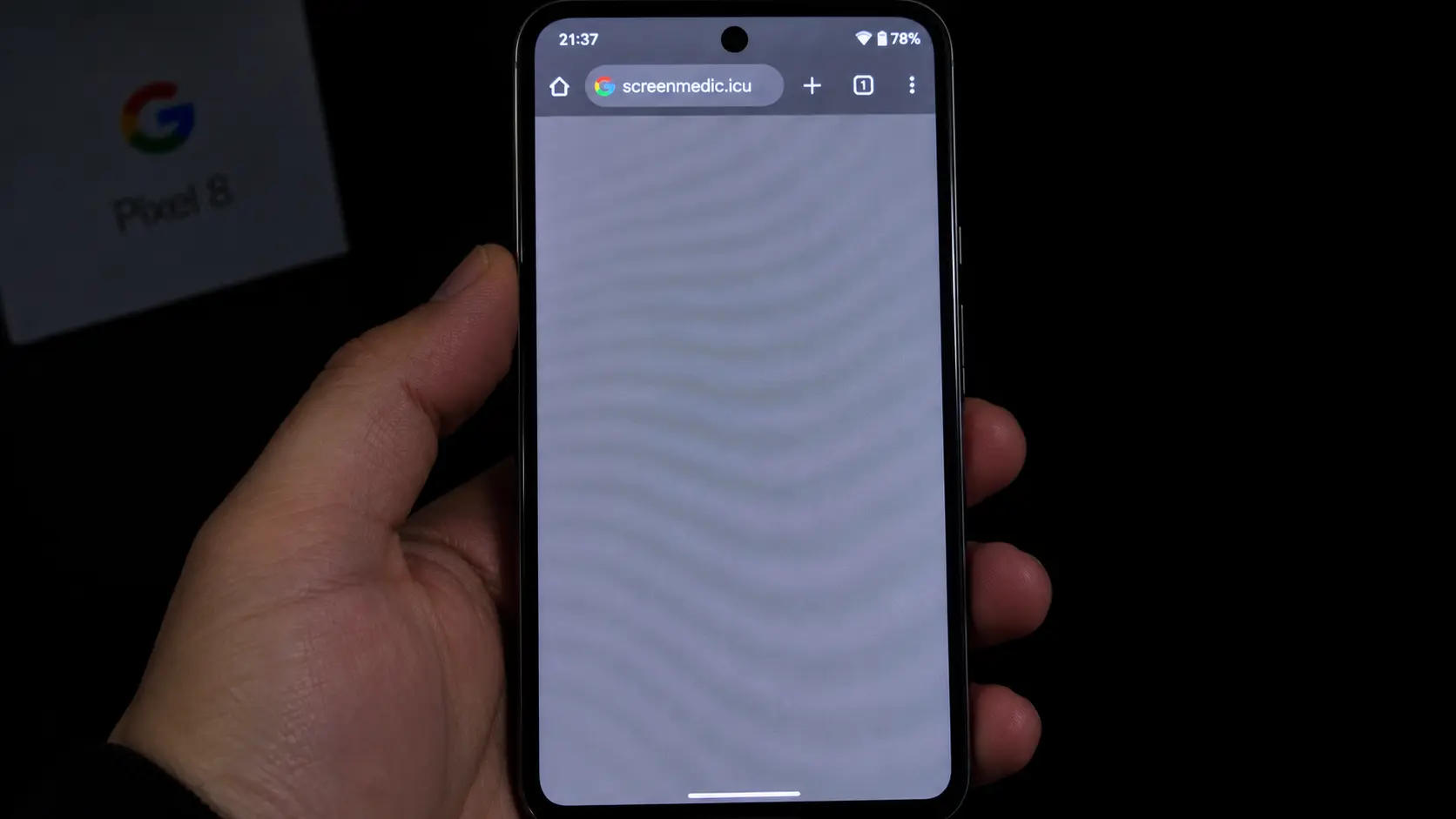
Every Android brand has its own signature display failures.
Why You Cannot Just Use a Generic Screen Test
Before we go brand by brand, you need to understand why this matters.
A dead pixel is a dead pixel. That part is universal. But the way a screen fails is often tied to the panel technology, the manufacturing process, and even the software that runs on the phone.
AMOLED panels, which are used in most modern Android phones, have a specific vulnerability: burn-in. That is universal across Samsung, Xiaomi, OnePlus, and Pixel. But the type of failure varies. Xiaomi's AMOLED panels are known for developing a single green vertical line after an impact or with age [citation:2]. OnePlus has the same issue, but it is often exacerbated by the curved glass on the edges of their displays [citation:5]. Google Pixel screens are more prone to software-related flicker that mimics a hardware failure [citation:10].
If you run a generic test, you might see a problem. But you will not know what it means. And you will not know whether it is covered by warranty or whether you are wasting your time.
That is why every brand needs its own test. Let's start with the most common one in my workshop: Xiaomi.
Xiaomi and Redmi: The Green Line Problem
Xiaomi has become a massive player in Europe, Asia, and Latin America. The Xiaomi 14, for example, has a 6.36-inch AMOLED display with a 120Hz refresh rate and a peak brightness of 3000 nits [citation:15]. It is a beautiful screen. But it has a specific failure mode that is so common it has its own name: the green line.
What Is the Green Line?
A green vertical line is exactly what it sounds like. A single, sharp, bright green stripe running from the top of the screen to the bottom. It can appear suddenly, often after a minor drop or even without any impact at all.
According to repair specialists, this is not a software bug. It is a hardware failure. Specifically, it is how an AMOLED panel signals that a column driver or an emitter row has failed [citation:2]. The panel is physically degrading. No update will fix it. No factory reset will clear it.
How to Test for It (and What to Do)
This is the easiest test in this guide. You do not need a special tool. You just need to look at your screen.
- Open a solid white image (you can use our free diagnostic tool).
- Look for any vertical line that is a different color from the background. Green is the most common, but red, pink, and purple lines also occur [citation:13].
- If you see a line, it is a hardware failure.
What to do: If your Xiaomi is under warranty, contact the service center. This is a known issue and should be covered. If you are out of warranty, you are looking at a screen replacement. There is no home fix.
The Redmi Exception: It is worth noting that this specific green-line failure only affects AMOLED panels. If you have a budget Redmi with an LCD screen, it physically cannot produce this failure mode. A line on an LCD Redmi is a different problem entirely [citation:2].
For a deeper dive into the difference between dead and stuck pixels, which is a separate issue, read our guide on Dead Pixel vs Stuck Pixel.
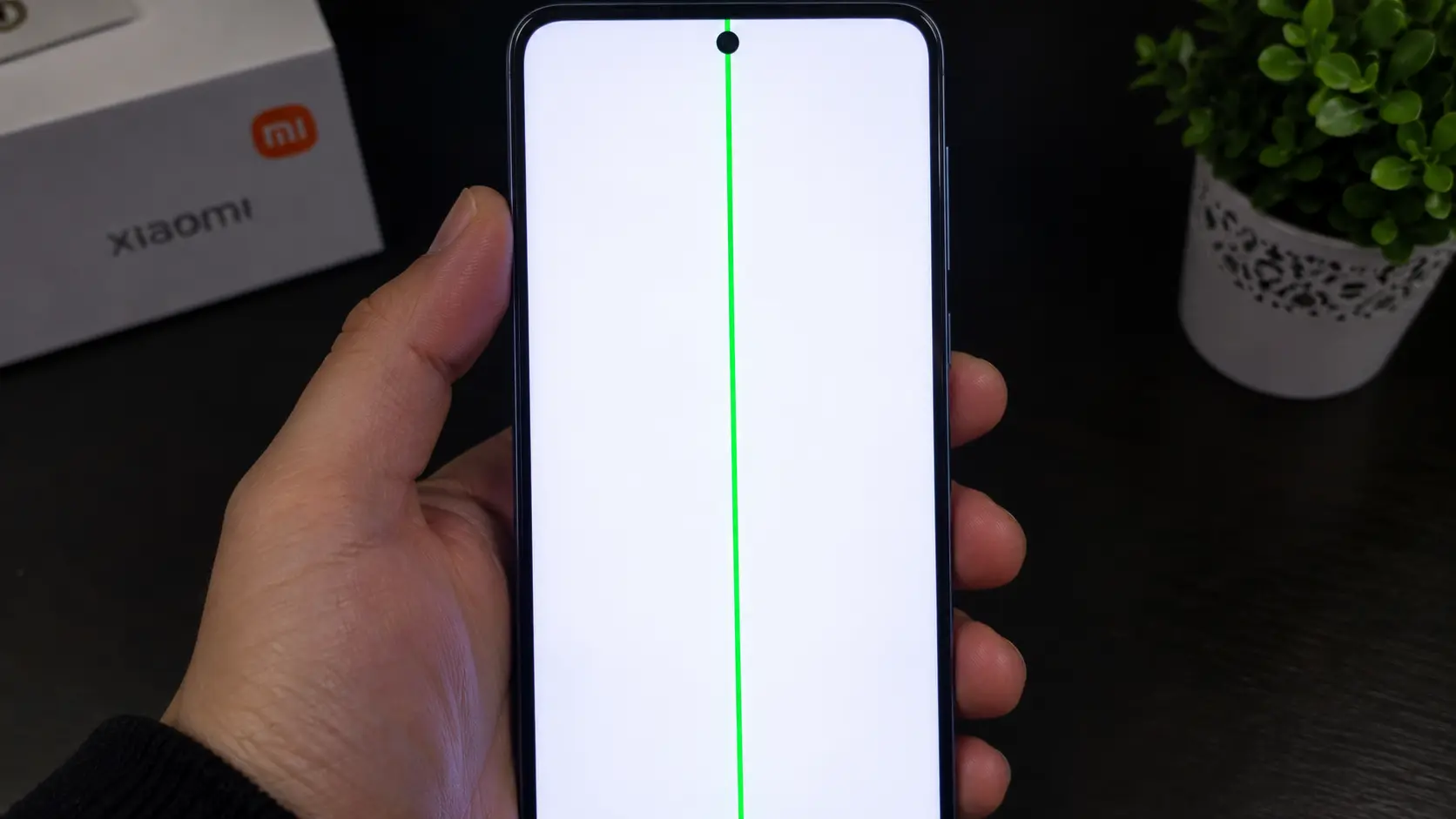
The green vertical line is a signature failure of Xiaomi's AMOLED panels.
Google Pixel: The Flicker That Is Not Always Hardware
Google Pixel phones are known for their clean software and excellent cameras. The Pixel 9, for instance, has a 6.3-inch OLED display with a 120Hz refresh rate and a peak brightness of 2700 nits [citation:16]. It is a gorgeous screen. But it has a specific issue that confuses even experienced technicians: screen flicker.
Software Flicker vs. Hardware Flicker
Here is the problem with the Pixel. Google updates Android more frequently than any other brand. And sometimes, those updates introduce display bugs.
The Pixel 8 series, for example, had a widely reported flicker issue that was eventually fixed by a software update [citation:10]. But how do you know if your Pixel's flicker is a software bug or a dying panel?
The answer is in the pattern.
- Software flicker: The screen flickers at certain brightness levels, or in specific apps. It might pulse. It might shift. Updating the phone to the latest Android version often fixes it [citation:10].
- Hardware flicker: The screen flickers constantly, regardless of the app or brightness level. It might be accompanied by a green line. This is a panel failure [citation:10].
How to Test for It
Open our free diagnostic tool and display a solid gray screen. Turn the brightness up and down slowly.
If the flicker appears and disappears at specific brightness levels, it is likely software. If it is constant and persistent, it is hardware.
What to do: If it is software, update your phone. If it is hardware, file a warranty claim. Google has been proactive about replacing defective Pixel screens in some regions [citation:3].
For a complete guide to testing OLED screens for burn-in and uniformity issues, read our article on What is Screen Burn-in? How to Detect, Prevent, and Fix It.
OnePlus: Ghost Touch and the Curved Edge Trap
OnePlus phones, like the OnePlus 13, have some of the most impressive displays on the market. The OnePlus 13 features a 6.82-inch ProXDR display with a 120Hz refresh rate and a peak brightness of 4500 nits [citation:17]. It is stunning. But it has a specific problem that is incredibly frustrating: ghost touch.
What Is Ghost Touch?
Ghost touch is when your phone registers taps that you did not make. Apps open on their own. The screen scrolls wildly. Text messages send themselves. It feels like your phone is possessed.
On a OnePlus, ghost touch usually has one of two causes [citation:5]:
- Electrical noise from a charger: A damaged or non-OnePlus charger can leak electrical noise into the digitizer. This is the cheap fix.
- A damaged digitizer: A cracked or damaged touch layer, often after a drop. This requires a screen replacement.
The curved edges of OnePlus phones add an extra layer of complexity. Stray touches near the bezel can mimic ghost touch. A thick case can also cause false touches by pressing on the screen [citation:5].
How to Test for It
Here is the exact sequence I use in my workshop.
- Clean the screen. Remove any screen protector or thick case. A cheap screen protector is a common trigger for ghost touch on budget handsets [citation:2].
- Unplug the charger. Run the phone on battery for an hour. If the ghost touches stop, the charger was the problem. If they continue, the digitizer is damaged [citation:5].
- Run the touch test. Open the Notes app and draw a continuous line across the entire screen. Pay special attention to the curved edges. If the line breaks or jumps, the digitizer is failing.
What to do: If it is the charger, buy a new one. If it is the digitizer, you need a screen replacement. OnePlus has a "Green Line" specific service program in some regions, but ghost touch is usually treated as accidental damage [citation:11].
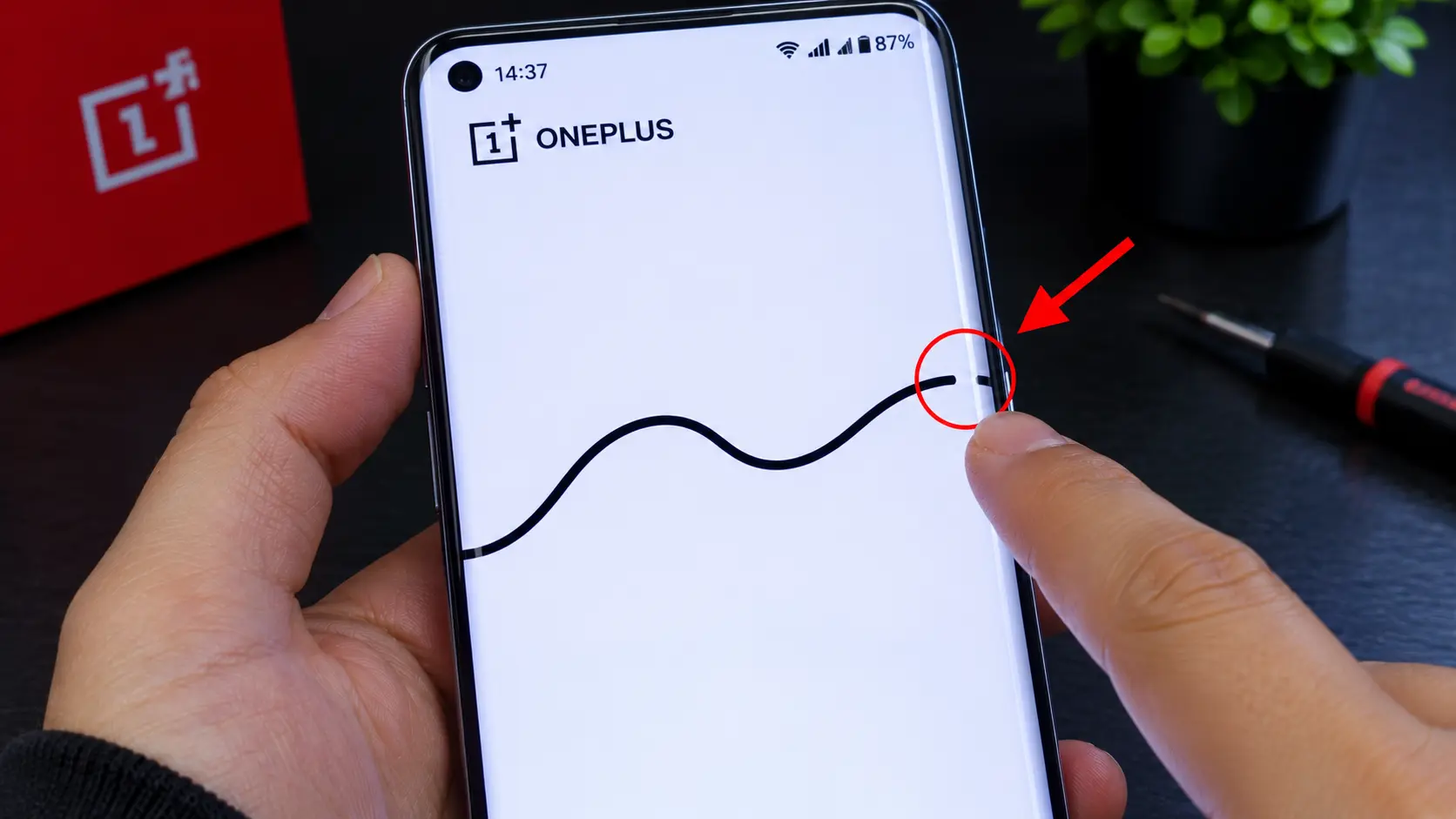
The curved edges of OnePlus phones are a common source of ghost touch issues.
Huawei: The Uniformity and Spotting Test
Huawei is a major player in many markets, even if it is less common in the West. The Huawei Mate 70, for example, has a 6.7-inch OLED display with a 120Hz refresh rate . Huawei screens have their own set of documented issues, particularly around spots and uniformity.
What to Look For
Huawei's own support documentation lists a long series of potential screen defects: white spots, dark spots, yellow spots, red spots, blue spots, green spots, and black spots . These are not just dead pixels. They are areas of the screen that have lost uniformity.
The cause is often physical damage. Huawei specifically mentions that drops, strong pressure, or contact with oil and liquids can damage the internal optical layers of the screen, leading to these spots .
How to Test for It
Open our free diagnostic tool and display a 50% gray screen. This is the most revealing color for uniformity issues.
Look for any area of the screen that is a different color or brightness from the rest. A faint yellow patch in the corner, a dark smudge in the middle, a white blob that will not go away. These are all signs of panel damage.
What to do: If the spots are small and do not bother you, you can live with them. If they are large or growing, you need a screen replacement. Huawei offers a "special screen" program in some regions to reduce the cost of out-of-warranty repairs .
The Universal Test That Still Works (And Why You Need It)
Despite all these brand-specific issues, there is still value in a universal screen test. Dead pixels, stuck pixels, and burn-in are universal problems. They affect every brand. And they are the easiest defects to document for a warranty claim.
Our free Screen Medic diagnostic tool runs the universal sequence: white, black, red, green, blue, and gray. It takes 60 seconds. It works on any phone. And it is the first step in any diagnostic.
But after you run the universal test, you need to run the brand-specific test. That is the difference between a generic check and a professional diagnosis.
What to Do If You Find a Defect (By Brand)
Here is the honest, no-nonsense advice for each brand.
Xiaomi
If you find a green line, contact Xiaomi service. It is a known issue and should be covered under warranty. If you are out of warranty, expect a screen replacement. For a full guide to documenting dead pixels for warranty, read our Complete Dead Pixel Guide.
Google Pixel
If you find flicker, update your phone first. If the flicker persists, file a warranty claim. Google has been replacing defective Pixel screens in some regions. Document the flicker with a video before contacting support.
OnePlus
If you find ghost touch, test with a different charger first. If the issue persists, you need a screen replacement. OnePlus has a specific program for green line issues, but ghost touch is usually treated as accidental damage [citation:11].
Huawei
If you find spots or uniformity issues, contact Huawei service. If the damage is caused by a drop or liquid, it will not be covered by warranty. Huawei offers a "special screen" program in some regions to reduce the cost .
Why I Built a Tool That Works on Every Brand
I built Screen Medic because I was tired of seeing people get ripped off. I was tired of hearing the same story: "I bought a new phone and it had a defect, but I didn't notice until it was too late."
Our tool is free, it runs in your browser, and it doesn't track your data. It is the same diagnostic sequence I use in my workshop. Whether you are checking a Xiaomi, a Pixel, a OnePlus, or a Huawei, you can run the test in under 60 seconds.
If you want to test other devices, we also have a Universal Screen Test Guide that covers laptops, monitors, and TVs.
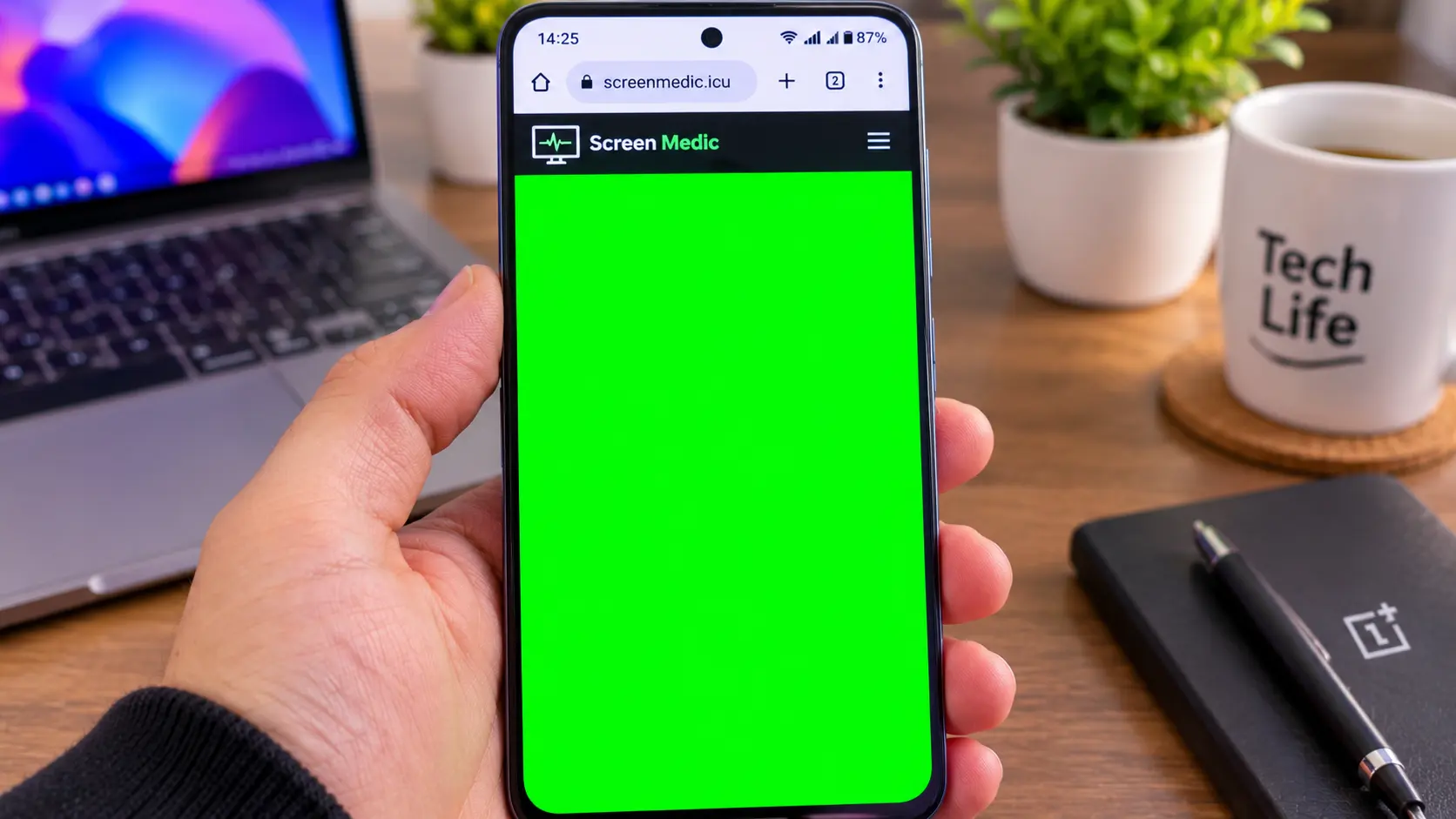
The free Screen Medic tool works on every Android brand, no download required.
Frequently Asked Questions (FAQ)
Can I fix a dead pixel on a Xiaomi or OnePlus?
No. A dead pixel is a permanent hardware failure. No software, no pressure, and no app can fix it. The only solution is a screen replacement by the manufacturer or an authorized repair shop [citation:2].
Is the green line on my Xiaomi a software bug?
No. A green vertical line is a hardware failure of the AMOLED panel. It is caused by a failed column driver or emitter row. No software update will fix it [citation:2].
Why does my Google Pixel screen flicker?
It could be a software bug or a hardware failure. Update your phone to the latest Android version first. If the flicker persists across all apps and brightness levels, it is a hardware issue [citation:10].
How do I know if my OnePlus has ghost touch or a charger problem?
Unplug the charger and run the phone on battery for an hour. If the ghost touches stop, the charger was the problem. If they continue, the digitizer is damaged [citation:5].
What are the common screen defects on Huawei phones?
Huawei screens are prone to spots and uniformity issues, including white spots, dark spots, and colored spots. These are often caused by physical damage, pressure, or liquid contact .
Do these tests work on older Android phones?
Yes. Our free diagnostic tool works on any Android phone with a browser. The brand-specific tests also apply to older models, although the likelihood of certain defects (like the Xiaomi green line) varies by model and panel type [citation:2].
Final Thoughts: Every Brand Has a Story
Your phone's screen tells a story. A Xiaomi green line tells you the AMOLED panel is failing. A Pixel flicker tells you the software or the panel is struggling. A OnePlus ghost touch tells you the digitizer is damaged. A Huawei spot tells you the internal layers have been compromised.
The universal test is the first step. The brand-specific test is the second. Together, they give you the full picture.
If you are not sure what you are looking at, run our free diagnostic. It takes 60 seconds. It costs nothing. And it is the first step toward a fix.
🔍 Test Your Android Screen Now
Related Guides
- Dead Pixel vs Stuck Pixel: What's the Difference?
- The Stuck Pixel Fix That Actually Works
- What is a Dead Pixel? The Complete 2026 Guide
- What is Screen Burn-in? How to Detect, Prevent, and Fix It
- How to Test a Used Monitor Before Buying
- How to Test Your Monitor Like a Pro: 5 Essential Checks
- Screen Tests for Every Device: A Technician's Complete Guide
- OLED vs LCD: Which Display Technology Is Better?
- The Ultimate Monitor Buying Guide 2026
- Android Screen Test: Free Online Dead Pixel Check
💬 Leave a Comment
Have a question or something to add? Share your thoughts below.
Loading comments...