 SCREEN
📌 Quick Summary: The Galaxy S25 Ultra has one of the best AMOLED displays on the market. But "best" doesn't mean "perfect." In my workshop, I've seen S25 Ultra units with dead pixels hiding behind the always-on display, burn-in ghosting from the status bar, and touch dead zones near the curved edges. Samsung's 14-day return window is your only real leverage. This guide gives you the exact 5-minute test I run on every Galaxy that comes through my door.
I still remember the first time a customer brought me a Galaxy S24 Ultra with a "perfect" screen. He had owned it for eight months. No drops, no scratches, no complaints. Then I ran a solid gray image on it.
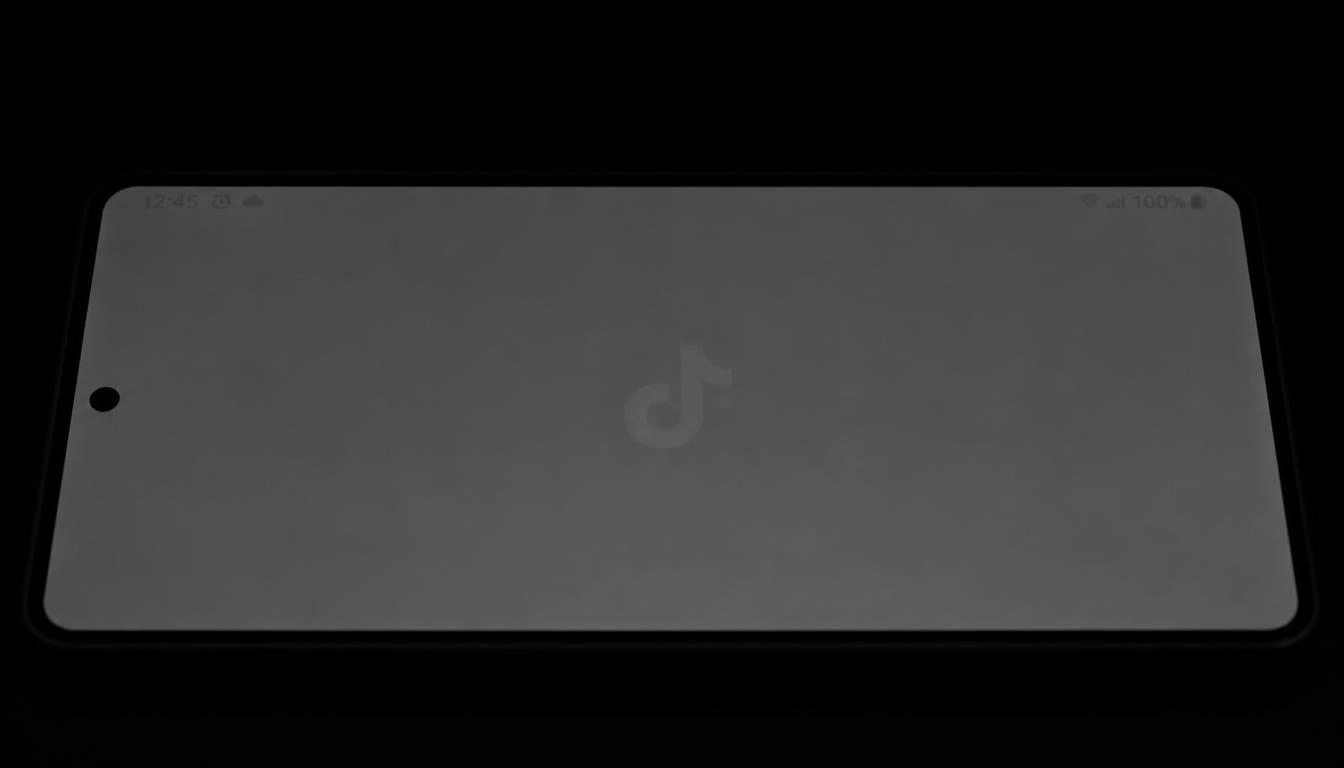
The ghost of the TikTok logo was burned into the AMOLED panel like a tattoo. He had never noticed it because he always used dark mode. But on a gray background, it was unmistakable.
Samsung's warranty policy on burn-in is more generous than most brands [citation:7]. But it still requires documentation. And if you are past the one-year mark, you are on your own.
This guide is not about the S25 Ultra's specs. You already know it has a 6.9-inch Dynamic AMOLED 2X display with a 120Hz refresh rate. This is about the defects that hide in plain sight — the ones that only reveal themselves when you display the right color at the right brightness.
The S25 Ultra's AMOLED panel is stunning. But it has specific failure points.
Why the S25 Ultra Screen Needs a Different Test
The Galaxy S25 Ultra uses an AMOLED panel. That is different from the IPS LCD you might have on a laptop or the OLED on an iPhone [citation:4]. AMOLED has specific vulnerabilities:
- Burn-in: Static elements like the status bar, navigation gestures, or a game HUD can leave permanent ghost images. This is the most common defect I see on Galaxy phones [citation:7].
- Uniformity issues: AMOLED panels can develop a "dirty" or blotchy texture on gray backgrounds, especially on older units [citation:20].
- Touch dead zones: The curved edges of the S25 Ultra are beautiful, but they are also where the digitizer is most vulnerable to pressure damage.
Samsung's own diagnostic tools (accessible via the Samsung Members app or the secret code *#0*#) are a good starting point [citation:15][citation:19]. But they are basic. They don't test for subtle uniformity issues or gray-screen burn-in. That is what our free Screen Medic diagnostic tool is designed to do.
The Pre-Test Checklist (Do This First)
If you skip these steps, your results will be inaccurate. I see this mistake every week.
1. Clean the Screen Properly
Use a microfiber cloth. A single piece of lint on a white screen looks exactly like a dead pixel. A smudge on a black screen can look like a bright stuck pixel [citation:7].
2. Disable Eye Comfort Shield and Adaptive Brightness
Go to Settings > Display. Turn off Eye Comfort Shield and Adaptive Brightness. These features change the color temperature and brightness based on your environment. If they are active, you will not see the true colors [citation:7].
3. Set Brightness to 100%
Pull down the Quick Settings panel and slide the brightness to maximum. Defects are easiest to spot at full brightness. Testing at 100% mimics the worst-case scenario.
Step 1: The Black Screen Test (For Stuck Pixels)
Open our free diagnostic tool in Samsung Internet or Chrome. Enter fullscreen mode and display a pure black screen.
Take the phone into a completely dark room. Hold it at your normal viewing distance.
What you are looking for: A bright red, green, blue, or white dot. These are stuck pixels. They are receiving power but the liquid crystals are frozen. On AMOLED, a stuck pixel is often a sign of uneven pixel aging [citation:7].
What you should see: A perfectly black screen. If you see a faint glow around the edges of the display, that is normal for AMOLED. But a sharp, distinct dot of color is a defect.
If you find a stuck pixel, do not panic yet. About 70% of stuck pixels can be fixed at home using a software cycling method. I cover the exact process in my guide on The Stuck Pixel Fix That Actually Works.
Step 2: The White Screen Test (For Dead Pixels)
Switch the tool to display a pure white screen. Keep the brightness at 100% and stay in the dark room.
Scan the screen slowly. Pay special attention to the corners and the area around the punch-hole camera.
What you are looking for: A tiny black dot. This is a dead pixel. The transistor that controls it has failed completely. It is permanent [citation:9].
What you should see: A uniform, bright white screen. If you see a faint gray smudge, that is usually a pressure mark or a scratch on the glass, not a pixel defect.
If you find a dead pixel on a brand-new S25 Ultra, you should return it immediately. For a full breakdown of Samsung's warranty policy and your options, read my Complete Dead Pixel Guide.
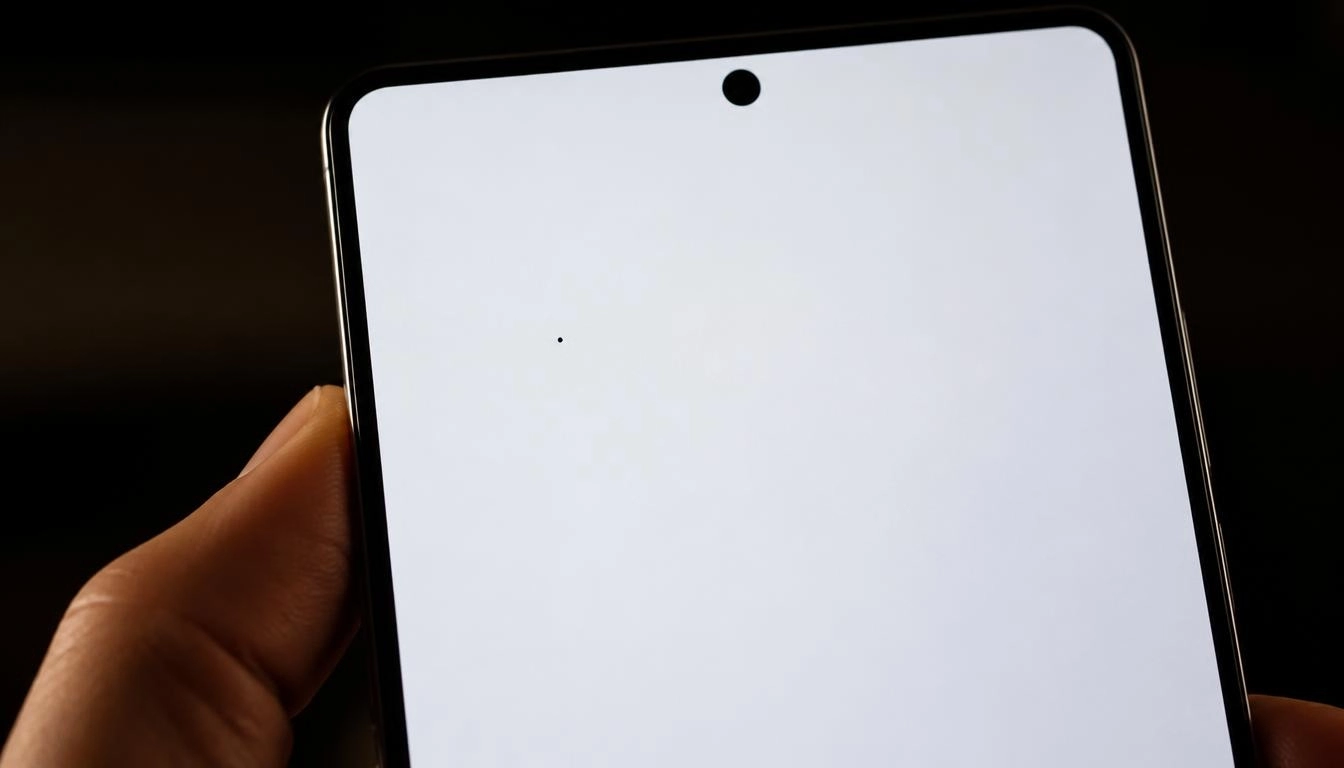
The white screen test is the fastest way to reveal a dead pixel.
Step 3: The Gray Screen Test (For AMOLED Burn-in)
This is the step most people skip, and it is the most important one for any Samsung Galaxy.
Switch the tool to a 50% gray screen. Stay in the dark room.
What you are looking for: Faint, ghostly outlines. A ghost of the status bar. A faint square where the keyboard usually sits. The silhouette of a TikTok or Instagram logo. Or an uneven, blotchy texture across the screen, some areas looking slightly pinker or dimmer than others [citation:7].
What it means: If you see a ghost image, it could be image retention (temporary) or true burn-in (permanent). On a brand-new phone, you should not see either. If you do, it is a manufacturing defect.
If the gray screen looks uneven, with a "dirty" patch in one corner or a yellow tint on one edge, that is a uniformity issue. This is common on older, used phones, but it is unacceptable on a new device. For a deep dive into the difference between temporary image retention and permanent burn-in, read my Complete Screen Burn-in Guide.
Step 4: The Touch Test (The S25 Ultra's Weak Spot)
This is not a color test, but it is essential. The S25 Ultra has curved edges, and the digitizer is most vulnerable there.
Open the Notes app and select a thick pen. Draw a continuous line across every inch of the screen. Go around the edges, through the corners, and along the curved sides.
What you are looking for: A break in the line. If the line stops or jumps, the touch panel is not registering your finger in that specific spot. This is a hardware defect that requires a screen replacement [citation:7].
Pay special attention to the area just above and below the volume buttons. This is where the curved edge experiences the most pressure during daily use. If you see a dead zone there, return the phone.
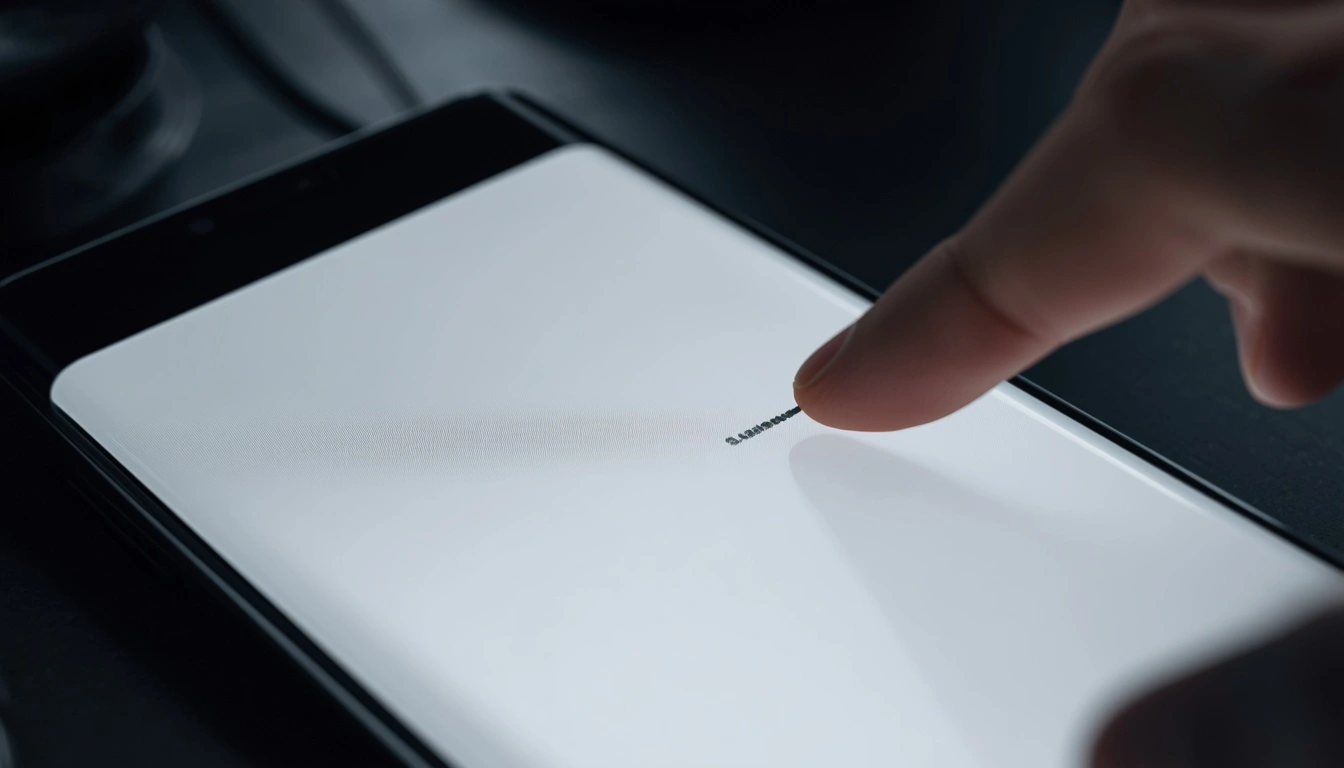
The curved edges are beautiful but vulnerable to touch digitizer failures.
Step 5: The VRR Test (For Gamers)
The S25 Ultra supports variable refresh rate (VRR), which dynamically adjusts the screen's refresh rate between 1Hz and 120Hz to save battery and reduce tearing. But VRR can malfunction.
Open our free VRR Test on your Galaxy. The test displays a moving pattern that reveals whether VRR is working correctly.
What you are looking for: Screen tearing (a visible horizontal line across the screen) or stuttering (the animation freezing for a split second). If you see either, VRR is not working properly [citation:8].
This is rare on new phones, but it happens. And it is much easier to demonstrate to Samsung support than a faint pixel.
What to Do If You Find a Defect
Here is the honest, no-nonsense advice I give to every customer who walks into my workshop with a defective Galaxy.
If you are within 14 days (New Purchase)
Return it. Do not accept a repair. Do not accept a "within spec" excuse. Samsung and its authorized resellers have a 14-day return policy in most regions. Use it. A new $1,300 phone should have a perfect screen [citation:7].
If you are past 14 days but within the 1-year warranty
File a warranty claim. Samsung is generally good about replacing screens with visible dead pixels or severe burn-in. However, they may refuse a claim for a single dead pixel that is considered "within spec." Document the defect with clear photos on a solid gray background, and be persistent. Samsung covers burn-in on newer models, but you need evidence [citation:7].
If you bought the phone used
You are in a tougher spot. If you have a dead pixel, you might have to live with it. If you have burn-in, you can try running a pixel refresher video on YouTube for a few hours (though results vary). For a complete guide to buying used devices safely, read my article on How to Test a Used Monitor Before Buying.
The One Mistake Everyone Makes
The biggest mistake I see is people testing their screen using a static image they found on Google. They zoom in on a photo of a white screen, and the compression artifacts make it look like there are defects everywhere.
Do not do this. Use a proper diagnostic tool like Screen Medic. It generates true full-screen colors without compression artifacts.
Another mistake is testing with the phone in a case. A poorly fitted case can press on the curved edges and create false touch dead zones. Remove the case before testing.
Why I Built This Tool for Galaxy Owners
I built Screen Medic because I was tired of seeing people get ripped off. I was tired of hearing the same story: "I bought a new Galaxy and it had a dead pixel, but I didn't notice until it was too late."
Our tool is free, it runs in your browser, and it doesn't track your data. It is the same diagnostic sequence I use in my workshop. Whether you are checking a new S25 Ultra, a used one, or a phone you just got back from repair, you can run the test in under 5 minutes [citation:11].
If you want to test other devices, we also have a Universal Screen Test Guide that covers laptops, monitors, and TVs.
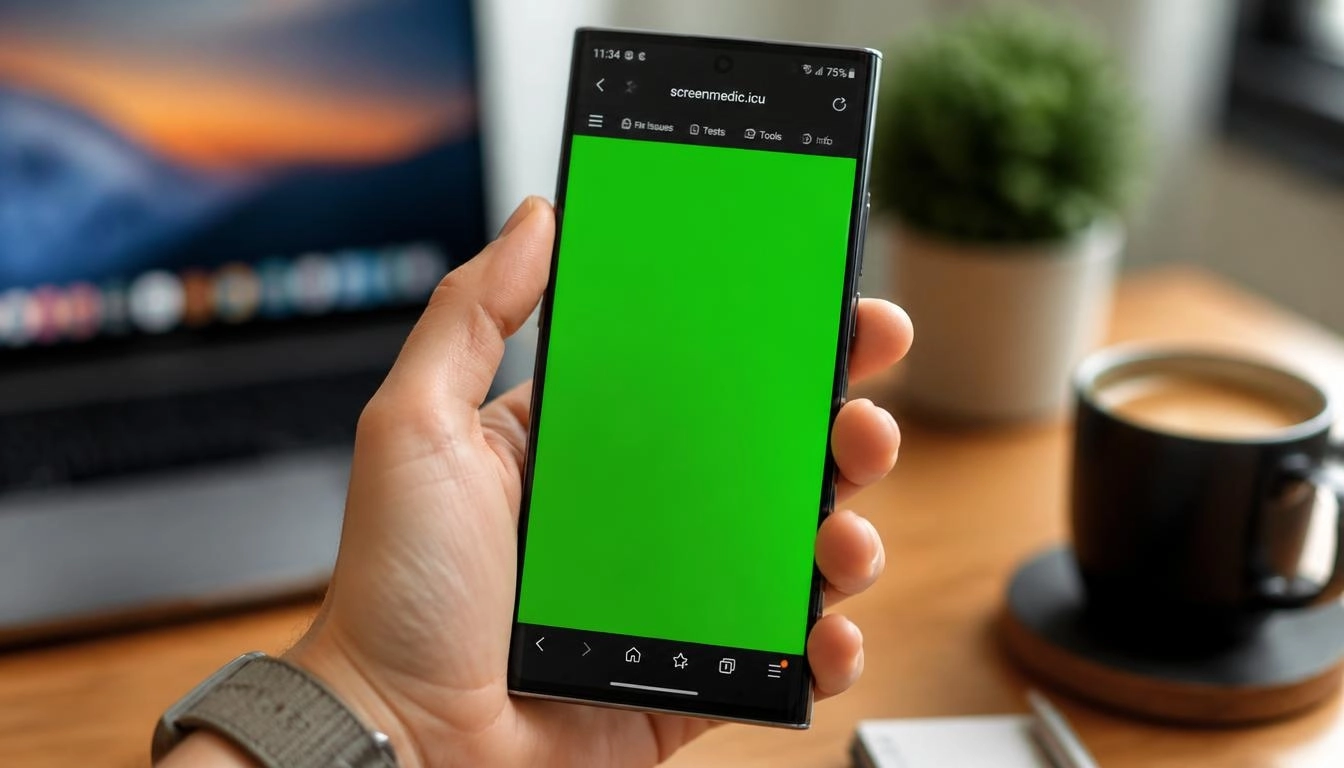
The free Screen Medic tool works on any Galaxy, no download required.
Frequently Asked Questions (FAQ)
Can I fix a dead pixel on a Galaxy S25 Ultra?
No. A dead pixel is a permanent hardware failure. No software, no pressure, and no app can fix it. The only solution is a screen replacement by Samsung or an authorized repair shop [citation:9].
Does Samsung warranty cover AMOLED burn-in?
Samsung covers burn-in on newer Galaxy models under the standard one-year warranty. However, they may require documentation and may refuse a claim if they determine the damage was caused by misuse. Take clear photos on a gray background before filing a claim [citation:7].
How do I access Samsung's hidden screen test menu?
Open the Phone app and dial *#0*#. This opens a diagnostic menu with tests for the screen (Red, Green, Blue, Black), touch, and other hardware. Note that some carriers and newer models may block this code [citation:15][citation:16].
Is it normal for the S25 Ultra screen to look slightly grainy on white?
On a pure white screen at low brightness, some AMOLED panels can exhibit a very subtle "grain" or texture. This is a normal characteristic of the technology and is not a defect. However, if the grain is severe or accompanied by visible lines, it could be a sign of a faulty panel [citation:20].
What is the difference between image retention and burn-in?
Image retention is a temporary ghost image that fades after a few minutes or hours. Burn-in is permanent and does not fade. Turn off your screen for an hour and check again. If the ghost is gone, it was image retention [citation:7].
Can I use a third-party screen protector on the S25 Ultra?
Yes, but be careful. The S25 Ultra uses an ultrasonic fingerprint sensor, and some thick screen protectors can interfere with it. Samsung recommends using official screen protectors or those specifically designed for ultrasonic sensors.
Final Thoughts: Peace of Mind is Worth 5 Minutes
You spend a lot of money on a Galaxy S25 Ultra. You deserve to know that the screen is perfect. My challenge to you is simple: take 5 minutes right now, open our tool, and test your screen.
If it passes, you have peace of mind. If it fails, you have a clear case for a return or a warranty claim. And if you have any questions, my team and I are always here to help.
🔍 Test Your Galaxy S25 Ultra Screen Now
Related Guides
- Dead Pixel vs Stuck Pixel: What's the Difference?
- The Stuck Pixel Fix That Actually Works
- What is a Dead Pixel? The Complete 2026 Guide
- What is Screen Burn-in? How to Detect, Prevent, and Fix It
- How to Test a Used Monitor Before Buying
- How to Test Your Monitor Like a Pro: 5 Essential Checks
- Screen Tests for Every Device: A Technician's Complete Guide
- OLED vs LCD: Which Display Technology Is Better?
- The Ultimate Monitor Buying Guide 2026
- VRR Test: Free Online Variable Refresh Rate Check
💬 Leave a Comment
Have a question or something to add? Share your thoughts below.
Loading comments...