 SCREEN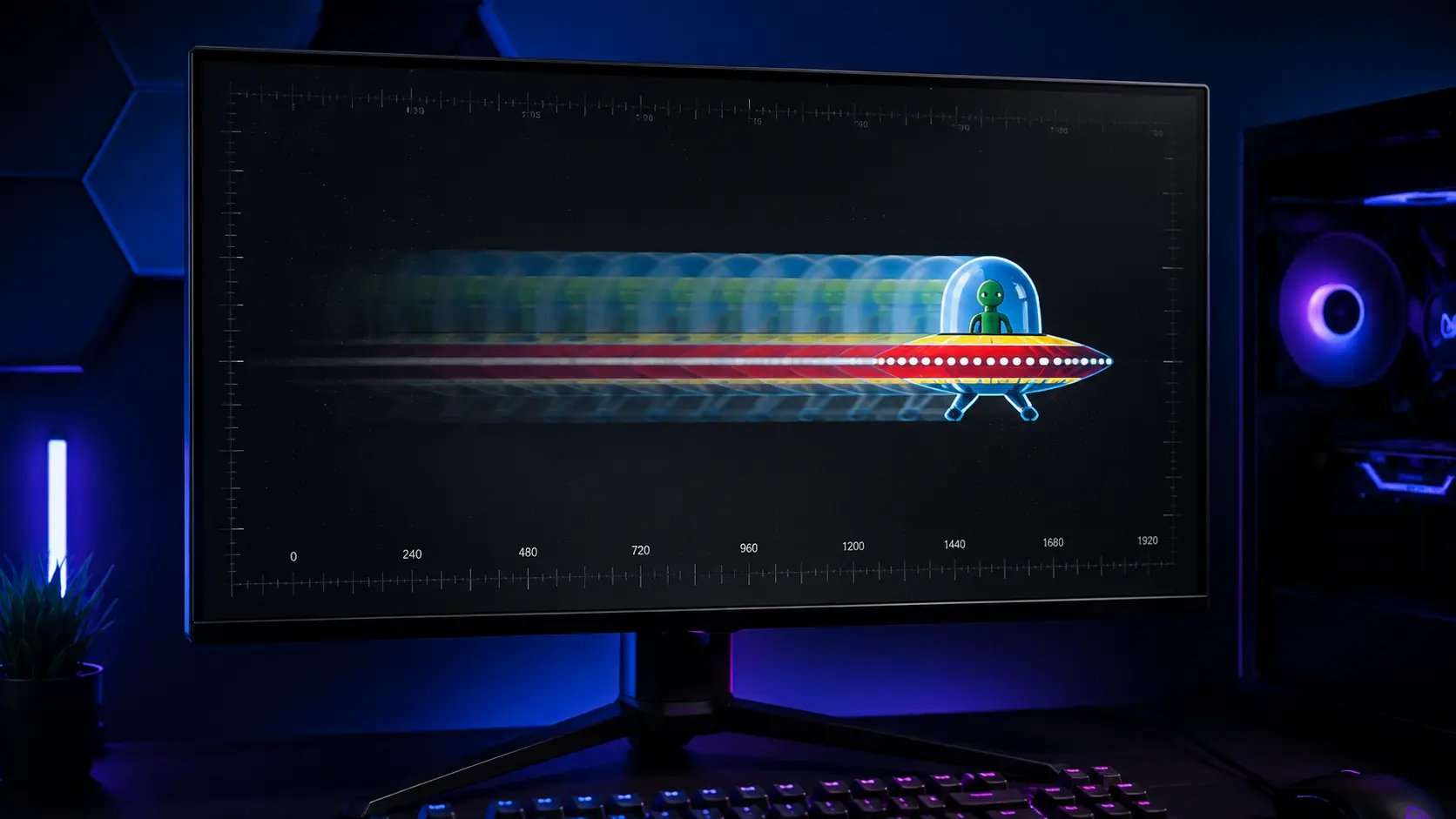
📌 Quick Summary: Monitor ghosting is a motion artifact where moving objects leave a blurry trail. It's caused by slow pixel response times and incorrect overdrive settings. Unlike burn-in, ghosting is almost always fixable in under 10 minutes.
You're in the middle of a competitive match. You flick your mouse to the right — and instead of a clean, sharp enemy, you see a blurry ghost trailing behind them. You die. You blame the game. You blame your internet. You blame your mouse.
But the truth is, your monitor is the problem.
I've been there. As a tech writer who has tested dozens of monitors and spent countless hours helping gamers diagnose display issues, I can tell you that monitor ghosting is one of the most common — and most fixable — display problems out there.
And here's the good news: unlike dead pixels or screen burn-in, ghosting isn't permanent damage. It's a settings issue. And with the right adjustments, you can eliminate it in under 10 minutes.
This guide will walk you through exactly what ghosting is, how to test for it in 60 seconds, and how to fix it step by step — no technical background required.
What is Monitor Ghosting?
Monitor ghosting is a visual artifact where a faint copy — a "ghost" — trails behind moving objects on your screen. It looks like motion blur, but it's actually a specific type of pixel response delay.
Here's what's actually happening: every pixel on your monitor has to change color when the image updates. If that transition takes too long, the pixel still shows a bit of its old color while the new frame is already displayed. The result is a blurred, semi-transparent trail behind anything that moves.
In fast-paced games, this is a death sentence. You see a ghost of the enemy instead of the enemy. You miss shots you should have hit. You lose duels you should have won. It's frustrating — and it's entirely preventable.
In everyday use, it's just annoying — scrolling text smears, videos lose sharpness, and your expensive monitor feels sluggish.
Key characteristics of monitor ghosting:
- Faint trails — A semi-transparent copy of the image follows the original
- Motion blur — Fast-moving objects become smeared or indistinct
- Refresh rate dependent — More noticeable at lower refresh rates (60Hz)
- Temporary — Unlike burn-in, ghosting causes no permanent damage
- Worst in gaming — Most visible in FPS, racing, and esports titles
It's important to distinguish ghosting from other display issues. Dead pixels and stuck pixels are static defects. Screen burn-in is permanent damage. Ghosting is a motion artifact — and that's what makes it fixable.
What Causes Monitor Ghosting?
To fix ghosting, you need to understand why it happens. Here are the four main causes — ranked from most common to least.
1. Slow Pixel Response Time (The Main Culprit)
Every LCD monitor has a response time — the time it takes for a pixel to change from one color to another. It's measured in milliseconds (ms).
If your monitor has a response time of 10ms or higher, pixels can't keep up with fast motion. They linger in their previous state while the image has already moved on. That's ghosting.
Modern gaming monitors advertise 1ms–5ms response times. But here's the catch: those numbers are usually measured in Gray-to-Gray (GtG) transitions — partial changes — which are much faster than full Black-to-White-to-Black transitions.
The lower the response time, the less ghosting you'll see. But it's not the whole story — panel type also plays a huge role.
2. Overdrive Settings (The Double-Edged Sword)
Here's where it gets interesting. Most gaming monitors include a feature called overdrive — sometimes labeled "Response Time," "Trace Free," "AMA," or "OD." It works by pushing extra voltage to pixels so they switch colors faster.
When overdrive is set correctly, it dramatically reduces ghosting. But when it's set too high, it causes a different problem: inverse ghosting (also called overshoot). Instead of a dark trail behind moving objects, you get bright, glowing halos.
Most people don't realize this and crank their overdrive to the max, thinking "more is better." It's not. The sweet spot is usually the middle setting — "Fast," "Medium," or "Normal."
I've tested dozens of monitors, and I can tell you: the difference between "Fast" and "Fastest" overdrive is almost always worse, not better. Learn to find the sweet spot — it's the single most effective fix for ghosting.
3. Low Refresh Rate
Refresh rate (Hz) determines how many times per second your monitor updates the image. At 60Hz, each frame stays on screen for 16.67ms — which is a long time in gaming terms.
Even if your pixels respond instantly, a 60Hz monitor will always show some motion blur simply because the image updates less frequently. Higher refresh rates — 144Hz, 165Hz, 240Hz — reduce this blur by updating the screen more often.
That's why gamers chase higher refresh rates. It's not just about smoothness — it's about clarity during motion. For a complete guide to refresh rates, read our Refresh Rate Guide.
4. Panel Type Limitations
Not all panels are created equal. Some technologies are more prone to ghosting than others:
- VA panels — Highest risk. Great contrast, but slow response times, especially in dark scenes.
- IPS panels — Moderate risk. Modern "Fast IPS" panels are much better, but can still show ghosting on dark transitions.
- TN panels — Lowest risk. Fast response times, but poor colors and viewing angles.
- OLED panels — Almost zero ghosting. Near-instantaneous pixel response.
If you own a VA monitor and ghosting persists after tweaking settings, the panel itself is the limit. That's when upgrading to IPS or OLED makes sense — but more on that later. For a deeper comparison of panel technologies, read our OLED vs LCD guide.
How to Test for Monitor Ghosting in 60 Seconds
Before you start adjusting settings, confirm you're actually dealing with ghosting. Here are the two best ways to test — both free, both fast.
Option 1: Our Free Diagnostic Tool
Our free screen diagnostic tool includes a dedicated Ghosting Test that displays moving patterns to reveal motion blur and trailing. It runs in your browser, takes under 60 seconds, and requires no download.
Just open the tool, run the ghosting test, and watch for trails behind the moving square. If you see them, you have ghosting.
The whole test takes about 10 seconds. It's the fastest way to confirm whether your monitor is ghosting — and it works on any device with a browser.
Option 2: The Blur Busters UFO Test
The Blur Busters UFO Motion Test is the industry standard for detecting ghosting. Visit testufo.com and watch the moving UFO pattern.
- If the UFO is blurry → you have regular ghosting
- If you see bright halos around it → you have inverse ghosting (overdrive too high)
- If the UFO is sharp and clean → your monitor is well-configured
The test also shows your current FPS, refresh rate, and pixels per frame — useful data for diagnosing configuration issues.
I recommend running both tests. They complement each other and give you a complete picture of your monitor's motion performance.
How to Fix Monitor Ghosting: Step-by-Step
Here's the exact process I recommend to every gamer who asks me about ghosting. Follow the steps in order — 90% of cases are fixed by step 2.
Step 1: Confirm Your Refresh Rate
First, make sure your monitor is actually running at its advertised refresh rate. Many users buy a 144Hz monitor but leave it at 60Hz without realizing.
- Windows: Right-click desktop → Display settings → Advanced display settings → Choose a refresh rate
- Select the highest value available (e.g., 144Hz, 240Hz)
- Click Apply
If the option is grayed out or missing, you might need a better cable. HDMI 1.4 caps at 144Hz for 1080p — for higher resolutions or refresh rates, you need DisplayPort 1.2 or 1.4.
Our free diagnostic tool includes a refresh rate test to verify your settings.
Step 2: Adjust Overdrive Settings (Most Important)
This is where ghosting is usually fixed. Access your monitor's on-screen display (OSD) using the physical buttons on the monitor itself — not software.
Look for one of these menu items, depending on your brand:
- Overdrive — Acer, HP, Lenovo
- Response Time — LG, MSI, Dell
- Trace Free — ASUS
- AMA (Advanced Motion Accelerator) — BenQ, ZOWIE
- OD — Acer
How to find the sweet spot:
- Set overdrive to its lowest level (Off or Normal)
- Open testufo.com or our ghosting test page
- Increase overdrive one level at a time (Normal → Fast → Faster → Fastest)
- Stop when ghosting disappears
- If you see bright halos (inverse ghosting), you went too far — drop one level
The sweet spot is almost always "Fast" or "Medium." Extreme or "Fastest" settings usually introduce more problems than they solve.
Step 3: Check Overdrive with G-Sync or FreeSync
If you use adaptive sync (G-Sync or FreeSync), overdrive behaves differently:
- G-Sync monitors — Use variable overdrive. The monitor adjusts overdrive automatically as FPS changes. This is ideal — usually no manual adjustment needed.
- FreeSync monitors — Usually lack variable overdrive. You may need to adjust overdrive manually depending on your typical FPS range.
If you play both competitive esports (high FPS) and story games (lower FPS), you might need to tweak overdrive per game.
Step 4: Update Your Graphics Drivers
Outdated GPU drivers can cause display anomalies, including ghosting. It's rare, but worth checking:
- Open Device Manager (Windows + X → Device Manager)
- Expand Display Adapters
- Right-click your GPU → Update driver
- Restart your PC
NVIDIA and AMD also offer dedicated tools (GeForce Experience, Adrenalin) that keep drivers current automatically.
Step 5: Test a Different Cable
A faulty HDMI or DisplayPort cable can introduce signal delays that look like ghosting. Try:
- Reseating the cable on both ends
- Swapping to a different cable
- Upgrading to a certified cable rated for your resolution and refresh rate (e.g., DisplayPort 1.4 for 4K 144Hz)
Cheap cables are a common culprit. If you bought a $5 HDMI cable from a gas station, it might be the issue.
Step 6: Disable Processing Features
Some monitor features designed to improve image quality actually make ghosting worse:
- Dynamic Contrast — Constantly adjusts brightness and can confuse pixel transitions
- Motion Smoothing — Interpolates frames, creating its own form of ghosting
- Noise Reduction — Adds processing delay
- ULMB (Ultra Low Motion Blur) — Reduces blur but introduces flicker and lowers brightness
Disable them one at a time and re-test. If ghosting disappears, you've found the culprit.
Overdrive Settings by Brand (Quick Reference)
Here's where to find overdrive on popular monitor brands and what setting usually works best:
When to Upgrade Your Monitor
Sometimes, even with perfect settings, ghosting persists. If that happens, the panel itself is the limit. Here's when upgrading makes sense:
- You own a VA panel and ghosting won't go away — VA panels have inherent response time limitations, especially in dark scenes. Upgrading to IPS or OLED is the real fix.
- You're still on 60Hz — Moving to 144Hz or higher dramatically reduces motion blur, even if response time stays the same.
- You want zero ghosting — OLED monitors have near-instantaneous pixel response (0.1ms). They eliminate ghosting entirely, though they cost more.
- You need the best value — Modern Fast IPS monitors offer 1ms response times at reasonable prices. They're the sweet spot for most gamers.
Before upgrading, make sure you've exhausted the settings. 9 times out of 10, ghosting is a configuration issue, not a hardware one.
If you're in the market for a new monitor, read our Ultimate Monitor Buying Guide 2026 for a complete breakdown of what to look for.
How to Prevent Ghosting in the First Place
If you're buying a new monitor and want to avoid ghosting from the start, here's what to look for:
- Fast IPS or TN panel — Both offer fast response times with minimal ghosting
- 1ms GtG response time — The lower, the better
- 144Hz or higher refresh rate — Reduces motion blur even on slower panels
- Good overdrive implementation — Read reviews to see if the overdrive is well-tuned
- Adaptive sync (G-Sync or FreeSync) — Reduces tearing and stuttering, which can mask ghosting
Avoid VA panels if you're a competitive gamer. They're great for media consumption, but their slow response times make them a poor choice for fast-paced gaming.
For a complete guide to choosing a monitor, read our Monitor Buying Guide 2026.
Final Thoughts: 10 Seconds to a Better Experience
Monitor ghosting is one of the most frustrating display issues — but it's also one of the most fixable. In most cases, it's a simple configuration issue that you can resolve in under 10 minutes.
Here's what to remember:
- Ghosting is caused by slow pixel response times and incorrect overdrive settings
- Test with our free diagnostic tool or testufo.com — it takes 10 seconds
- The overdrive setting is the most effective fix — aim for "Fast" or "Medium"
- Higher refresh rates (144Hz+) naturally reduce motion blur
- If ghosting persists after all fixes, upgrade to Fast IPS or OLED
If you're still not sure whether you're dealing with ghosting or something else, run our free diagnostic. It takes 60 seconds, costs nothing, and could save you from buying a new monitor you don't actually need.
And if you do decide to upgrade, check out our Monitor Buying Guide 2026 for a complete breakdown of what to look for.
🔍 Test Your Screen for Ghosting Now
Related Guides
Expand your screen health knowledge with these related articles:
- Monitor Ghosting Explained: Causes, Tests, and How to Fix It (2026 Guide)
- How to Test Your Monitor Like a Pro: 5 Essential Checks (2026 Guide)
- The Ultimate Monitor Buying Guide 2026
- What is a Dead Pixel? The Complete 2026 Guide
- What is Screen Burn-In? How to Detect, Prevent, and Fix It (2026 Guide)
- Refresh Rate Guide: 60Hz vs 120Hz vs 144Hz vs 240Hz
💬 Leave a Comment
Have a question or something to add? Share your thoughts below.
Loading comments...