 SCREEN
 📌 Quick Summary: Bright patches in the corners of a dark screen are either backlight bleed (a manufacturing issue that stays put) or IPS glow (a normal effect that changes when you move your head). This guide shows you how to tell them apart in two minutes, what is considered acceptable, which safe tweaks can reduce the effect and when a return is justified.
The Night My Monitor Started Glowing
A few weeks ago I set up a new 27-inch IPS monitor on my desk. The colors were gorgeous, the text was sharp and I felt that small rush you get when a new piece of hardware just works.
Then I launched a dark movie scene in a dim room. In the bottom-left corner, a pale, cloudy patch appeared, like someone had left a flashlight on behind the panel. I leaned to the right and it faded. I leaned back and it returned.
My first thought was the same one most people have: "I received a defective monitor." I opened a few forums and found a mess of conflicting answers. Some people said it was normal, others said return it immediately, and a few suggested risky tricks that made me wince.
So I did what I always do. I tested it properly, learned the difference between the two problems and wrote down what I found. This article is that write-up, in plain language, so you can make a calm and informed decision about your own screen.
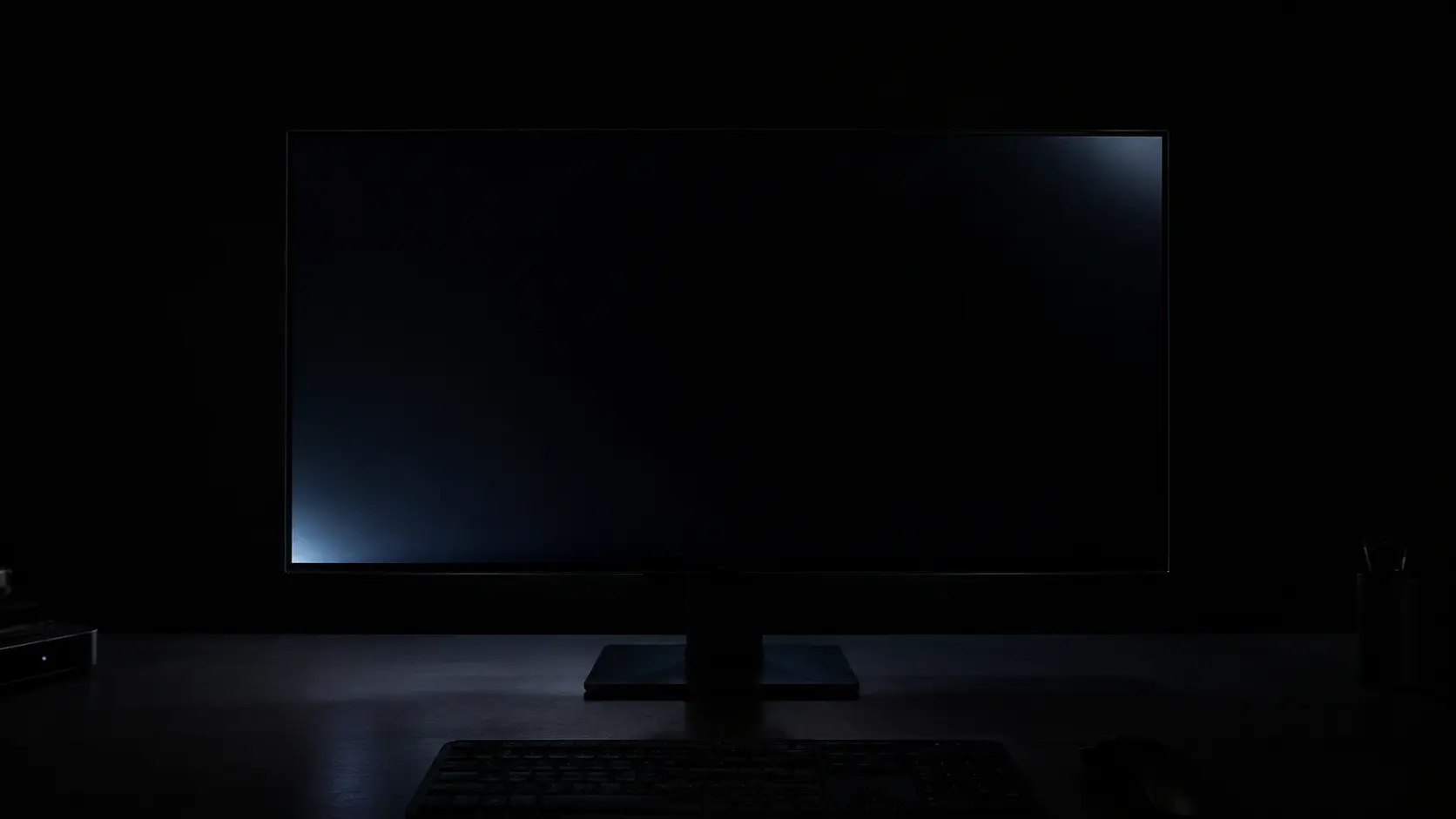
A dark screen in a dark room reveals every flaw
What Is Backlight Bleed?
Most modern monitors are LCD panels. An LCD does not produce light by itself. Behind the panel sits a backlight (usually LEDs), and the liquid crystal layer in front of it acts like thousands of tiny shutters that let more or less light through.
When the screen shows pure black, those shutters close as tightly as they can. But no shutter is perfect. If the panel, the frame or the layers inside the monitor are not perfectly sealed or evenly pressed together, a little extra light leaks out around the edges. That leak is backlight bleed.
Typical signs of backlight bleed:
- Light patches along the edges or corners of a dark image
- Uneven shapes, such as clouds, streaks or bright "flashlight" beams
- The same position no matter how you tilt your head or sit
- Color that stays mostly white or slightly yellow-blue rather than changing hue
The key point is that bleed is a property of the physical unit. Two monitors of the exact same model can look very different, which is why people call it the "panel lottery".
What Is IPS Glow?
IPS glow is a different phenomenon, and it only affects IPS-type panels (including AHVA and Nano IPS variants). It comes from the way IPS crystals are arranged. When you look at the screen from an angle, the polarizing layers let a small amount of light scatter through, and the picture takes on a faint glow, usually in the corners.
Typical signs of IPS glow:
- A soft, even haze that is strongest in the corners
- It changes when you move. Shift your head and the glow shifts or fades
- A slight color tint, often silver, gold or purple depending on the angle
- It becomes more visible on dark content in a dark room
The important part is that IPS glow is considered a natural characteristic of the technology. It is not a defect, and every IPS monitor has some. What changes from one screen to another is how strong it is.
Backlight Bleed vs IPS Glow: Side-by-Side Comparison
| Feature | Backlight Bleed | IPS Glow |
|---|---|---|
| Cause | Light leaking around the panel or frame | Light scatter inside IPS layers |
| Changes with viewing angle? | No, it stays in the same place | Yes, it shifts or fades |
| Shape | Patchy, clouds or streaks | Smooth haze in corners |
| Is it a defect? | Only when it is severe | No, it is normal for IPS |
| Affects which panels? | IPS, VA, TN and others | IPS-type panels only |
If you remember only one rule, remember this one: move your head. If the bright area changes, it is mostly glow. If it stays exactly where it is, you are looking at bleed.
How to Test Your Monitor in 2 Minutes
You do not need special equipment. You need a dark room, a few minutes and a pure black image. Here is the routine I use every time I unbox a screen.
Step-by-Step Test
- Let the monitor warm up for at least 15 minutes. Panels can look different when they are cold
- Reset the picture settings to default so tweaks do not hide or exaggerate the problem
- Dim the room as much as possible and turn off bright lamps behind you
- Display a full black screen using our free screen diagnostic tool
- Set brightness to about 70–100%. Bleed is easiest to spot at high brightness, and it is the setting that shows the worst case
- Sit at your normal distance and look at the screen straight on
- Move your head left, right, up and down. Note which patches move and which stay
- Photograph it with a phone fixed on a stand, using the same exposure each time, if you may need to prove it to a store
Do not judge the screen by zooming in on a photo or by pressing your face to the glass. Your eyes adapt to darkness quickly, and a camera sensor makes the effect look much worse than it is in real life. Judge it from your actual seating position.
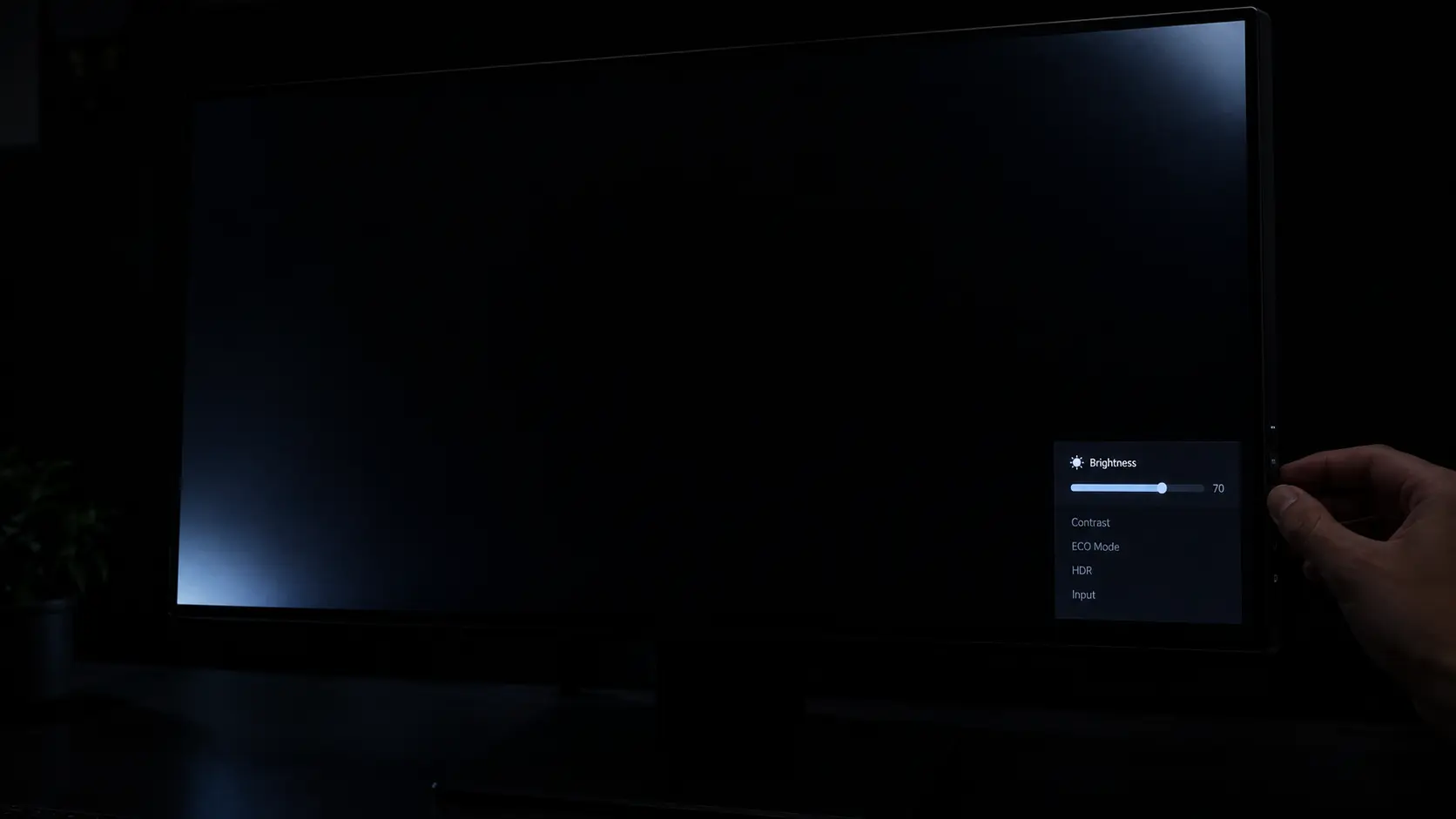
The dark room test: simple and reliable
The Angle Test That Settles the Debate
This is the step that separates the two issues faster than anything else. With the black screen still on, slowly stand up, then sit back down. Then lean left and right while keeping your eyes on the same corner.
What I saw on my own monitor was a good example of a mixed case. The large, pale haze in the bottom-left corner softened and nearly vanished when I sat higher, which is classic IPS glow. But a small, sharper patch at the top edge stayed in exactly the same place regardless of angle. That one was mild backlight bleed.
That is actually the normal situation for many monitors: a bit of both, at levels that are only visible in a black room on a black screen.
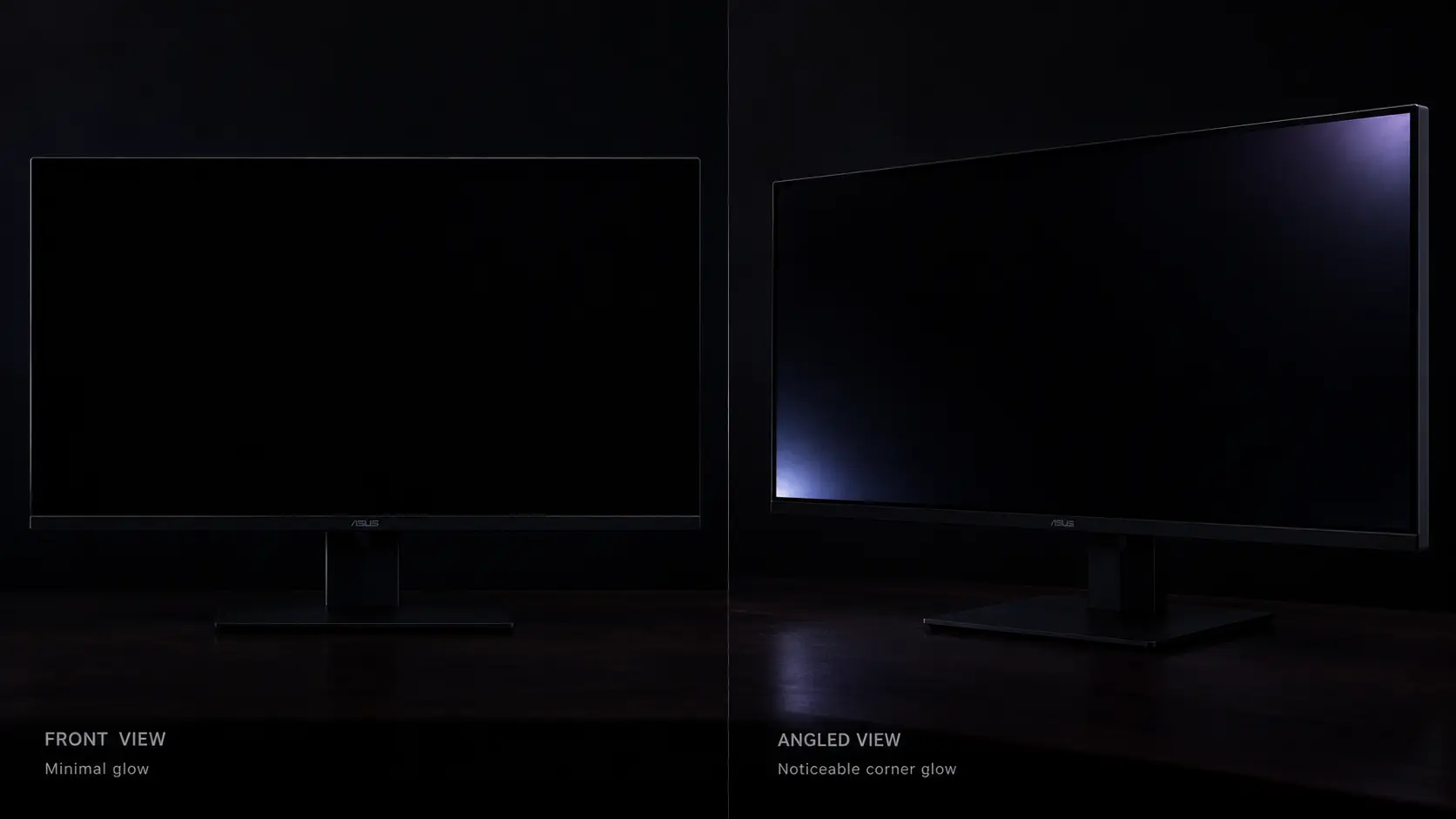
Same screen, two angles: glow changes, bleed does not
Is It Normal? How Much Is Too Much?
This is the question that matters most, and the honest answer is that some light imperfection is expected on almost every LCD monitor. The industry does not guarantee a perfect black, and most manufacturers do not publish a strict threshold for bleed.
A practical way to judge your screen is to ask three questions:
- Can I see it during normal use? If you only notice it on a pure black screen in a dark room, it is usually within normal limits
- Does it distract me in a real situation? Dark games, movies with black bars and night scenes are the real test
- Is it concentrated in one large area? A heavy, bright beam spreading across a third of the screen is much harder to call normal than faint edges
If the answer to the first two is "no", you most likely have a healthy monitor. If a strong patch is visible during ordinary dark content, you have a legitimate reason to ask for a replacement, especially during the return window.
Does the Panel Type Matter?
Yes, quite a lot. The type of panel changes both the likelihood and the look of the problem.
- IPS: Excellent colors and viewing angles, but visible glow in dark rooms and a moderate chance of bleed
- VA: Deeper blacks and better contrast, so glow is rarely an issue, though bleed can still appear on some units
- TN: Fast and affordable, with weaker angles and colors. Bleed can occur, and glow is less of a talking point
- OLED: Each pixel produces its own light, so there is no backlight and therefore no backlight bleed at all
If you work in a dark room and care about black levels, choosing a VA panel or an OLED will remove the whole discussion. If color accuracy matters more, an IPS is still a great choice, as long as you accept a bit of glow. For more guidance on choosing, read our Ultimate Monitor Buying Guide 2026.
Safe Ways to Reduce the Effect
You cannot repair bleed that comes from the physical construction of the panel, but you can often make it far less noticeable. These are the methods I recommend, in order from safest to most involved.
1. Adjust Your Brightness
Many monitors ship with the brightness turned very high. At 100% the backlight is working at full power, and leakage becomes obvious. For a normal room, a brightness of 30–50% is often more comfortable for your eyes and reduces the glow dramatically.
2. Control the Room Lighting
A completely dark room with a bright screen is the worst combination for your eyes and the best for revealing glow. Adding a soft light behind the monitor, such as a bias lamp or a small LED strip, lowers the contrast between the screen and the wall and makes the corners much less obvious.
3. Change Your Viewing Position
Since IPS glow depends on angle, a small change helps. Sit a little farther away, centre yourself in front of the display and tilt the screen so that your eyes are in line with its middle. Even a few degrees can make a visible difference.
4. Check the Monitor Settings
Switch off aggressive modes like "dynamic contrast" and unusual gamma presets that raise shadows. Moving from a bright preset to a standard sRGB or calibrated mode often calms the dark areas. If your monitor has local dimming, test it on and off, because the result varies by model.
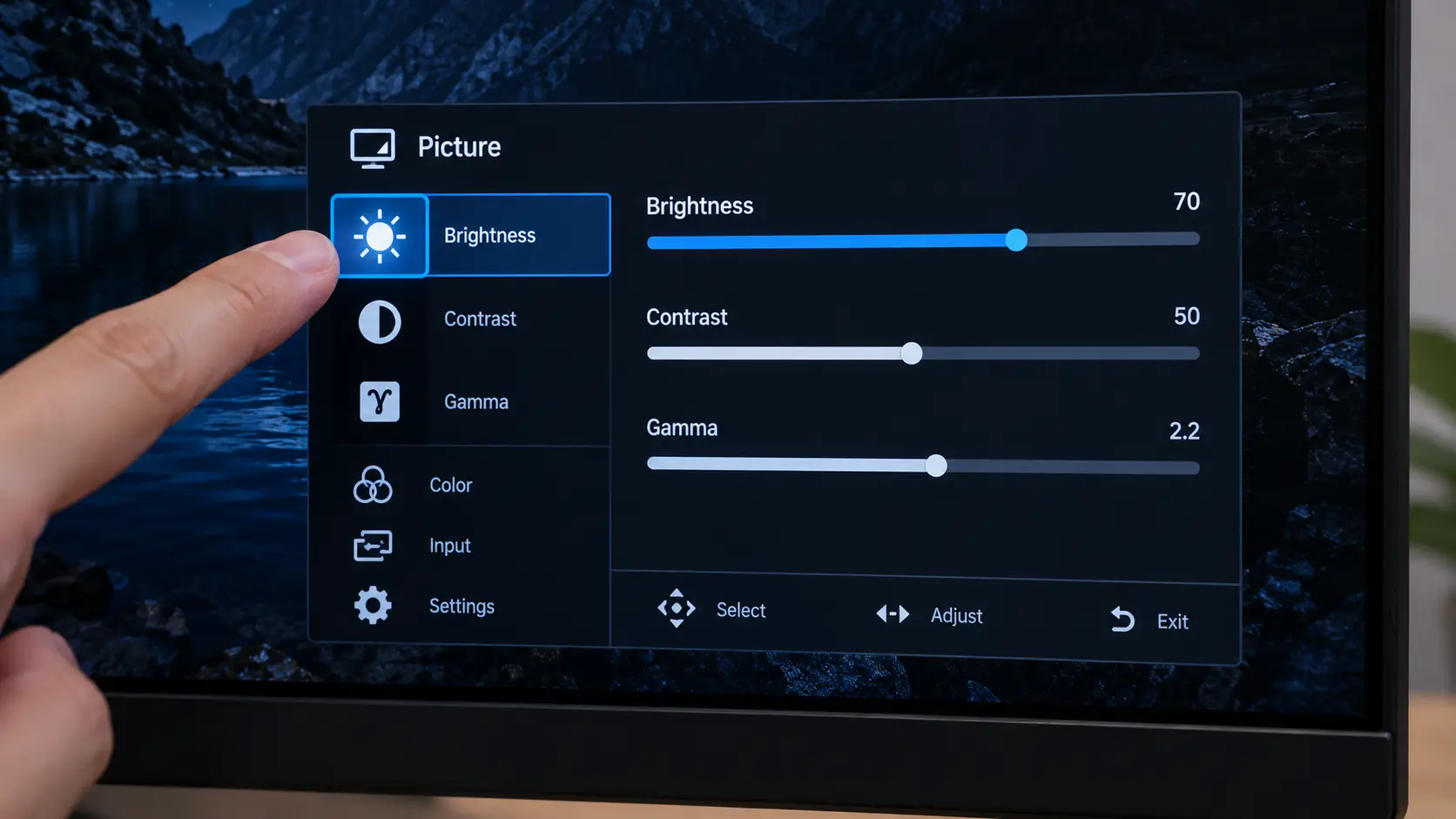
Lower brightness is the easiest improvement
5. Check the Mount and the Bezel Pressure
Sometimes the monitor mount or a tight VESA arm presses on the frame and pinches the panel, creating a brighter patch near the screws. If you use a wall mount or an arm, loosen the screws slightly and check whether the patch changes. Do this with the monitor unplugged and only on the mount, never on the panel itself.
⚠️ Important: Do not open the monitor, remove the bezel or press on the screen to "fix" bleed. Opening the casing voids the warranty, risks electric shock and can damage the panel layers permanently.
What NOT to Try (And Why)
Just like with stuck pixels, the internet is full of dubious advice about bleed. These are the ideas I would avoid:
- ❌ Massaging or pressing the screen — Can create permanent marks or damage pixels (see our pixel repair guide for what is actually safe)
- ❌ Removing the bezel and re-tightening screws — Risky, and it can end your warranty
- ❌ Using tape or foam around the edge — Can trap heat and mark the panel
- ❌ Heating the panel — Can warp layers and destroy the display
- ❌ Software "bleed fixers" — No software can change how light leaks through physical layers
If a video or forum post promises a miracle cure, treat it with suspicion. The honest truth is that bleed is a hardware trait, and your best options are to tolerate it, reduce its visibility or exchange the unit.
When to Return or Claim Warranty
There is no shame in sending back a monitor that bothers you. Here is how I would decide:
- Test within the first days. The return window is usually 14–30 days, and an early decision gives you the most options
- Document the problem. Take clear photos in a dark room and note the brightness setting you used
- Contact the seller first. Retailers often handle replacements faster than manufacturers
- Read the policy. Some brands explicitly exclude minor bleed, while others accept claims when it is visible during normal use
- Check for other defects at the same time. Run a full test for dead pixels, color uniformity and flicker, using our guide on how to test your monitor like a pro
If you also have a bright dot, learn what it is first with our article Dead Pixel vs Stuck Pixel, because a pixel defect together with strong bleed is a stronger case for a replacement.
How to Avoid the Problem When Buying
You cannot completely eliminate the risk, but you can tilt the odds in your favor.
- Buy from a store with a generous return policy and test the monitor the day it arrives
- Read user reviews, not only professional ones. Look for reports about uniformity and quality control for your exact model
- Consider the panel type based on how you use the screen: dark rooms favor VA or OLED, color work favors IPS
- Be careful with ultra-thin bezels and very large panels. More surface and tighter frames can mean more uniformity problems
- Avoid judging the screen in a showroom. Bright shop lighting hides everything
Frequently Asked Questions
Does backlight bleed get worse over time?
Usually it stays stable. In some cases it can seem to worsen in the first weeks as the panel settles and warms up, or when a mount adds pressure. If it changes quickly, check the mounting first and contact support if it keeps growing.
Can IPS glow be completely removed?
No. It is part of how IPS technology works. You can reduce how much you notice it with brightness, room lighting and seating position, but you cannot remove it.
Is backlight bleed covered by warranty?
It depends on the brand and the severity. Many manufacturers treat mild bleed as normal and only accept claims for strong, obvious cases. Always read the written policy before you buy.
Does a black screen test show the real picture?
It shows the worst case, which is exactly why it is useful. In daily use with mixed content, most mild bleed and glow disappear. What matters is whether you can see it when you play or watch dark material.
Will a new monitor look better after some use?
Sometimes the first few hours of warm-up reduce uneven brightness slightly, but a true defect will not vanish. Give the screen a day or two of normal use before you decide, as long as you are within the return window.
Final Thoughts: Know What You Are Looking At
Seeing a bright corner on a brand-new monitor can ruin the excitement, but a calm test will tell you what you are really dealing with. IPS glow is a normal trait that you can soften. Mild bleed is common and usually only visible in a black room. Heavy bleed that shows up in everyday dark scenes is a good reason to ask for an exchange.
My own monitor ended up in the "mild and acceptable" category. After lowering the brightness and adding a small light behind the screen, I stopped noticing the glow completely. Yours may be the same, or it may not, but now you have the tools to decide with confidence instead of guesswork.
Here is the short version of what to do:
- Warm up the screen and test with a black image in a dark room
- Move your head to separate glow from bleed
- Lower the brightness and improve room lighting
- Never open or press the panel
- Return the monitor if the problem is strong and visible in normal use
🔍 Test Your Screen for Bleed and Glow Now
💬 Leave a Comment
Have a question or something to add? Share your thoughts below.
Loading comments...