 SCREEN
📌 Quick Summary: "Nothing projector screen" is one of the most searched tech queries right now. If your projector is on but showing a blank screen, the problem is almost never the projector itself. In my workshop, I use a strict 7-step isolation sequence: source, cable, input, panel, settings, environment, and lamp. This guide walks you through each step so you can diagnose and fix the issue without buying a new projector.
I have been repairing displays for over a decade. I have seen every possible failure mode: dead pixels, burned-in logos, flickering HDMI ports, and projectors that turn on but project nothing.
And I can tell you this: the panic people feel when their projector screen goes blank is usually unnecessary. In 90% of cases, the projector is fine. The problem is a loose cable, a wrong input setting, or a computer that is not sending a signal.
This guide is the exact diagnostic sequence I use in my workshop. It is designed to take you from "nothing is showing" to "I found the problem" in under 15 minutes.
A blank projector screen is usually a simple fix
Step 1: The Source (Is Your Computer Actually Sending a Signal?)
This is the first thing I check, and it solves 40% of "no image" cases. Your projector might be working perfectly, but if the computer or streaming device connected to it is not outputting a signal, you will see nothing.
Check the Computer
If you are projecting from a laptop, the screen might be in "sleep" mode, or the display output might be disabled. On Windows, press Windows + P and select "Duplicate" or "Extend." On a Mac, go to System Settings > Displays and ensure the projector is detected as an external display.
If you are using a desktop PC, check that the monitor is not the only active display. The GPU might be sending the signal only to the primary monitor.
Check the Streaming Device
If you are using a Roku, Fire Stick, or Apple TV, make sure the device is powered on and not in sleep mode. The projector needs to receive an active HDMI signal from the streaming device. If the device is asleep, the projector will show "no signal."
For a complete guide on testing your computer's display output, read our article on How to Test Your Monitor Like a Pro.
Step 2: The Cable (The Most Common Culprit)
This is where most people get stuck. They assume the cable is fine because it looks intact. But HDMI cables can fail intermittently, or they can be the wrong specification for the signal.
Check the Connection
Unplug the HDMI cable from both the projector and the source. Inspect the pins inside the connector. If they are bent or broken, the cable is dead. Reconnect it firmly. Sometimes, simply reseating the cable solves the problem.
Try a Different Cable
This is the fastest test. If you have another HDMI cable, swap it. If the image appears, you have found the problem. If you are using a long cable (over 5 meters), the signal might be degrading. Try a shorter cable to see if that fixes it.
For 4K or 120Hz signals, you must use an Ultra High Speed HDMI cable. A standard HDMI cable will not carry the bandwidth, resulting in a blank screen or intermittent signal.
To understand the difference between cable types, read our guide on Refresh Rate and Cable Requirements.
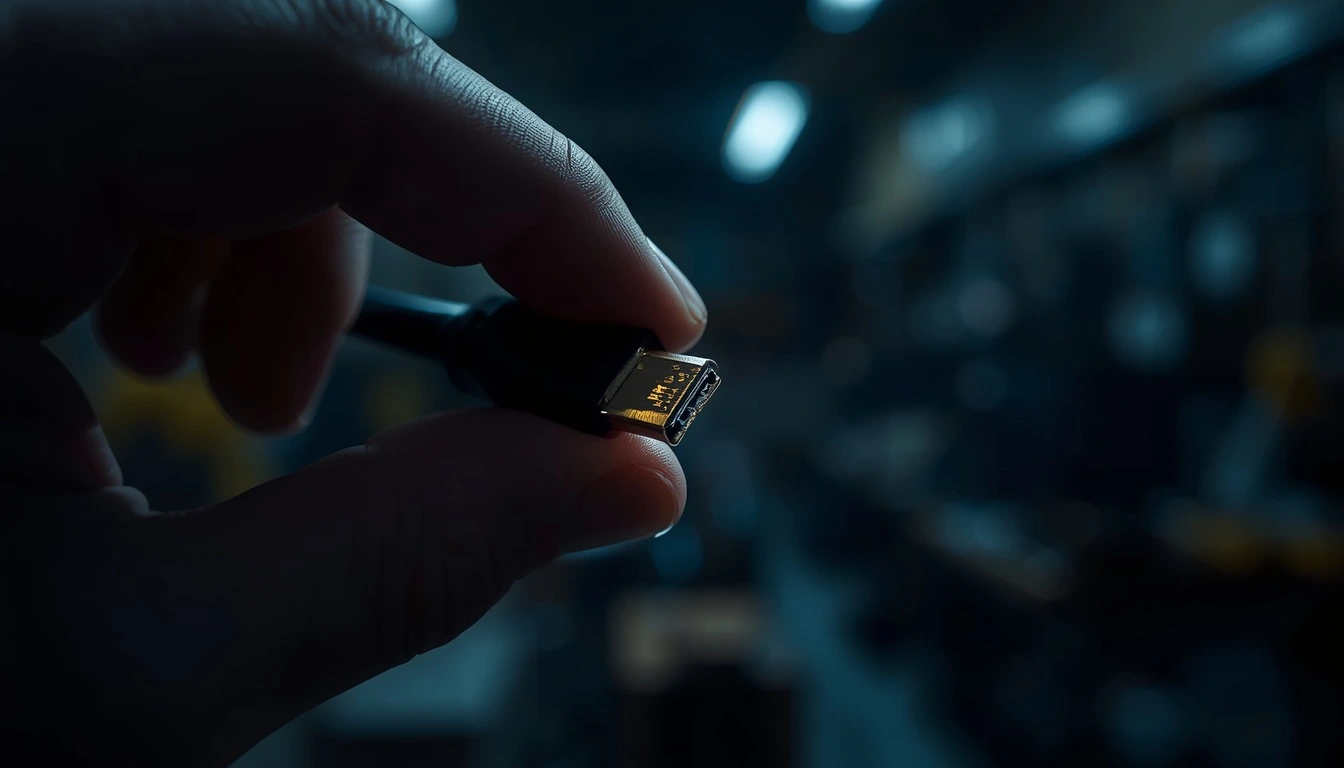
Bent pins inside an HDMI connector are a common cause of "no signal"
Step 3: The Input Source (Are You on the Right Channel?)
This is the most common "user error" I see. The projector is on, the cable is connected, but the projector is set to the wrong input. For example, your computer is plugged into HDMI 1, but the projector is displaying HDMI 2.
Use the remote control or the buttons on the projector to cycle through the inputs. Look for a button labeled "Source," "Input," or "HDMI." Try each one until the image appears.
Some projectors have an "Auto Source" feature. If it is enabled, the projector should switch automatically. If it is not, you must select the correct input manually.
Step 4: The Blank Button (Did You Accidentally Mute the Image?)
This is a feature that has confused more people than any other. Many projectors have a "Blank" or "AV Mute" button on the remote. When pressed, it temporarily turns off the image (but not the lamp).
If your projector is on and the lamp is lit, but the screen is black, press the "Blank" button on the remote. You might have accidentally pressed it. If the image appears, that was the problem.
Step 5: The Resolution and EDID Settings
If the cable is good and the input is correct, but the screen is still blank, the problem might be the resolution. If your computer is sending a resolution that the projector does not support, the projector will show a blank screen or "out of range."
Go to your computer's display settings and set the resolution to 1080p (1920x1080) or 720p (1280x720). These are the most compatible resolutions for projectors.
Another setting to check is HDMI EDID. This setting tells the projector how to communicate with the source device. If it is set to "Enhanced" (4K) but your source is only 1080p, you might get a blank screen. Try setting it to "Standard" (1080p) in the projector's menu.
Step 6: The Panel and Backlight (Is the Projector Itself Working?)
If you have followed the steps above and still see nothing, it is time to check the projector itself. This is where you need to look for physical signs of failure.
Check the Lamp
Look at the projector's lens. If the lamp is on, you will see a bright light. If the lamp is off, the projector might be in standby mode, or the lamp might be dead. Check the status light on the projector. A solid red or flashing red light usually indicates a lamp failure.
If the lamp is on but the image is very dim, the lamp might be nearing the end of its life. Projector lamps degrade over time. To learn more about dim images, read our section on Display Technology.
Check for Dead Pixels or Dust
If the image appears but has black dots or colored spots, you might have dead pixels or dust on the internal panels. This is a common issue with older projectors. Use our free diagnostic tool to test for dead pixels. If you see black dots, the projector's LCD panels might need cleaning or replacement.
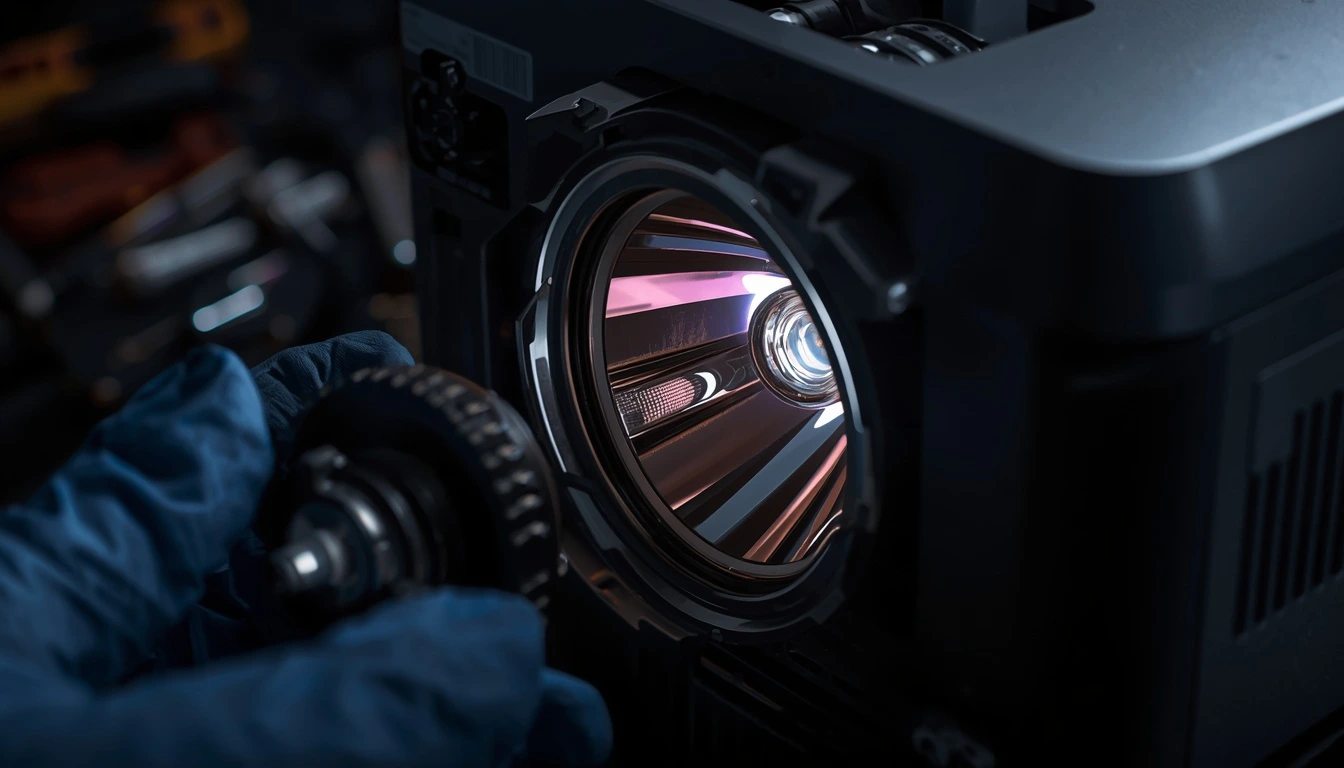
A dim projector lamp is a sign that it needs to be replaced
Step 7: The Environment (Overheating and Filters)
Projectors generate a lot of heat. If the vents are blocked or the filter is clogged with dust, the projector will overheat and shut down (or refuse to turn on).
Check the air filter on the side or bottom of the projector. If it is covered in dust, remove it and clean it with a vacuum or compressed air. Also, ensure the projector has at least 30 cm of space around the vents for proper airflow.
If the projector shuts down after a few minutes of use, overheating is the most likely cause. Let it cool down for 30 minutes before trying again.
Frequently Asked Questions (FAQ)
Why does my projector say "no signal" when everything is connected?
This is usually a cable issue or a wrong input setting. Try a different HDMI cable and cycle through the inputs on the projector. Also, check that your computer is actually sending a signal (press Windows + P).
Why is my projector screen black but the lamp is on?
This could be the "Blank" button on the remote, a wrong input, or a resolution mismatch. Check the remote for a "Blank" or "AV Mute" button and press it. Then check your computer's resolution.
Can a projector get dead pixels?
Yes. Projectors use LCD or DLP panels, and these can develop dead pixels over time. You can test for this using our free diagnostic tool. If the dead pixels are numerous, the panel may need to be replaced.
Why is my projector image blurry?
Blurry images are usually caused by a focus issue. Use the focus ring on the lens to adjust the image. If the blurriness is uneven (one side is sharp, the other is blurry), the projector might be misaligned or the lens might be damaged.
Final Thoughts: Don't Buy a New Projector Yet
Most "nothing projector screen" problems are caused by a simple cable or settings issue. Before you spend hundreds of dollars on a new projector, run through this checklist. Start with the source, then the cable, then the input, and then the projector itself.
If you have followed all the steps and the projector still does not work, the problem might be a hardware failure (lamp, panel, or power supply). In that case, it is time to contact a repair technician.
If your projector is working but you want to test the quality of the image, use our free Screen Medic diagnostic tool. It checks for dead pixels, uniformity issues, and more.
🔍 Test Your Projector Screen Now
💬 Leave a Comment
Have a question or something to add? Share your thoughts below.
Loading comments...