 SCREEN
📌 Quick Summary: You do not need an app to check your iPhone display. This visual guide uses solid colors to reveal every hidden defect from dead pixels to OLED burn-in on any iPhone model. Follow the 4 step visual checklist below to verify your screen's health in under 3 minutes.
There is a moment of panic every iPhone owner knows. You are reading an article on a white background, and suddenly you see it: a tiny black dot that was not there yesterday.
Is it a dead pixel? Is it dust? Is it a scratch? And more importantly, will Apple replace it?
I have run a display repair workshop for over a decade. I have seen every possible iPhone screen defect. And I can tell you this: the vast majority of people who think they have a dead pixel actually have a stuck pixel, a speck of dust, or nothing at all.
This guide is designed to eliminate the guesswork. It is a purely visual checklist. No complex software. No technical jargon. Just you, your iPhone, and a series of solid colors that will reveal the truth about your display.
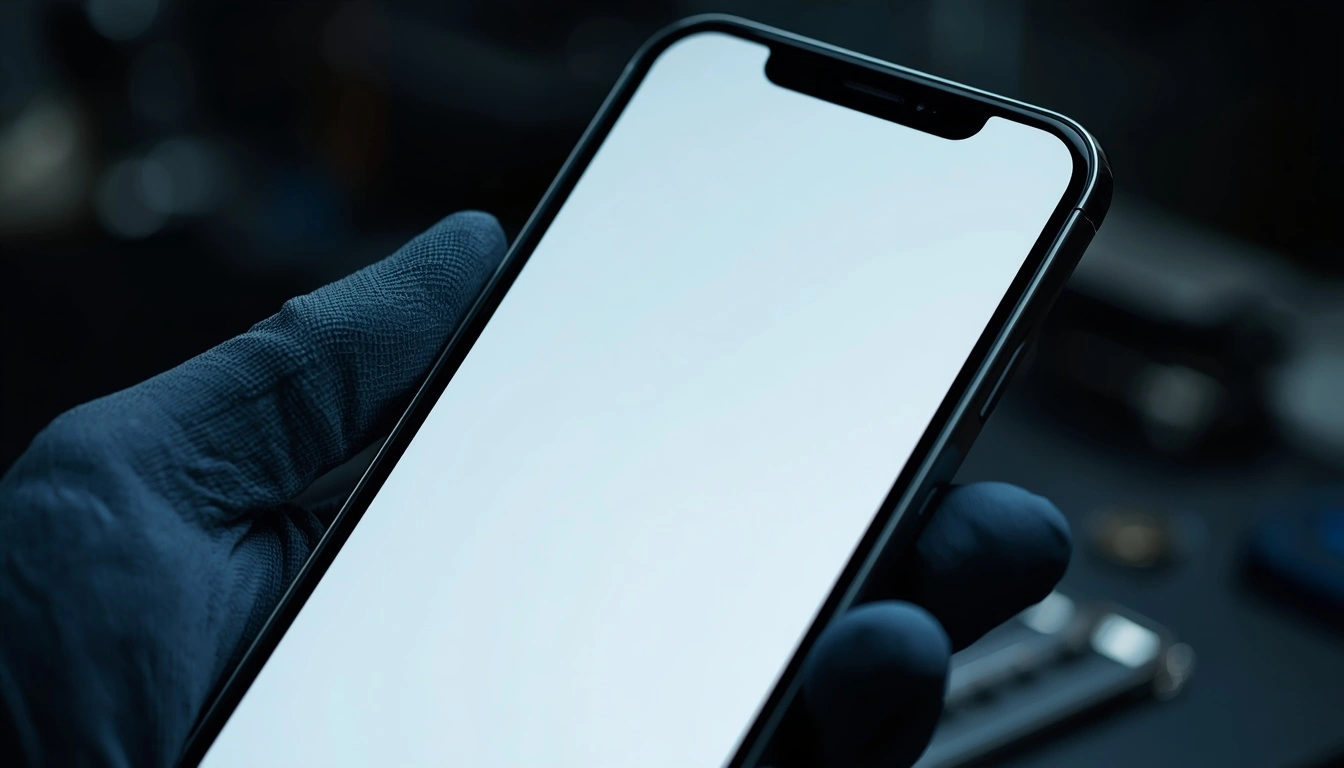
The white screen test is the fastest way to reveal hidden defects
Why Visual Testing is Crucial for iPhones
iPhones use OLED displays (since the iPhone X). This technology is stunning, but it has specific vulnerabilities that LCD screens do not have.
Unlike an LCD, where a backlight shines through liquid crystals, every pixel on an OLED iPhone produces its own light. This means:
- Blacks are truly black. The pixels are completely off.
- Defects are easier to spot. A stuck pixel on a black screen is incredibly obvious.
- Burn-in is a real risk. Static elements (like the keyboard or the status bar) can leave permanent ghosts.
A visual test forces your screen to display pure colors. If there is a defect, it will stand out like a sore thumb. For a deeper dive into the physics of these defects, read our article on What is a Dead Pixel? The Complete Guide.
Before You Start: The Visual Checklist Prep
If you skip these steps, you will get false results. Do not skip them.
- Clean the screen properly. Use a microfiber cloth. A single piece of lint on a white screen looks exactly like a dead pixel.
- Turn off True Tone. Go to Settings > Display & Brightness > True Tone (turn it OFF). This ensures the colors you see are pure, not adjusted for ambient light.
- Turn off Night Shift. Same menu. Turn it OFF.
- Set brightness to 100%. Defects are easiest to spot at maximum brightness.
- Go to a dark room. Ambient light will wash out the screen and make it impossible to see faint ghosting or burn-in.
Step 1: The "Black Screen" Test (For Stuck Pixels)
We start with black because it is the easiest test to perform and it reveals the most common iPhone defect: stuck pixels.
Open our free diagnostic tool and display a full black screen.
Look at the screen from straight on. Then look at it from a slight angle.
- If you see a bright red, green, or blue dot: You have a stuck pixel. The pixel is receiving power but is frozen on one color.
- If you see a white dot: You have a stuck sub-pixel (all three colors are on).
- If you see nothing: Perfect. Your screen is doing its job.
Stuck pixels are often fixable. Read our guide on The Stuck Pixel Fix That Actually Works for step by step instructions on how to unstick them.
Step 2: The "White Screen" Test (For Dead Pixels)
A dead pixel is a pixel that is completely off. On a black screen, a dead pixel is invisible (because the background is also black). That is why the white screen test is mandatory.
Display a full white screen using our tool.
Scan the screen carefully, quadrant by quadrant. Pay special attention to the edges and the area around the Dynamic Island or Notch.
- If you see a black dot: You have a dead pixel. It will not come back to life.
- If you see a faint gray smudge: This could be a scratch or a pressure mark. It is physical damage, not a pixel defect.
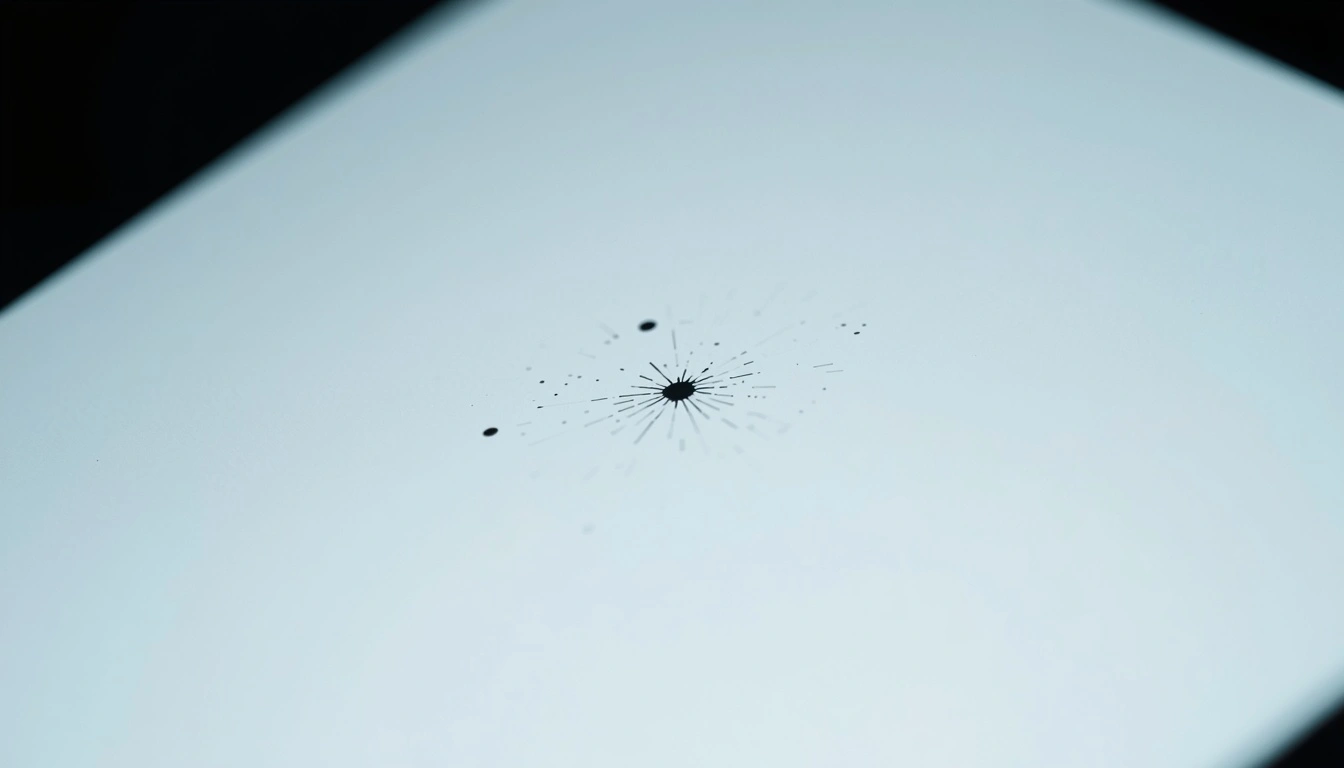
A dead pixel appears as a black dot on a white background
For a complete breakdown of how to tell the difference between a dead and stuck pixel, read our article on Dead Pixel vs Stuck Pixel.
Step 3: The "Gray Screen" Test (For OLED Burn-In)
This is the most important test for any modern iPhone, and the one most people skip. OLED screens can suffer from burn-in a permanent ghost image left by static content.
Display a 50% gray screen using our tool. You need to be in a dark room for this to work.
Look for faint outlines. A rectangle where the keyboard usually sits? A ghost of the status bar? The silhouette of a TikTok or Instagram logo?
- If the ghost fades after 10 minutes: This is image retention. It is temporary and not a defect.
- If the ghost remains sharp and permanent: This is true burn-in. It is not fixable.
If you suspect burn-in, read our comprehensive guide on How to Detect, Prevent, and Fix Screen Burn-In.
Step 4: The "Touch Test" (For Digitizer Issues)
Your iPhone screen is not just a display; it is also a touch digitizer. A defect in the digitizer will not show up in any color test, but it will make your phone frustrating to use.
Open the Notes app and select a thick pen. Draw a continuous line across every inch of the screen from the top left corner to the bottom right.
- If the line breaks or stutters: You have a digitizer issue. The touch panel is not registering your finger in that spot.
- If the line is smooth and continuous: Your touch panel is working perfectly.
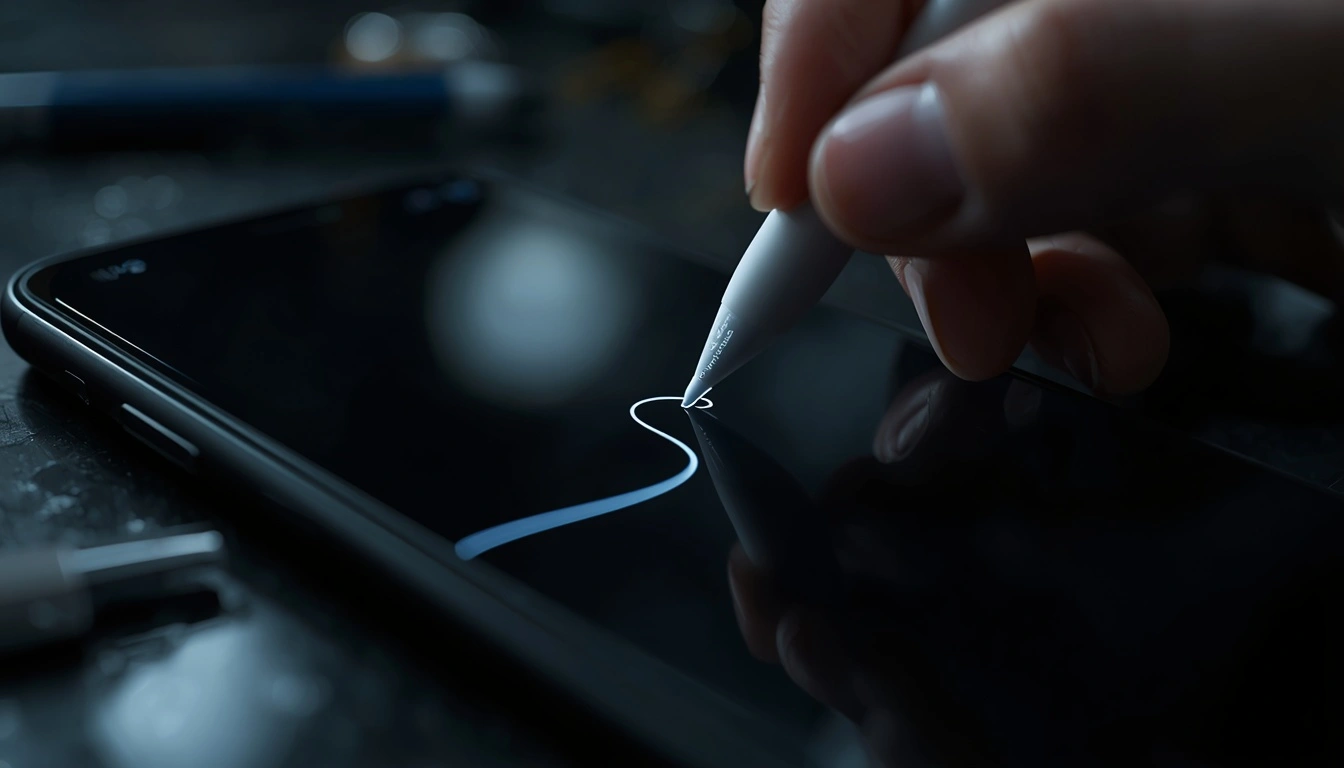
The touch test reveals digitizer issues that color tests cannot detect
Frequently Asked Questions (FAQ)
Can I fix a dead pixel on an iPhone?
No. A dead pixel is a permanent hardware failure. No software, no pressure, and no app can fix it. The only solution is a screen replacement by Apple or an authorized repair shop.
Does Apple warranty cover dead pixels?
Yes, but with conditions. Apple typically replaces screens with multiple dead pixels or a single dead pixel in a central, highly visible area. They may refuse a claim for a single dead pixel near the edge.
How do I know if my iPhone screen is original?
The most reliable way is to check for the True Tone toggle in Settings > Display & Brightness. If it is missing, the screen has likely been replaced with a non original part.
Is it normal for an OLED iPhone screen to look slightly grainy?
On a pure white screen at low brightness, some OLED panels can exhibit a very subtle "grain" or texture. This is a normal characteristic of the technology and is not a defect.
Can I use an app to test my iPhone screen?
Yes. There are apps on the App Store that offer screen tests. However, our browser-based tool is faster, requires no download, and runs entirely in your browser.
Final Thoughts: The 3-Minute Investment
An iPhone screen test is not about being paranoid. It is about being smart. You spent hundreds of dollars on this device. Three minutes of testing is a small investment to ensure that you got what you paid for.
Run the test when you unbox a new phone. Run it when you buy a used phone. Run it if you notice a weird dot or a faint shadow. The information you gain is worth the time.
If you want to run the full test right now, use our free diagnostic tool. It takes less than 60 seconds, costs nothing, and works on any iPhone.
💬 Leave a Comment
Have a question or something to add? Share your thoughts below.
Loading comments...