 SCREEN
 📌 Quick Summary: iPhone screens are among the best in the world, but OLED panels can still hide stuck pixels or burn-in. As the founder of Screen Medic, I have tested thousands of displays. This is my 3-minute, 4-step method to test your iPhone screen, find hidden defects, and know exactly what to do next.
Why I Built a Tool for iPhones
When I started Screen Medic, my goal was simple: give people a way to check their screens before the return window closed. I had spent years repairing monitors, TVs, and laptops, and I knew how easily a single dead pixel could ruin an expensive purchase.
But it didn't take long for me to realize something: the most requested device wasn't a 4K gaming monitor or a $1,500 laptop. It was the iPhone.
I was receiving emails every week from people who had bought a new iPhone, or a used one on eBay, and noticed a tiny green dot, a weird shadow on a white background, or a faint ghost image of the TikTok logo. They were frustrated because Apple's return policies are strict, and they didn't know if the screen was actually defective or if they were just being paranoid.
I built this guide because I felt that frustration myself. And because I believe that you shouldn't need to be a technician to know if your $1,000 phone is perfect.
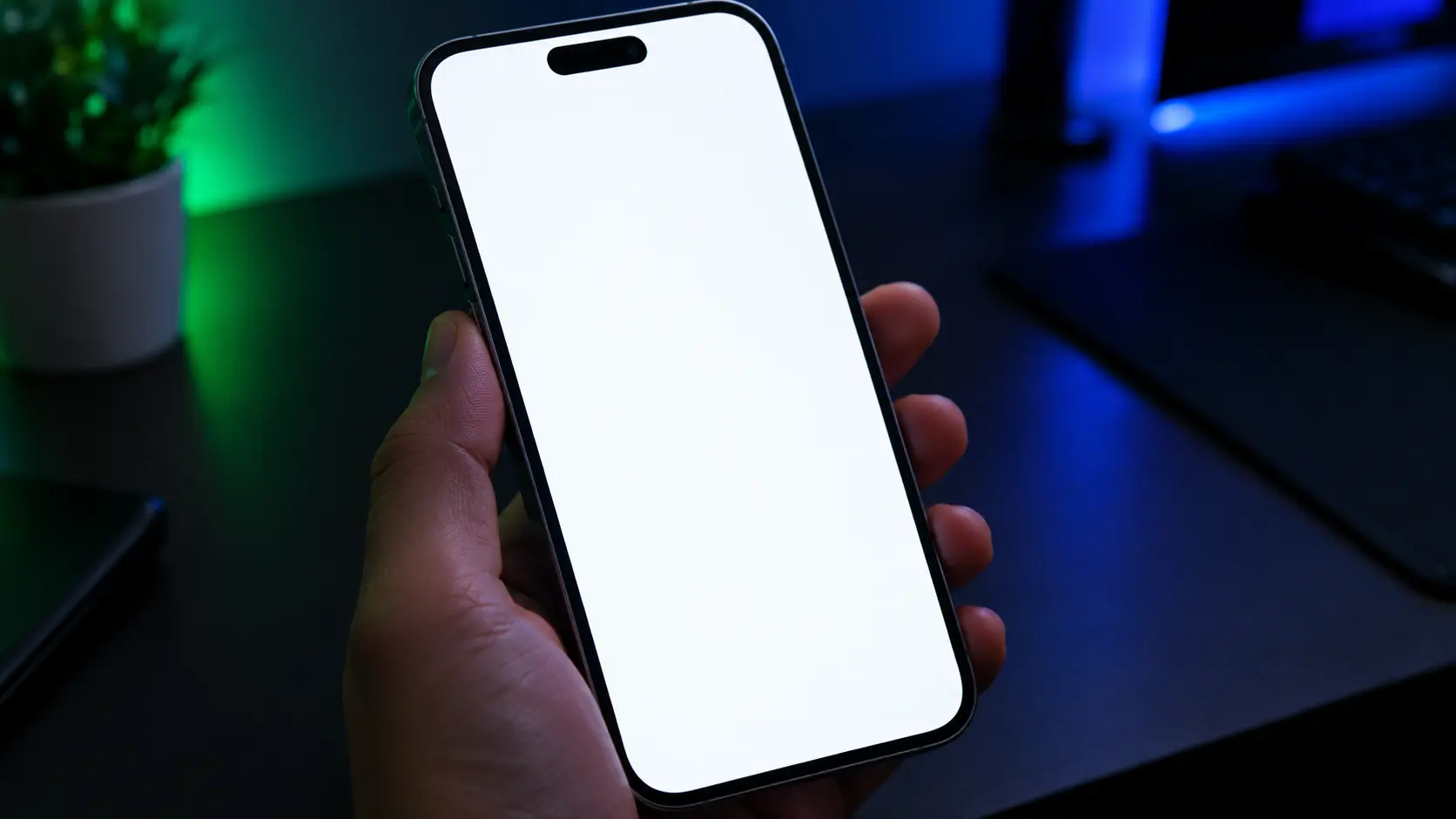
Testing an iPhone screen in our workshop
Why the iPhone Screen is Different
If you are coming from an older LCD screen (like a laptop), testing an iPhone is a different game. Here is what you need to know before you start.
The OLED Factor
Every modern iPhone (from the X onwards, and all Pro models) uses an OLED display. Unlike the LCD in your laptop, each pixel on an OLED screen produces its own light. When it shows black, the pixel is completely off.
This is great for contrast, but it changes how we test. OLEDs don't suffer from "backlight bleed" (light leaking from the corners). Instead, they are prone to burn-in (ghost images left by static logos) and color shifting (when one pixel ages faster than its neighbors).
The "True Tone" and "Night Shift" Traps
Apple includes features like True Tone and Night Shift that automatically change the color temperature of your screen to match the ambient light. If you test your screen with these on, you will not see the true colors.
The first rule of testing: Turn off True Tone and Night Shift in your Settings before you start.
The 4-Step iPhone Screen Test (3 Minutes)
You don't need an app. You don't need a computer. You only need your iPhone, a dark room (for the OLED test), and our free iPhone Screen Test.
Open the tool in Safari, enter fullscreen, and follow these four steps.
Step 1: The Dead Pixel and Stuck Pixel Test
This test is the easiest to understand and the most common reason people think their screen is broken. A dead pixel is a black dot that never changes color. A stuck pixel is a bright green or red dot that never turns off.
Use the tool to cycle through white, black, red, green, and blue. Look closely at the screen, especially near the edges and the notch (or Dynamic Island).
- Black dot on all colors: Dead pixel. Not fixable. Return if possible.
- Bright dot that disappears on one color: Stuck pixel. Sometimes fixable (see our guide on how to fix stuck pixels).
- No dots: You are perfect. Move to Step 2.
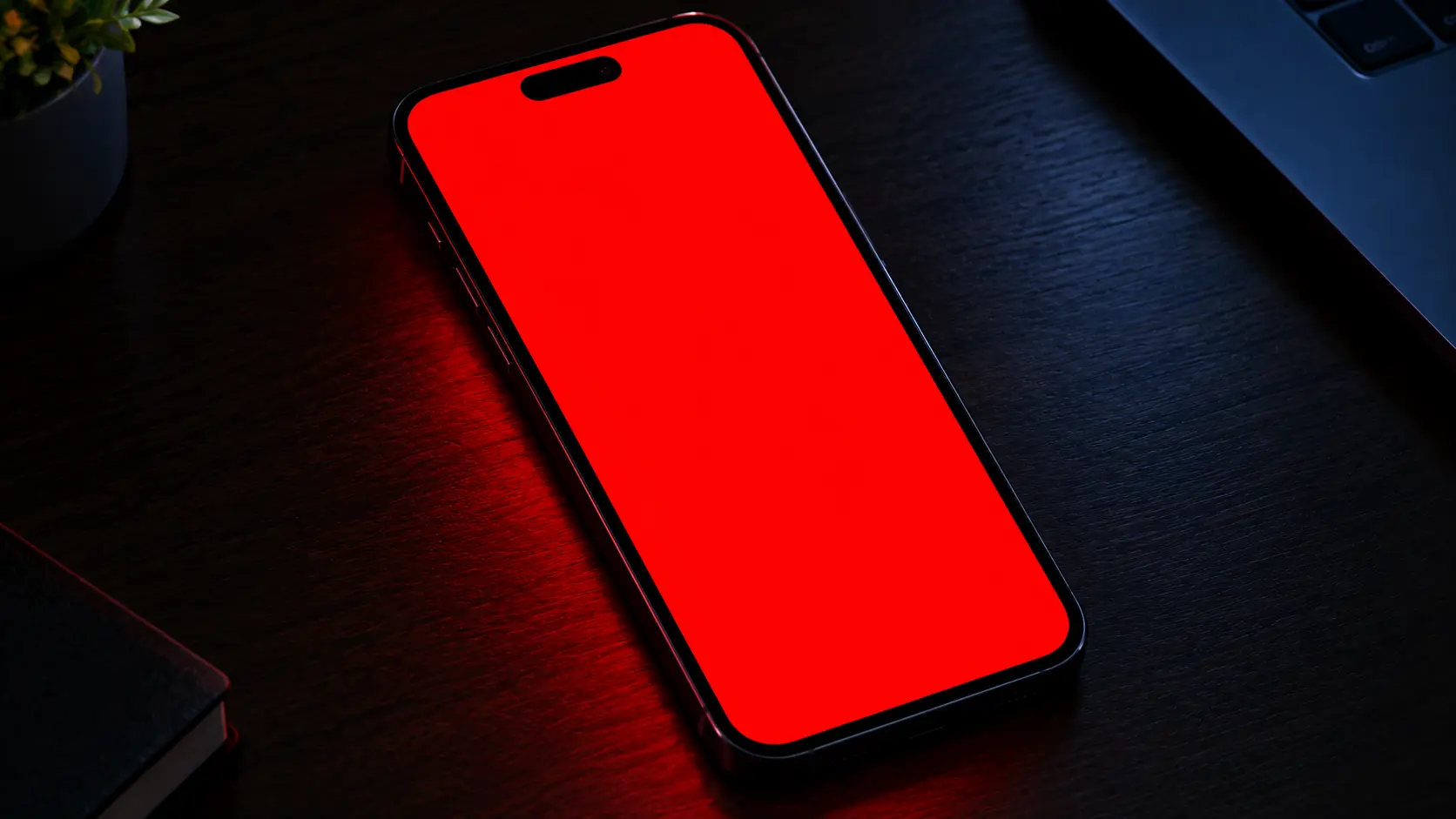
The red test screen is the fastest way to spot a bright stuck pixel
Step 2: The "Dark Room" Burn-In Test
This is the test that most people miss, and it is crucial for iPhones because they are OLED. Burn-in happens when static elements like the status bar, the keyboard, or a TikTok logo sit in the same spot for thousands of hours.
Take your iPhone into a completely dark room (a closet works great). Turn the brightness to 100%. Display a solid 50% gray image using our tool.
Look for faint, ghostly outlines. A ghost of the battery icon? A faint square where the keyboard usually is? That is image retention or true burn-in.
- If it fades away after 10 minutes: Image retention. Often fixable with software.
- If it stays after 10 minutes: True burn-in. Not fixable at home.
For more on this, read our guide on preventing and fixing screen burn-in.
Step 3: The Uniformity Test
An OLED screen should be perfectly even in color and brightness. If one area is slightly pinker or dimmer than another, that is a uniformity issue.
Display the pure white and 50% gray screens. Look at the phone from straight on.
Do you see a "dirty" patch in the corner? Does the top edge look yellow while the bottom looks blue? That is a sign of uneven pixel aging. It is common on used phones, but unacceptable on a new one.
Step 4: The Touch Response Test
This isn't in our software tool, but it is essential. Open the Notes app and draw lines all over the screen. Pay special attention to the corners and the edges.
If a line breaks, or if the screen doesn't register your finger in a specific spot, you have a touch digitizer issue. This is rare, but it happens.
What to Do If You Find a Defect
As the CEO of Screen Medic, I have to be honest with you: Apple is a great company, but their warranty policy on screens is strict.
They often require a certain number of dead pixels before they will replace a screen under warranty. However, they are very generous within their 14-day return window.
Here is my advice:
- If you bought the phone new (less than 14 days): Return it. Do not try to fix it. Do not accept a "within spec" answer. Get a new one.
- If you bought it used: You are in a tougher spot. If you have a dead pixel, you might have to live with it. If you have burn-in, you can try running a pixel refresher video on YouTube for a few hours (though results vary).
- If you have AppleCare+: You can get a screen replacement for a fee, even if it's accidental damage. But read the fine print.
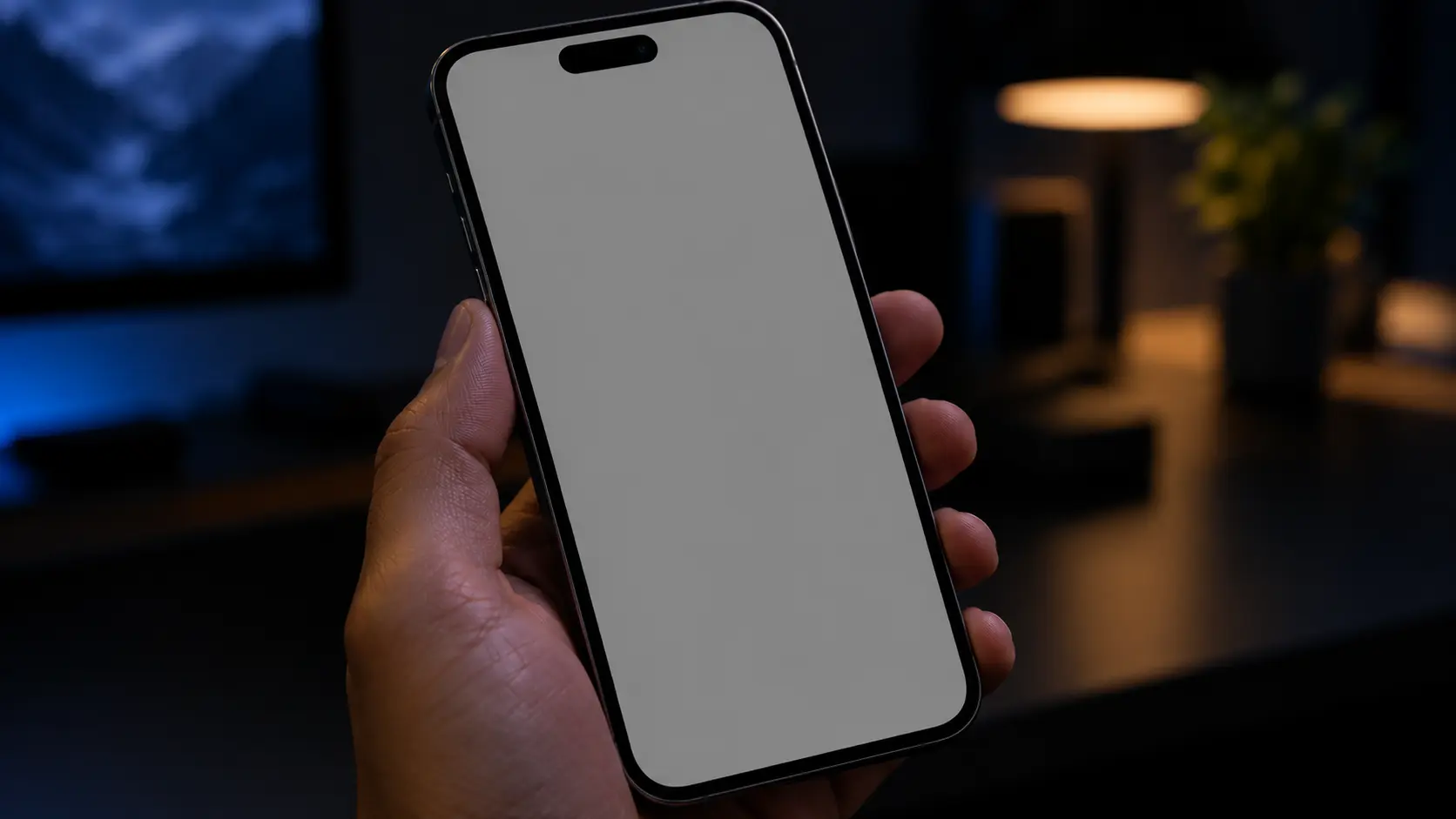
The gray screen is the best way to see burn-in and uniformity issues
The One Mistake Everyone Makes
The biggest mistake I see is people testing their screen using a static image they found on Google. They zoom in on a photo of a white screen, and the compression artifacts make it look like there are defects everywhere.
Do not do this. Use a proper diagnostic tool like Screen Medic. It generates true full-screen colors without compression artifacts.
Why Screen Medic is Different
I built Screen Medic because I was tired of seeing people get ripped off by used phone sellers or frustrated by warranty claims. Our tool is free, it runs in your browser, and it doesn't track your data.
We also have dedicated guides for testing other devices, like our universal screen test guide.
Final Thoughts: Peace of Mind is Worth 3 Minutes
You spend a lot of money on your iPhone. You deserve to know that the screen is perfect. My challenge to you is simple: take 3 minutes right now, open our tool, and test your screen.
If it passes, you have peace of mind. If it fails, you have a clear case for a return or a warranty claim. And if you have any questions, my team and I are always here to help.
💬 Leave a Comment
Have a question or something to add? Share your thoughts below.
Loading comments...