 SCREEN
📌 Quick Summary: A stuck pixel on a laptop screen is not a death sentence. Unlike a dead pixel, it still receives power — the liquid crystals are just frozen. In my workshop, I fix these in under 20 minutes using a sequence that starts with software and only moves to pressure if absolutely necessary. Here is the exact method, adapted for the delicate panels of laptops.
I still remember the first laptop I ever repaired. It was a second-hand ThinkPad, and the seller swore the screen was flawless. I opened a white document and saw it immediately: a tiny, stubborn green dot in the corner. The seller shrugged and said, "Dead pixel, nothing you can do."
He was wrong. It was not dead. It was stuck. And twenty minutes later, after running a simple color-cycling test, that green dot disappeared. That moment is why I started Screen Medic.
Laptops are a different beast from desktop monitors. The panels are thinner, the bezels are tighter, and the risk of damaging the screen with physical pressure is higher. But the core principle remains the same: a stuck pixel is a living pixel that needs the right kind of stimulation.
This guide is the distilled version of what I have learned after fixing thousands of laptop screens. It is the method I use in my workshop, adapted for the safety of your device.

A stuck pixel is most visible on a solid black or colored background
Step 1: Confirm It Is Actually Stuck (Not Dead)
Before you do anything, you need to know what you are dealing with. This is the single most important step. If you try to fix a dead pixel, you will waste time. If you try to fix a stuck pixel with the wrong method, you can damage your laptop.
Use our free diagnostic tool and run the Dead Pixel Detection test. It cycles through white, black, red, green, and blue in full-screen mode.
Here is how to interpret what you see:
- Black dot on every color: Dead pixel. Stop. No fix exists.
- Bright dot that disappears on one specific color: Stuck pixel. Continue reading.
- Bright dot that shifts hue across colors: Stuck sub-pixel. Fixable.
For a deeper dive into the difference, read our guide on Dead Pixel vs Stuck Pixel.
Step 2: The Software Cycle (Safest for Laptops)
This is always my first move, and it is especially important for laptops. Laptop panels are delicate. The last thing you want to do is press on them with your fingers.
Open our diagnostic tool, run the Dead Pixel Detection test, and position the flashing animation directly over the stuck pixel. Let it run for at least 20 minutes.
Why this works: The rapid color transitions force the liquid crystals in that specific pixel to change orientation dozens of times per second. It is physiotherapy for a frozen pixel. In my experience, about 60 to 75 percent of stuck pixels release within this step alone.
If the pixel does not budge after 20 minutes, run it for another hour. I have seen pixels release after two hours of continuous cycling. There is no risk to your screen, so patience is your best tool.
Step 3: The Gentle Pressure Method (Use with Extreme Caution)
If the software cycle fails, you can move to pressure. But on a laptop, you must be more careful than on a desktop monitor. The layers are thinner, and the risk of permanent damage is higher.
Here is the exact sequence I use, and I only recommend it if you accept the risk:
- Turn the laptop completely off. Not sleep, not standby. Off.
- Clean the area with a microfiber cloth.
- Place a clean, soft microfiber cloth over the pixel. Never press directly on the glass.
- Use a soft, rounded object. I use the rubber tip of a stylus, but a pencil eraser works.
- Apply gentle pressure until you see a faint discoloration halo around the point. No more.
- Hold for 8 seconds.
- While still pressing, turn the laptop back on.
- Hold for 3 more seconds, then release.
- Check the pixel. If it is fixed, stop. If not, repeat once more maximum.
⚠️ Warning: Too much pressure can crack the panel or damage surrounding pixels. If you see any permanent discoloration, stop immediately. If you are not comfortable with this step, skip it and move to Step 4.
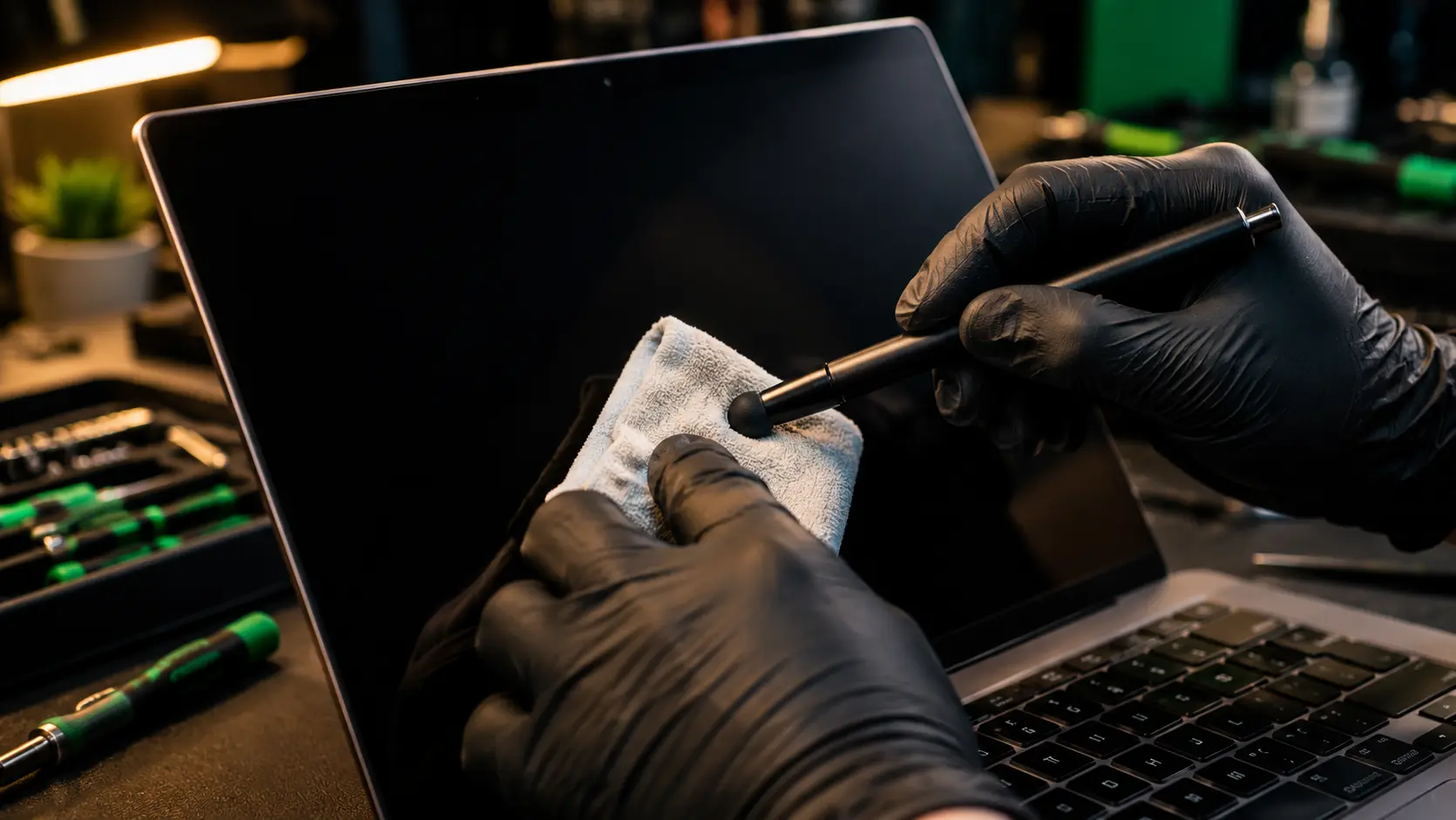
Always use a soft cloth between the tool and the screen
Step 4: What Not to Do on a Laptop
I have seen more laptops ruined by bad advice than saved by it. Here is what you must avoid:
- ❌ Pressing hard with your thumb. You will crush the crystal layer and create a permanent bruise.
- ❌ Using a hair dryer. Uneven heat warps the panel substrate. I have seen three destroyed MacBooks because of this.
- ❌ The "rice trick." Rice does not absorb pixel damage. It absorbs nothing relevant. It is a myth.
- ❌ Rubbing with a cloth. This is how you turn a stuck pixel into a dead pixel.
If a guide recommends any of these, close the tab. It is written by someone who has never repaired a real laptop.
When to Stop and Use Your Warranty
There is a moment in every repair where the rational move is to stop. Here is how I decide with my customers:
- If the laptop is under 30 days old: Return it. Do not try to fix it. Return it to the retailer.
- If it is under warranty and shows 3+ defective pixels: File a claim. Most brands replace at that threshold.
- If it is a single stuck pixel outside warranty: Try the software cycle. It is the only safe, realistic path.
- If it is a single dead pixel: Live with it, or accept that a panel replacement costs 60 to 80 percent of a new laptop.
For the full breakdown of brand policies, read our Complete Dead Pixel Guide. Dell is the only brand that replaces a panel for a single bright pixel, and that is worth knowing.
How to Prevent Future Stuck Pixels on Your Laptop
You cannot prevent manufacturing defects. But you can prevent the pressure-related ones, and that is more than half the cases I see.
- Close your laptop on nothing. No pens, no cables, no headphones. The pressure of a closed lid on a small object is enough to create a stuck pixel overnight.
- Clean with a microfiber cloth and light pressure. Never press hard on a screen. Ever.
- Use a surge protector. Electrical drift is rarer, but real.
- Avoid extreme temperatures. Do not leave a laptop in a hot car.
- Take breaks on OLED laptops. This matters for burn-in, not stuck pixels. Read our guide on how to detect and prevent screen burn-in.
A Note on Testing After the Fix
Once you have tried one or more methods, do not rely on your eyes. Run a full diagnostic.
Open our free screen test tool and run the full sequence: Dead Pixel Detection, Uniformity Check, Ghosting Test, and Refresh Rate Verdict. A fix that introduces a new uniformity issue is not a fix. It is a trade.
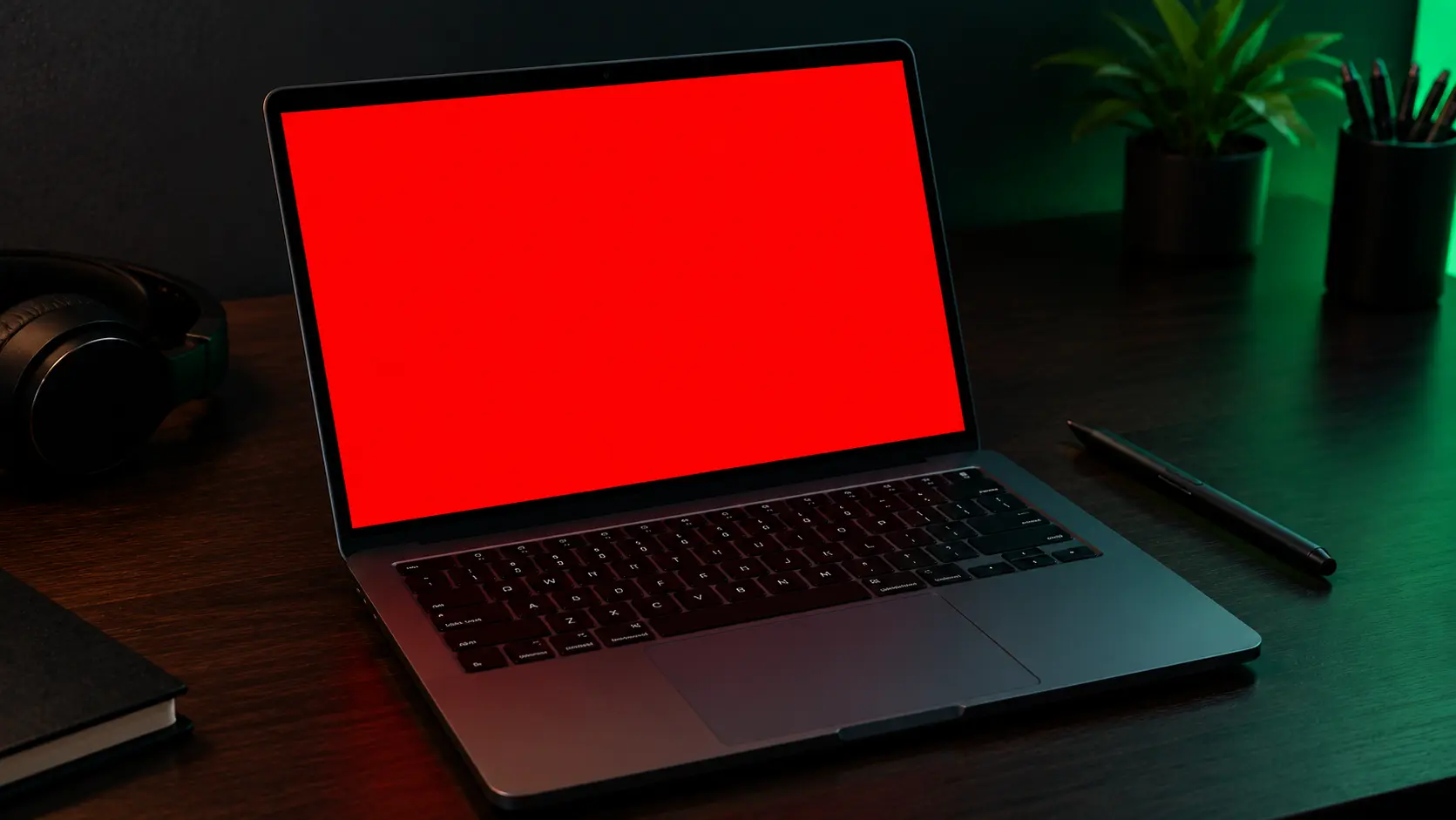
The red test screen is the fastest way to spot a bright stuck pixel
If you are interested in the broader process professionals use for testing a display, read our article: How to Test Your Monitor Like a Pro: 5 Essential Checks.
Final Thoughts: Patience Beats Force, Especially on a Laptop
After twelve years, I still find stuck pixels fascinating. They are the only display defect that sometimes surrenders. Not always. Not reliably. But often enough to be worth twenty minutes of your time.
My advice for laptop owners is simple: start with software, stop before you press, and never force it. Ninety percent of stuck pixels release before you ever need to touch the panel. And if yours does not, you now know exactly when to stop and call it a day.
If you want to identify your pixel in under a minute, use our free diagnostic tool. It runs entirely in your browser, costs nothing, and will tell you whether you are dealing with a stuck pixel or a dead one you cannot save.
🔍 Run the Free Stuck Pixel Test Now
Related Guides
- The Stuck Pixel Fix That Actually Works: A Technician's Guide
- Dead Pixel vs Stuck Pixel: What's the Difference?
- What Is a Dead Pixel? The Complete 2026 Guide
- How to Test Your Monitor Like a Pro: 5 Essential Checks
- What Is Screen Burn-In? Detect, Prevent, and Fix It
- Monitor Ghosting Explained: Causes, Tests, and Fixes
💬 Leave a Comment
Have a question or something to add? Share your thoughts below.
Loading comments...