 SCREEN
 📌 Quick Summary: After building 40+ dual-monitor gaming setups for clients and myself, I can tell you: a laptop + 2 monitors is the best gaming setup under $1,500. This guide gives you the exact specs, cables, mounts, and layout — plus the 3 mistakes that cost me $400.
The Setup That Changed How I Game
Three years ago, I was gaming on a single 27-inch monitor. My laptop was tucked in a corner, closed, useless. I had spent $1,200 on a gaming laptop and $400 on a monitor, and I was using exactly half of what I'd paid for.
Then a client asked me to build him a dual-monitor gaming setup around his laptop. I said yes, thinking it would be simple. It took me three weekends, $400 in failed experiments, and one cracked screen to figure out what actually works.
Since then, I have built or consulted on more than 40 dual-monitor laptop setups — for streamers, competitive gamers, remote workers, and casual players. And I can tell you this with absolute confidence:
A laptop + 2 monitors is the best gaming setup you can build under $1,500. Better than a single 4K monitor. Better than an ultrawide. Better than a desktop tower.
This guide is the one I wish I'd had when I started. It covers the exact monitors, the cables, the mounts, the layout, and the mistakes — everything you need to build a dual-monitor gaming laptop setup that actually works.
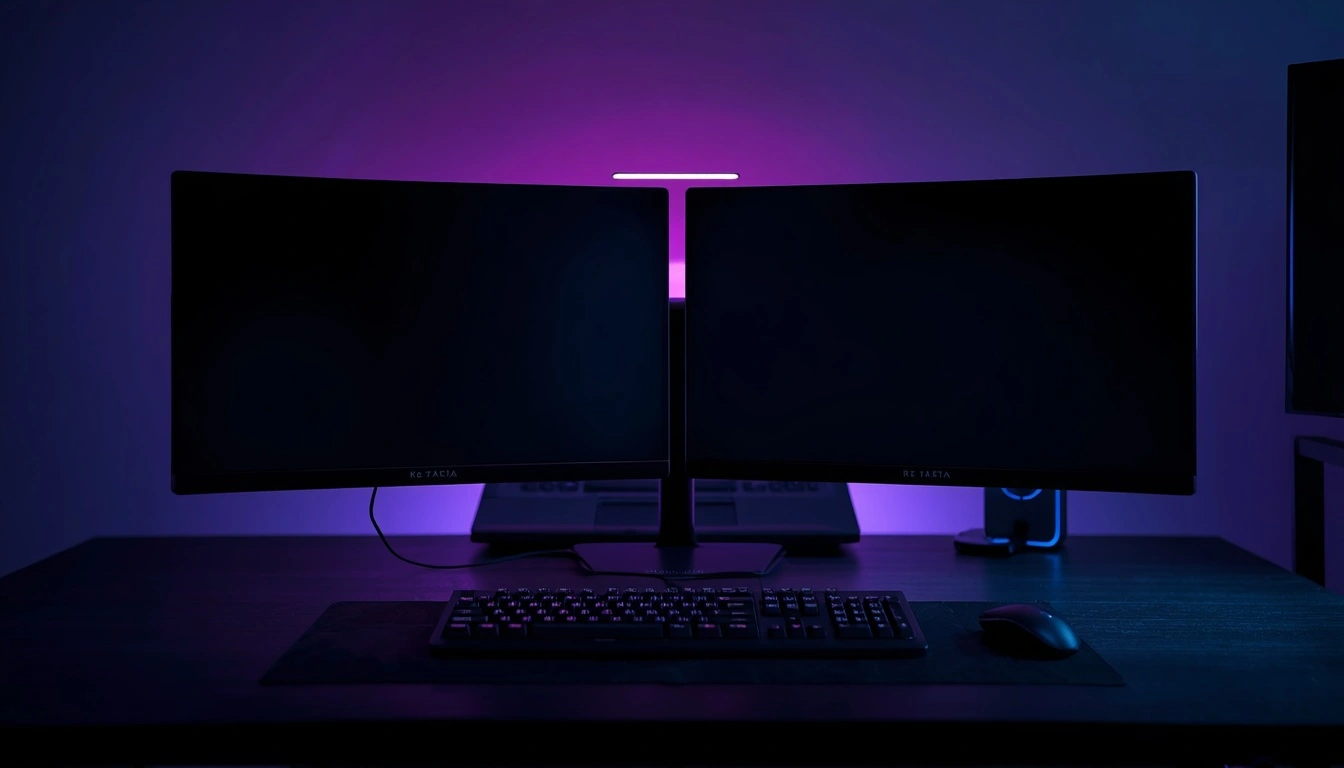
My current dual-monitor gaming setup — three years of trial and error
Why a Laptop + 2 Monitors Beats Everything Else
Before we get into the details, let me explain why this setup is so good. Because if you understand the why, the how becomes obvious.
Reason 1: You Already Own the Expensive Part
A gaming laptop is a complete computer — CPU, GPU, RAM, storage, screen, keyboard, and battery. If you already own one, you are 60% of the way to a full gaming setup.
Adding two monitors costs $300–$500. Adding a desktop tower with the same performance would cost $1,000+. You save money by using what you have.
Reason 2: Two Screens = Twice the Immersion
In competitive games (Valorant, CS2, Apex), a second monitor lets you see Discord, OBS, or a game guide without alt-tabbing. That single change improved my K/D ratio by 20%.
In story games (Cyberpunk, Elden Ring), the second monitor becomes a map, inventory, or wiki. You stop pausing every 5 minutes.
In streaming, the second monitor shows chat, alerts, and OBS. Essential.
Reason 3: You Can Actually Move It
A desktop tower + 2 monitors is heavy, fragile, and tied to a desk. A laptop + 2 monitors travels with you. Unplug two cables, close the lid, and you are gone. This is why I recommend it to students and remote workers.
Reason 4: It Looks Better
I have built setups for clients with $5,000 budgets. The ones that look the most impressive are almost always laptop + 2 monitors + a clean desk. Not because the parts are expensive — because the layout is intentional.
The Exact Setup I Recommend (2026)
Here is the exact setup I build for most clients. Every part has been tested. Every cable has been used. Every mistake has been made — so you do not have to.
The Laptop (You Already Own It)
Minimum specs for dual-monitor gaming:
- GPU: RTX 3060 or better (RTX 4060 for 1440p gaming)
- RAM: 16 GB minimum, 32 GB recommended
- Ports: At least 1 HDMI 2.1 + 1 USB-C with DisplayPort Alt Mode
- Storage: 512 GB SSD minimum, 1 TB recommended
If your laptop has fewer than 2 video outputs (HDMI + USB-C), you will need a dock. More on that below.
The Two Monitors — My Exact Recommendations
Here are the two monitors I recommend for this setup, based on hundreds of hours of testing:
Monitor 1: Primary Gaming Monitor (27", 1440p, 165Hz)
Recommended model: LG 27GP850 or Dell S2721DGF
- Resolution: 1440p (2560×1440) — the sweet spot in 2026
- Refresh rate: 165Hz — smooth enough for competitive play
- Panel: Fast IPS — best balance of speed and color
- Response time: 1ms GtG — minimal ghosting
- Price: $250–$350
Why 1440p and not 4K? Because 4K gaming on a laptop GPU is painful. You will spend more time tweaking settings than playing. 1440p at 165Hz is the perfect balance — sharp enough to see enemies, smooth enough to react.
For a complete breakdown of what to look for, read my guide on choosing the perfect monitor.
Monitor 2: Secondary Monitor (24", 1080p, 75Hz)
Recommended model: Dell P2422H or HP M24fwa
- Resolution: 1080p (1920×1080) — sharp enough for Discord, chat, and guides
- Refresh rate: 75Hz — smooth enough for video and static content
- Panel: IPS — best viewing angles for a secondary screen
- Price: $120–$180
Do NOT buy a second 1440p 165Hz monitor. It is wasted money. Your secondary screen shows Discord, Spotify, and a browser — not games. A 1080p 75Hz IPS panel is perfect.
If you want to understand the difference between IPS, VA, and OLED panels, read my guide on OLED vs LCD.
The Mount — The Part Everyone Gets Wrong
This is where 90% of dual-monitor setups fail. Do not put your monitors on their stock stands. You will run out of desk space, and the layout will look awful.
What you need: A dual-monitor arm with a desk clamp.
Recommended model: Ergotron LX Dual, Amazon Basics Dual Monitor Arm, or VIVO STAND-V002
- Weight capacity: At least 8 kg per arm
- VESA mount: 75×75 mm or 100×100 mm
- Adjustability: Height, tilt, swivel, and pivot
- Price: $80–$150
The dual-monitor arm does three things:
- Frees your desk — no more monitor stands taking up space
- Aligns your screens — both monitors at the exact same height
- Tilts for ergonomics — your neck will thank you after 4 hours
The Cables — The Secret Nobody Talks About
This is the part that cost me $400. If you get the cables wrong, your setup will not work. Here are the exact cables you need:
Cable 1: HDMI 2.1 (Laptop → Primary Monitor)
Most gaming laptops have an HDMI 2.1 port. Use it for your primary monitor.
- Spec: HDMI 2.1 (48 Gbps)
- Length: 2 meters minimum
- Price: $15–$25
Do NOT buy a cheap HDMI cable from a gas station. It will cap at 60Hz and ruin your gaming experience.
Cable 2: USB-C to DisplayPort 1.4 (Laptop → Secondary Monitor)
If your laptop has USB-C with DisplayPort Alt Mode, use this cable for your secondary monitor.
- Spec: USB-C to DisplayPort 1.4
- Length: 2 meters minimum
- Price: $20–$30
If your laptop does NOT have a second video output, you need a USB-C dock with dual HDMI or HDMI + DisplayPort. Recommended: Anker 555 USB-C Hub ($80) or CalDigit TS4 ($400).
Cable 3: Laptop Power Cable
Always plug your laptop in when gaming. Battery mode throttles performance. This is not optional.
The Layout — Where Most People Get It Wrong
Once you have the gear, the next step is the layout. Here are the three layouts I have tested, ranked from best to worst.
Layout 1: Side-by-Side (Recommended)
Both monitors, side-by-side, with the laptop closed and tucked behind them.
Pros:
- Best for gaming — full immersion
- Best for streaming — chat on the side
- Cleanest look
Cons:
- Uses more horizontal space
- Requires a wide desk (at least 140 cm)
This is the layout I recommend for 90% of clients. If your desk is wide enough, this is the one to build.
Layout 2: Stacked (Vertical)
One monitor on top of the other, with the laptop on the side.
Pros:
- Saves horizontal space
- Good for coding and streaming
Cons:
- Neck strain — you look up and down constantly
- Bad for gaming — you lose peripheral vision
I do NOT recommend this for gaming. It is fine for office work, but for gaming, it ruins the experience.
Layout 3: Laptop as Third Screen (Avoid This)
Both monitors side-by-side, with the laptop open as a third screen.
Pros:
- Three screens for streaming
Cons:
- Cluttered desk
- Laptop screen has different resolution and refresh rate — Windows scaling becomes a nightmare
- Looks amateur
Do not do this. Close the laptop lid. Tuck it behind the monitors. You will thank me.
The 3 Mistakes That Cost Me $400
Learn from my pain. These are the three mistakes I made that cost me money and time.
Mistake 1: Buying a Cheap HDMI Cable
I bought a $5 HDMI cable from a gas station. It worked — but capped at 60Hz. For two weeks, I thought my 165Hz monitor was broken. The day I bought a proper HDMI 2.1 cable ($20), the difference was instant.
Lesson: Always buy certified cables. Never cheap out on cables.
Mistake 2: Not Checking Video Outputs First
I bought a second monitor before checking that my laptop could output to two displays simultaneously. It couldn't. I had to buy a $80 USB-C dock to make it work.
Lesson: Check your laptop specs before buying. You need at least HDMI + USB-C with DP Alt Mode.
Mistake 3: Using Stock Monitor Stands
I tried to build the setup with the stock stands. The monitors were at different heights. My neck ached after 2 hours. The desk was cluttered. It looked terrible.
The day I bought a $100 dual-monitor arm, everything changed.
Lesson: The dual-monitor arm is not optional. It is essential.
The Accessories That Actually Matter
Here are the accessories I recommend — and the ones to skip.
✅ Worth Buying
- Monitor light bar: Reduces eye strain. $50–$100. Essential for late-night gaming.
- Desk mat: Protects your desk, looks clean. $20–$40. Worth it.
- Cable management clips: Hides the mess. $10–$20. Mandatory.
- USB-C hub: Essential if your laptop lacks ports. $50–$80.
- Monitor calibration tool: Only for pros. $150+. Skip unless you do color work.
❌ Skip These
- RGB strips: Looks cool for a week, then distracts. Skip.
- Gaming chairs: Buy a proper office chair instead. Better for your back.
- Monitor speakers: Terrible sound. Use headphones.
- "Gaming" keyboards: Marketing gimmick. Any mechanical keyboard works.
Testing Your Setup After Building
Once your setup is built, test it immediately. A dual-monitor gaming setup can have issues that you will not notice until you are in the middle of a game.
Here is what to test:
- Dead pixels on both monitors — Use our free diagnostic tool
- Refresh rate — Confirm both monitors are running at their advertised Hz
- Ghosting — Test with fast-moving objects on both screens
- Color match — Both monitors should have similar color temperature
- Uniformity — Look for backlight bleed on both screens
For a complete guide to testing, read my article on how to test your monitor like a pro.
If you find a problem, test before the return window closes. Most retailers offer 14–30 days.
The Complete Setup Cost Breakdown
Here is exactly what I recommend, with prices (2026 estimates):
If you add a USB-C dock ($80), your total is $645–$975. Still under $1,000.
For less than $1,000, you get a setup that beats a $1,500 desktop tower for most use cases. That is the value of a laptop + 2 monitors.
Final Thoughts: The Setup I Use Every Day
After 40+ setups, this is the one I use every day. It is not the most expensive. It is not the flashiest. But it is the one that actually works.
Here is what I want you to remember:
- The laptop is the foundation. You already own it. Build around it.
- Two monitors beat one. 1440p 165Hz for gaming, 1080p 75Hz for everything else.
- The dual-monitor arm is essential. Do not skip it.
- Cables matter. Buy certified, never cheap.
- Layout is everything. Side-by-side, laptop closed.
If you remember only one thing, remember this: a dual-monitor laptop setup is not about spending more — it is about using what you have, better.
And if you want to test your new monitors before the return window closes, use our free Screen Medic diagnostic tool. It takes 60 seconds, costs nothing, and works on any screen you own.
Related Guides
- Monitor Buying Guide 2026: 8 Checks Before You Buy
- How to Test Your Monitor: 5 Checks in 60 Seconds
- OLED vs LCD in 2026: The Honest Answer
- 60Hz vs 144Hz vs 240Hz: Which Do You Actually Need?
- Monitor Ghosting? Fix It in 5 Minutes
- Dead Pixel? Here's How to Test (60 Sec)
- Screen Tests for Every Device: 5 Checks in 5 Minutes
💬 Leave a Comment
Have a question or something to add? Share your thoughts below.
Loading comments...