 SCREEN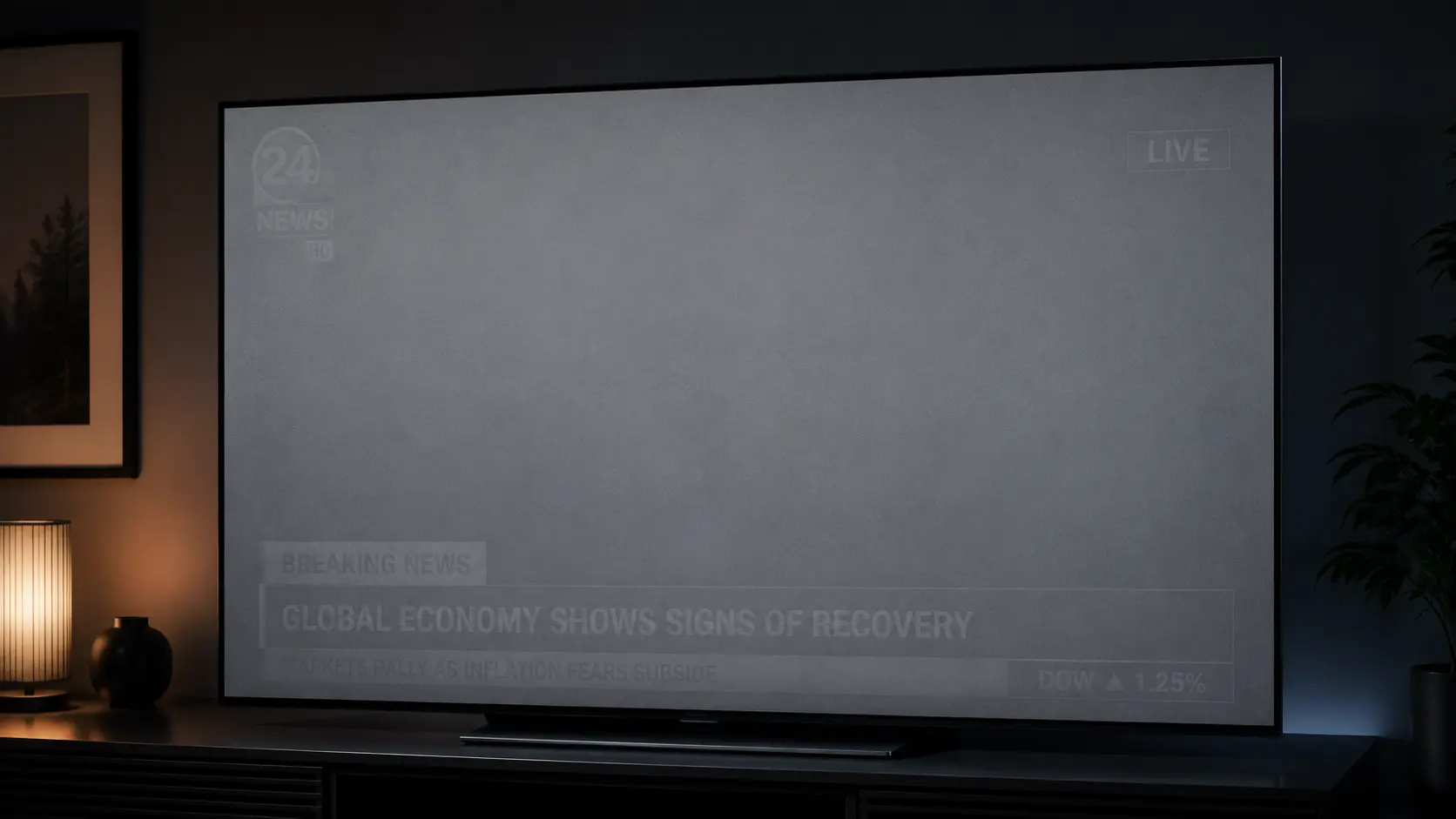
📌 Quick Summary: Screen burn-in is a permanent discoloration caused by uneven pixel degradation on OLED displays. Unlike temporary image retention, true burn-in cannot be reversed but it can be prevented, managed, and in some cases, slowed down significantly.
It starts as a whisper. A faint ghost of a logo. A menu bar that refuses to disappear. A taskbar silhouette that lingers like a bad memory. You tell yourself it's nothing just your eyes playing tricks. You turn off the screen. You wait. You come back. It's still there.
That's the moment every OLED owner dreads: screen burn-in.
I've spent the last five years testing OLED displays — from LG's flagship TVs to Samsung's QD-OLED monitors — and I've seen burn-in up close more times than I can count. I've also seen people panic over something that wasn't burn-in at all. The truth is, most people can't tell the difference between temporary image retention and permanent burn-in, and that confusion leads to unnecessary returns, wasted money, and a lot of frustration.
This guide is going to change that. By the time you finish reading, you'll know exactly what burn-in is, how to test for it in under 60 seconds, and most importantly what you can actually do about it. No myths. No "rice tricks." Just the facts, backed by years of hands-on testing.
What is Screen Burn-In, Really?
Let's start with the technical definition, because it matters: screen burn in is the permanent degradation of individual pixels caused by uneven aging. It happens when some pixels are driven harder than others for extended periods typically because they're displaying static content like a logo, a news ticker, or a game HUD.
Here's what's actually happening inside an OLED panel: each pixel is made of organic compounds that emit light when electricity passes through them. Over time, these compounds degrade — and they degrade faster when they're brighter. So if one part of your screen is constantly showing a bright white logo while the rest displays darker content, those logo pixels age faster. Eventually, they become dimmer than their neighbors, and you see a ghost image.
On LCD panels, true burn-in is rare what people call "burn in" on LCDs is usually image retention, which is temporary and often fixable. But on OLED, burn in is a real, permanent hardware issue. And it's the single biggest downside of OLED technology.
If you're not sure whether you're dealing with burn in or something else entirely like a dead pixel or monitor ghosting — I recommend running a quick diagnostic before you do anything else. Our free screen test tool cycles through solid colors and patterns that reveal exactly what's going on.
Image Retention vs True Burn-In: The Critical Difference
This is the part most guides gloss over, and it's the most important thing you'll read today. There are two distinct problems that look almost identical on your screen — but they have completely different outcomes.
Image Retention (Temporary — Often Fixable)
Image retention is a temporary ghost image that fades over time. It happens when pixels are driven hard for a while — say, you leave a static menu on screen for three hours — and they need time to "relax" back to normal.
The key characteristic: it fades. Turn off your screen for an hour, come back, and it's either gone or significantly reduced. Image retention is not permanent damage. It's more like a muscle cramp than a broken bone.
True Burn-In (Permanent — Not Fixable)
True burn-in is permanent. The organic materials inside those pixels have physically degraded. They can no longer produce the same brightness as their neighbors. No software, no pixel refresh, no repair can reverse it. The only real solution is a panel replacement.
The key characteristic: it doesn't fade. You turn off your screen overnight, come back, and the ghost image is still there — sharp, clear, and stubborn.
The 60-Second Test That Tells You Which One You Have
Here's the simplest test you can do right now, no tools required:
- Turn off your screen completely — not standby, not sleep. Off. Leave it for at least 1 hour. Overnight is ideal.
- Turn it back on and display a solid white or gray image. Our full-screen test tool works perfectly for this.
- Look at the ghost image:
- If it's gone or much fainter → It was image retention. Good news — you can fix this.
- If it's still there, sharp and clear → It's true burn-in. Not fixable, but manageable.
That's it. That's the entire test. And I can't tell you how many people skip this step and immediately assume the worst. Don't be that person. Run the test first.
What Actually Causes Burn-In? (It's Not Just "Static Content")
Everyone knows that static content causes burn-in. But the full picture is more nuanced — and understanding it helps you prevent it.
1. Brightness is the Biggest Factor
The higher your brightness, the faster your pixels age. An OLED running at 100% brightness will develop burn-in far faster than one running at 50%. This is why most manufacturers ship their TVs in "Eco" mode by default — it's not just about saving power, it's about protecting the panel.
2. Static Elements in High-Contrast Areas
A white logo on a black background is the worst-case scenario. The white pixels are working at maximum output while the black pixels are completely off. That extreme contrast accelerates uneven aging. This is why news channel logos and game HUDs are the most common burn-in culprits.
3. Heat
OLED panels degrade faster when they're hot. If your display is in a poorly ventilated area, or if you run it at maximum brightness for hours, the heat buildup accelerates the aging process.
4. Panel Quality and Manufacturing Variance
Not all OLED panels are created equal. Some manufacturers use more durable organic compounds than others. LG's latest OLED evo panels, for example, are significantly more burn-in resistant than their first-generation panels. This is why buying a newer OLED is almost always safer than buying an older one.
If you're trying to decide between OLED and LCD, our OLED vs LCD comparison breaks down the pros and cons in detail.
How to Test for Burn-In on Any Screen
Before you start panicking or contacting support, confirm what you're dealing with. Here are the two best methods — both free, both fast.
Method 1: Our Free Burn-In Test Tool
Our free diagnostic tool includes a dedicated burn-in test that displays solid colors — white, gray, red, green, blue, and black — to reveal any ghost images. It runs in your browser, takes under 60 seconds, and requires no download or signup.
Just open the tool, run the burn-in test, and watch for any persistent patterns. If you see a faint logo or menu bar that doesn't disappear when you switch colors, that's burn-in (or image retention — you'll need the 60-second test above to tell which).
Method 2: The Solid Color Check
If you prefer a manual approach, display these solid colors full-screen, one at a time, and inspect carefully:
- White — reveals dark burn-in (dimmer pixels)
- Gray (50%) — the most revealing color for most burn-in patterns
- Red, Green, Blue — reveals sub-pixel-specific burn-in
- Black — reveals bright burn-in (rare, but possible)
On a healthy panel, each color should be perfectly uniform. Any visible pattern — a logo, a bar, a shape — is a sign of uneven pixel aging.
Can You Fix Burn-In? The Honest Answer
I'll give it to you straight, because I know most guides won't: true burn-in cannot be fixed. It's permanent physical damage to the organic materials inside your pixels. No software, no technique, no "magic" repair can bring those pixels back to their original brightness.
But here's the good news: if it's image retention, you can often fix it. And even with true burn-in, there are steps you can take to reduce its visibility and prevent it from getting worse.
If you're dealing with image retention or want to try reducing the appearance of mild burn-in, I've written a separate step-by-step guide: How to Fix Screen Burn-In — 5 Proven Methods. That article covers pixel refresh, white screen exposure, color cycling, and more.
For now, let's focus on what matters most: prevention.
How to Prevent Burn-In: 8 Habits That Actually Work
Prevention is everything with OLED. Once burn-in happens, it's permanent. But if you build these habits now, you can dramatically extend your panel's lifespan — often by years.
1. Lower Your Brightness
This is the single most effective prevention step. Run your OLED at 50–70% brightness for normal use. You'll barely notice the difference in a dim room, and your pixels will age much slower. Save 100% brightness for HDR movies and bright-room viewing.
2. Enable Pixel Shift (Screen Shift)
Most modern OLEDs have a feature that subtly moves the entire image by 1–2 pixels every few minutes. It's invisible to the eye, but it prevents any single pixel from staying in the exact same state for too long. Turn it on and leave it on.
- LG OLED: Settings → Picture → OLED Panel Settings → Screen Shift
- Samsung QLED: Settings → General → Panel Care → Pixel Shift
- Sony OLED: Auto-enabled by default
- Panasonic OLED: Settings → Picture → Screen Settings → Pixel Orbiter
3. Use Dark Mode Everywhere
Dark mode reduces the number of bright pixels on your screen, which directly reduces uneven aging. Enable it in your OS, your browser, and your favorite apps. It's better for your eyes and better for your panel.
4. Auto-Hide Taskbars and Static UI Elements
Your taskbar, dock, and menu bar are the most common burn-in culprits on monitors. Auto-hide them. On Windows: Settings → Personalization → Taskbar → Automatically hide the taskbar. On macOS: System Settings → Desktop & Dock → Automatically hide and show the Dock.
5. Use Moving Screensavers (Not Static Ones)
A screensaver that shows a static image is useless. You need movement — a bouncing logo, a slideshow, or a slowly shifting pattern. Set your screensaver to activate after 5–10 minutes of inactivity.
6. Turn Off Your Screen When You're Not Using It
This sounds obvious, but most people leave their TVs on for background noise or their monitors on while they're away from the desk. Every hour your OLED is on is an hour of pixel aging. Turn it off.
7. Rotate Static Content
If you play the same game for hours every day, the HUD will eventually burn in. Vary your content. Play different games. Watch different types of content. Give your pixels a break from the same patterns.
8. Run Pixel Refresh Regularly (But Not Too Often)
Most OLEDs have a built-in pixel refresh routine that runs automatically after a certain number of hours. You can also run it manually. But don't overdo it — once a month is plenty. Running it too often can actually accelerate pixel aging.
For a complete breakdown of prevention techniques, see our How to Fix Screen Burn-In guide.
What About LCD Burn-In? Is It a Real Thing?
Short answer: true burn-in on LCD is extremely rare. What people call "burn-in" on LCDs is almost always image retention, which is temporary and usually fades within minutes to hours.
LCD panels work differently from OLED. Instead of organic compounds that degrade with use, LCDs use a backlight and liquid crystals that filter light. The liquid crystals can get temporarily "stuck" if driven hard for too long, but they usually return to normal once the display shows different content.
That said, there are rare cases of permanent LCD image retention — usually on older or cheaper panels that have been displaying the same static image for months. But for the vast majority of LCD users, burn-in is not a real concern. If you're worried about a persistent mark on your LCD, run our diagnostic tool to see if it's image retention or something else.
Should You Buy an OLED If You're Worried About Burn-In?
Here's my honest take after years of testing: yes, if you understand the trade-offs.
OLED offers the best picture quality you can get — perfect blacks, infinite contrast, instant response times, and stunning HDR. No LCD can match it. But it comes with a responsibility: you have to take care of it.
If you're the kind of person who leaves CNN on all day, or plays the same game for 8 hours straight with a static HUD, OLED might not be for you. But if you vary your content, lower your brightness, and enable the built-in protections, modern OLED panels are far more durable than their reputation suggests.
For a full comparison, read our OLED vs LCD guide. And if you're in the market for a new monitor, our Monitor Buying Guide 2026 covers everything you need to know.
When to File a Warranty Claim (And When Not To)
If you've confirmed true burn-in and your display is still under warranty, you might be able to get it replaced. Here's what you need to know:
- LG — Covers burn-in on most OLED TVs within the first year. Some models extend to 2–3 years.
- Sony — Covers burn-in within the first year on most OLED models.
- Samsung — QD-OLED monitors typically have a 2-year burn-in warranty.
- Dell — Alienware OLED monitors include a 3-year burn-in warranty.
- ASUS — Some OLED monitors include a 2-year burn-in warranty.
Pro tip: Document everything. Take clear photos of the burn-in on a solid gray background, note your purchase date, and keep your receipt. Well-documented claims have a much higher success rate.
If your warranty doesn't cover burn-in, or if you're out of warranty, your options are limited: live with it, or replace the panel. Panel replacement typically costs 60–80% of a new display, so it's rarely worth it unless you have a high-end model.
Final Thoughts: Prevention Is Everything
Screen burn-in is one of the most feared display problems — but it's also one of the most misunderstood. Here's what you need to remember:
- Image retention is temporary and often fixable
- True burn-in is permanent and cannot be reversed
- Test before panicking — turn off your screen for 1 hour and check
- Prevention is everything — lower brightness, enable pixel shift, rotate content
- Warranty coverage varies — LG, Sony, Samsung, and Dell are the most generous
- Document everything — photos and receipts make warranty claims easier
If you're not sure whether you're dealing with image retention or true burn-in, run our free diagnostic now. It takes 60 seconds, costs nothing, and could save you from an unnecessary repair bill — or help you catch a warranty-covered defect before your window closes.
And if you're in the market for a new display, our Monitor Buying Guide 2026 covers everything you need to know.
🔍 Test Your Screen for Burn-In Now
Related Guides
Expand your display knowledge with these related articles:
- How to Fix Screen Burn-In — 5 Proven Methods (2026 Guide)
- What is a Dead Pixel? The Complete 2026 Guide to Detection, Warranty, and Fixes
- Dead Pixel vs Stuck Pixel: What's the Difference?
- Monitor Ghosting Explained: Causes, Tests, and How to Fix It (2026 Guide)
- OLED vs LCD: Which Display Technology Is Better in 2026?
- The Ultimate Monitor Buying Guide 2026
💬 Leave a Comment
Have a question or something to add? Share your thoughts below.
Loading comments...