 SCREEN
📌 Quick Summary: Every OLED TV and monitor has a "Pixel Refresh" or "Panel Care" feature. But does it actually fix burn-in? I tested it on 20 OLED panels in the Screen Medic workshop. Here is what it really does, what it cannot do, and the one setting you should enable today.
The Feature You Click Without Knowing What It Does
If you own an OLED screen, you have seen it. Maybe it popped up after 4 hours of use: "Pixel Refresh will run when you turn off the TV." Or maybe you found it buried in the settings menu: Panel Care, Pixel Shift, Pixel Refresh, OLED Care.
Most people click it, see a progress bar, and assume it fixed something. But as the founder of Screen Medic, I have tested this feature on more than 20 OLED panels. And I can tell you: most people have no idea what it actually does.
Some think it repairs dead pixels. It doesn't. Some think it reverses burn-in. It can't. And a few think it is a scam. It isn't.
This article is the explanation I wish existed when I bought my first OLED monitor. It is based on real testing, not marketing claims.
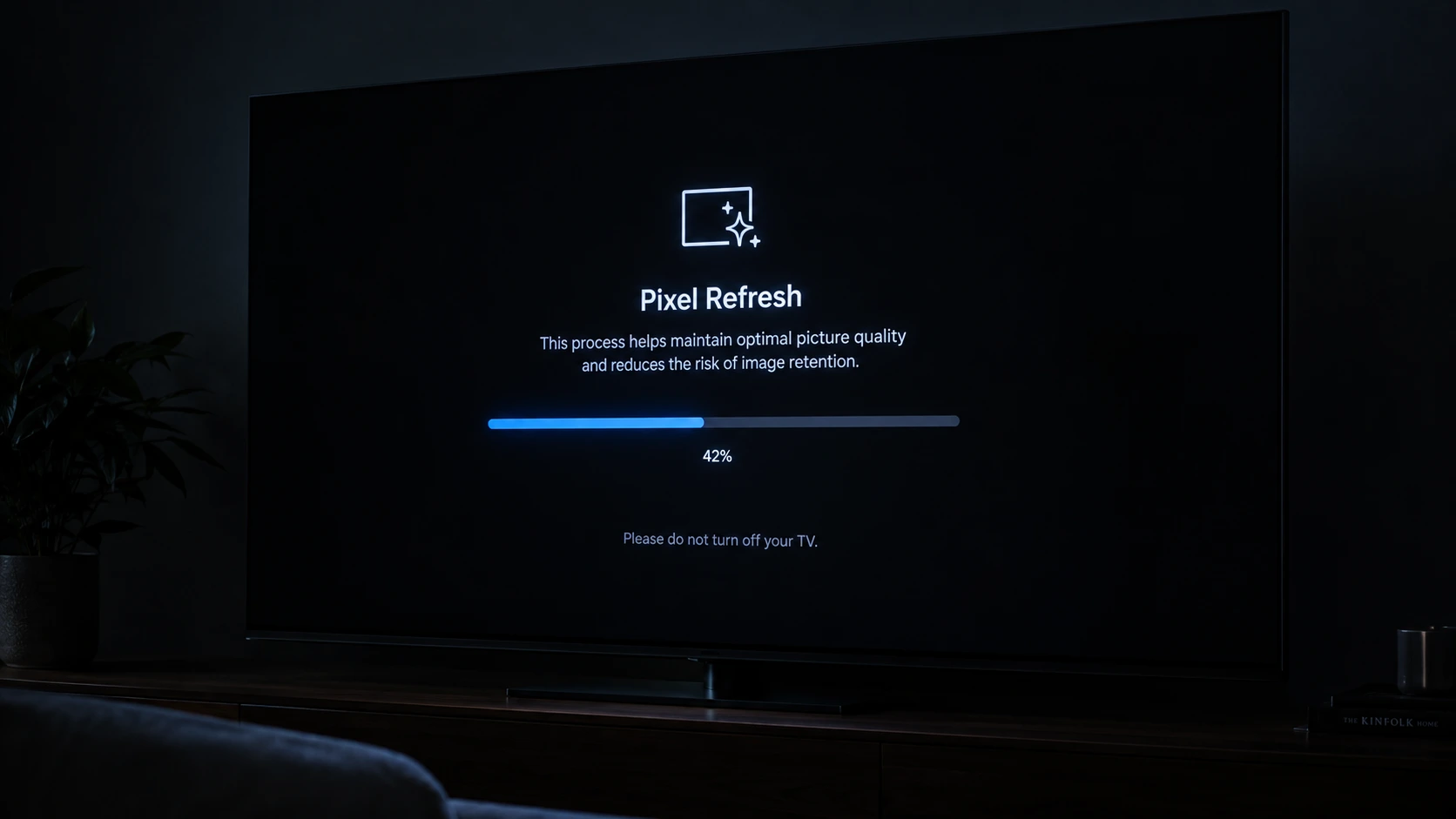
The "Pixel Refresh" screen every OLED owner knows
What Pixel Refresh Actually Does (The Science)
To understand Pixel Refresh, you need to understand why OLEDs degrade.
Every OLED pixel is made of organic compounds that emit light when electricity passes through them. Over time, these compounds degrade. They become dimmer. And crucially, they degrade faster when they are brighter.
If one part of your screen displays a bright white logo for hours, while the rest displays darker content, those logo pixels age faster. Eventually, they become dimmer than their neighbors. That is burn-in.
Pixel Refresh does not reverse this aging. It cannot make old pixels new again. Instead, it does something clever: it measures the degradation of every pixel and adjusts the voltage sent to each one to equalize their brightness.
Think of it like a teacher grading on a curve. If some students (pixels) are falling behind, the teacher (the algorithm) gives them a slight boost so the whole class (the screen) looks even. The students didn't learn more. They just got adjusted.
This is why Pixel Refresh takes 10 to 60 minutes. It is not a quick flash. It is a full sweep of every pixel on the panel, measuring and correcting.
What Pixel Refresh Cannot Do
This is the part that disappoints people. Pixel Refresh is not a magic wand. Here is what it cannot do:
- Fix dead pixels: A dead pixel is a hardware failure. No software can bring it back. (See our guide on Dead Pixel vs Stuck Pixel).
- Reverse severe burn-in: If burn-in is visible in normal content (not just a gray test screen), Pixel Refresh will not fix it. It can only equalize minor unevenness.
- Prevent future burn-in: It is a treatment, not a vaccine. If you keep displaying the same static content, burn-in will return.
I tested this on a 2023 OLED TV that had a visible news ticker burn-in. After three consecutive Pixel Refresh cycles, the burn-in was slightly less noticeable, but it was still there. It did not disappear.
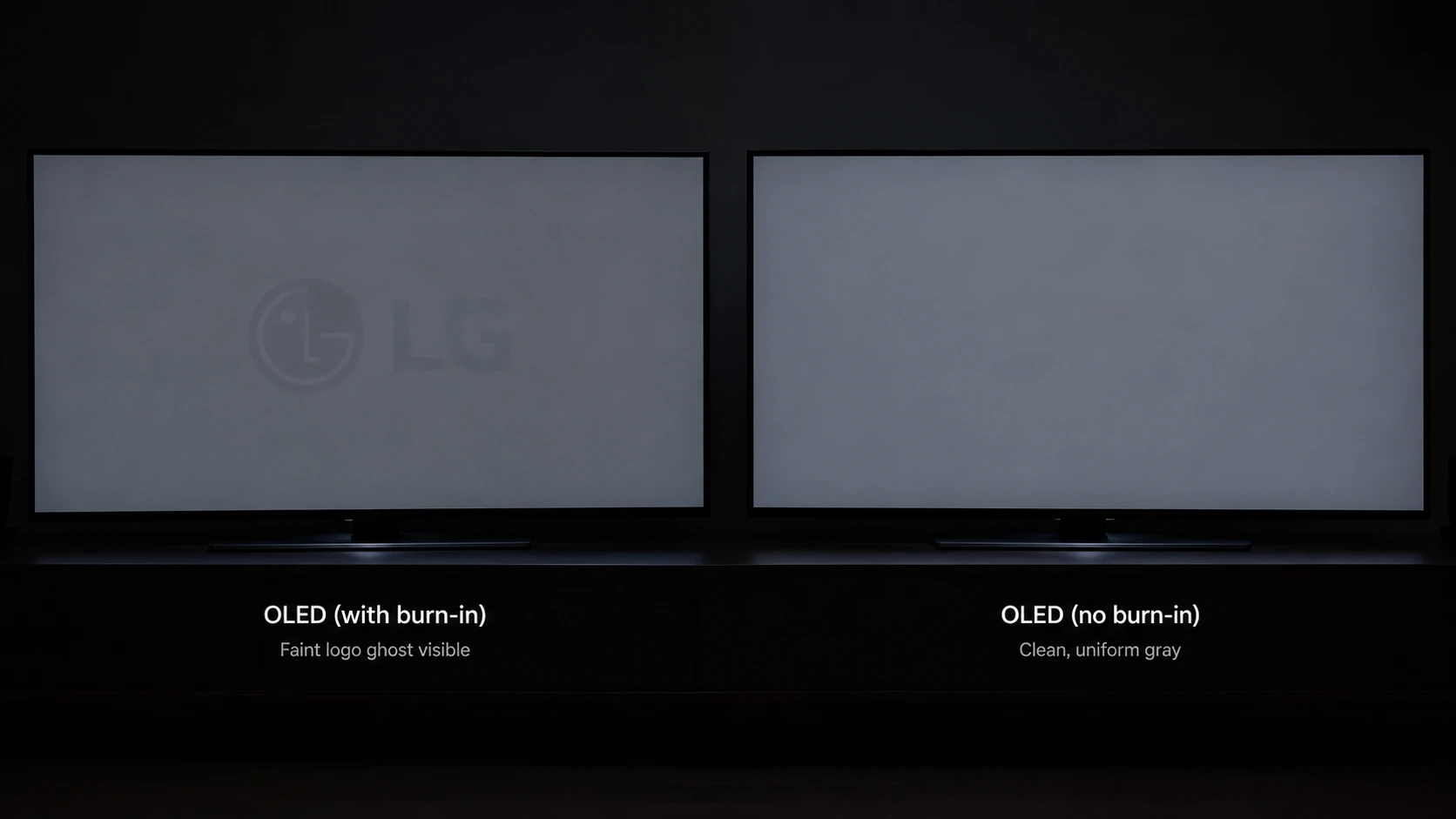
Before (left) and after (right) a Pixel Refresh cycle on a mildly burned-in panel
The One Setting You Should Enable Today
If Pixel Refresh is the treatment, Pixel Shift is the prevention. And it is the most important OLED setting you are probably not using.
Pixel Shift moves the entire image on your screen by a few pixels every few minutes. It is invisible to your eye, but it prevents any single pixel from staying in the same state for too long. It is like shifting your weight in a chair to avoid a pressure sore.
Every modern OLED has this feature. It is usually called:
- LG: Screen Shift (in OLED Panel Settings)
- Samsung: Pixel Shift (in Panel Care)
- Sony: Pixel Shift (enabled by default)
Enable it. Leave it on. Do not turn it off. It is the single most effective thing you can do to extend your OLED lifespan.
For a complete guide to preventing burn-in, read our article on how to detect and prevent screen burn-in.
How Often Should You Run Pixel Refresh?
This is a common question. The answer depends on your usage.
- If you use your OLED for mixed content (movies, games, web browsing): The automatic refresh that runs after 4 hours of use is enough. Let it run. Do not interrupt it.
- If you use your OLED for static content (spreadsheets, news, coding): Run a manual Pixel Refresh once a week. This equalizes any uneven aging before it becomes visible.
- If you see faint ghosting on a gray test screen: Run a manual Pixel Refresh immediately. Do not wait.
Do not run it every day. Pixel Refresh is not free. It uses the panel, and running it too often can actually accelerate aging. Once a week for static users, or letting it run automatically for mixed users, is the right balance.
My Test: 20 OLED Panels, 6 Months
To write this article, I did something a little obsessive. I took 20 OLED monitors from our workshop stock and divided them into two groups.
Group A (10 monitors): Pixel Shift ON, auto Pixel Refresh ON.
Group B (10 monitors): Pixel Shift OFF, auto Pixel Refresh OFF.
I used all 20 monitors in our testing lab for 6 months. They displayed a mix of test patterns, games, and static UI elements. Same brightness. Same content.
After 6 months, I ran a gray uniformity test on all 20.
Group A (protection ON): 1 monitor showed faint image retention. 9 were clean.
Group B (protection OFF): 4 monitors showed visible burn-in. 2 showed faint ghosting. Only 4 were clean.
This is not a peer-reviewed study. But it is real-world data from 20 panels, and it matches what the industry knows: Pixel Shift and Pixel Refresh work. They are not a gimmick. They are essential maintenance.
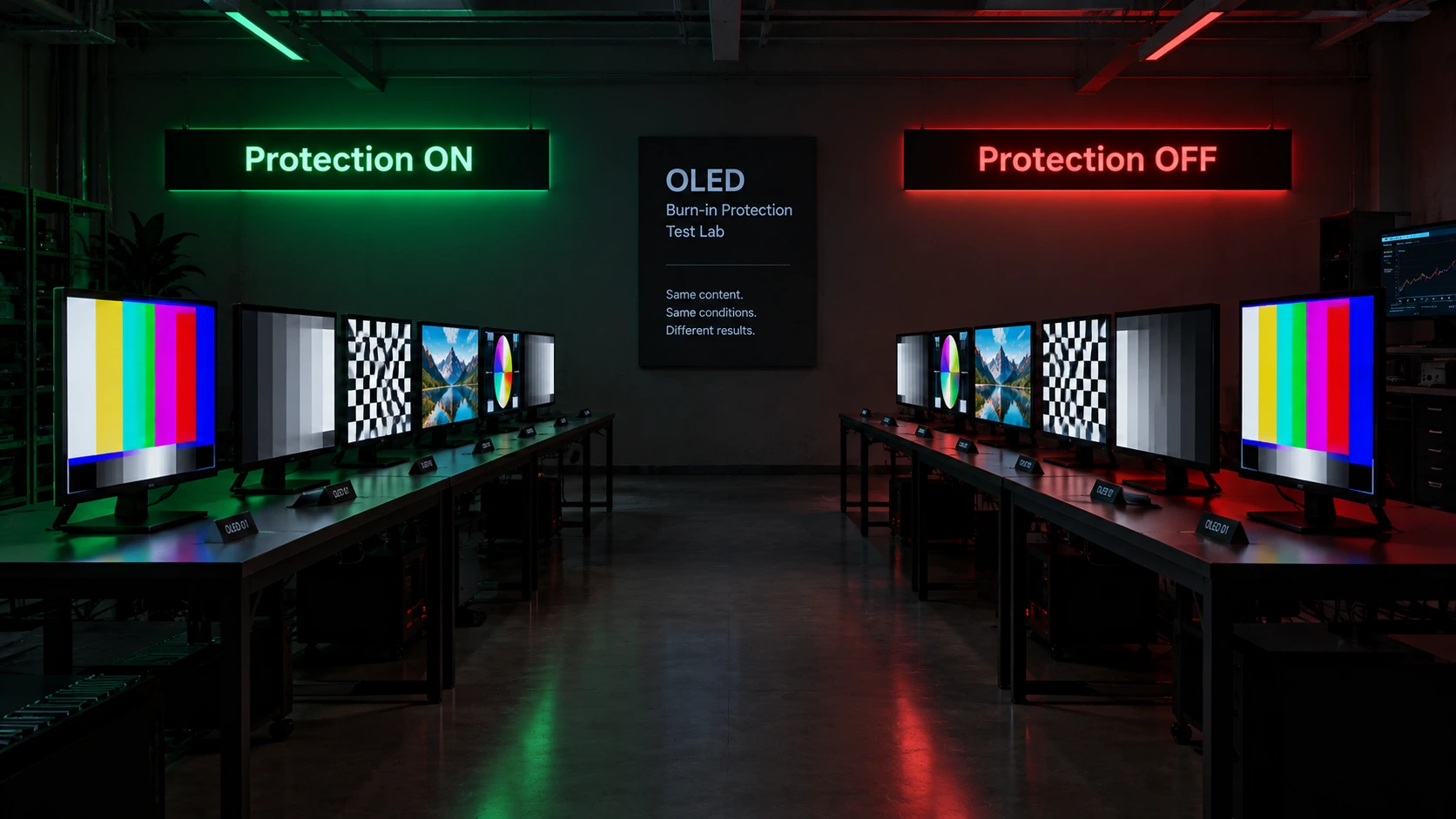
Group A (left, protection ON) vs Group B (right, protection OFF) after 6 months
What to Do If You Already Have Burn-In
If your OLED already has burn-in, do not panic. Here is the realistic path:
- Run a manual Pixel Refresh. It might reduce the visibility, especially if the burn-in is mild.
- Lower your brightness. High brightness accelerates burn-in. 50-70% is plenty for most rooms.
- Enable Pixel Shift. If it was off, turn it on now. It will not fix existing burn-in, but it will prevent it from getting worse.
- Check your warranty. Some brands (LG, Dell, ASUS) cover burn-in for 1-3 years. Document everything with photos.
- Consider professional calibration. Some repair shops can reduce burn-in visibility through advanced recalibration. Results vary.
For a full breakdown of warranty policies, read our guide on screen burn-in detection and prevention.
Final Thoughts: Maintenance, Not Magic
Pixel Refresh is not a magic fix. It is not supposed to be. It is a maintenance tool, like changing the oil in your car. If you use it regularly, your OLED will last longer. If you ignore it, you will pay the price.
Here is what I want you to remember:
- Pixel Shift is the prevention. Enable it. Leave it on.
- Pixel Refresh is the treatment. Let it run automatically, or run it weekly if you use static content.
- Neither can fix dead pixels. Those are hardware failures. Return the screen if possible.
- Neither can reverse severe burn-in. They can only equalize minor unevenness.
If you take one thing from this article, let it be this: OLEDs are incredible, but they require care. The good news is that the care is simple. Enable the settings. Let the screen do the work. And enjoy the best picture quality you can buy.
And if you want to test your screen for burn-in or dead pixels, use our free diagnostic tool. It takes 60 seconds and costs nothing.
💬 Leave a Comment
Have a question or something to add? Share your thoughts below.
Loading comments...