 SCREEN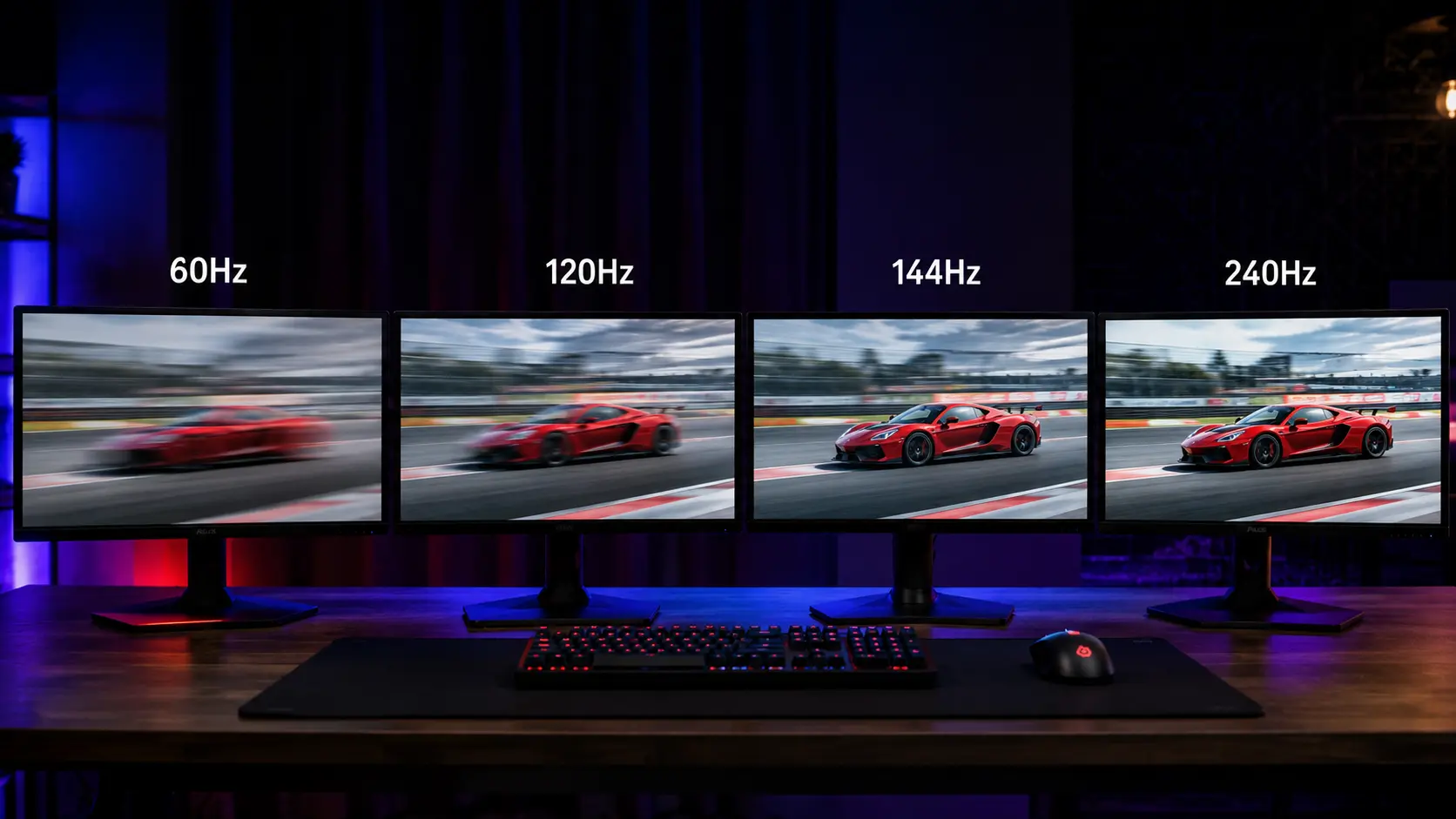
📌 Quick Summary: Refresh rate (Hz) determines how many times per second your monitor updates the image. Higher Hz = smoother motion. But higher isn't always better — it depends on your GPU, your use case, and your budget. Here's how to choose the right refresh rate for you.
The first time I experienced a 144Hz monitor, I thought something was wrong. I moved my mouse across the screen and it felt... too smooth. Almost unnatural. I'd been using 60Hz monitors my entire life, and I had no idea what I was missing.
Within a week, I couldn't go back. Scrolling text was crisper. Games felt more responsive. Even moving windows around felt better. It was one of those upgrades that changes how you experience your computer.
But here's the thing nobody told me: higher refresh rate isn't always better. It depends on your GPU, your use case, and your budget. A 240Hz monitor paired with a GPU that only pushes 60fps is wasted money. A 60Hz monitor for competitive esports is a handicap.
This guide will walk you through everything you need to know about refresh rates — what they are, how they affect your experience, and which one is right for you. No technical jargon. Just practical advice.
What Is Refresh Rate, Really?
Refresh rate (measured in Hertz, Hz) is how many times per second your monitor updates the image on screen. A 60Hz monitor updates 60 times per second. A 144Hz monitor updates 144 times per second. A 240Hz monitor updates 240 times per second.
Why does this matter? Because motion is an illusion. Your brain perceives a series of still images as continuous movement if they're shown fast enough. The faster the images update, the smoother the motion appears.
Here's the math:
- 60Hz — Each frame is displayed for 16.67ms
- 120Hz — Each frame is displayed for 8.33ms
- 144Hz — Each frame is displayed for 6.94ms
- 240Hz — Each frame is displayed for 4.17ms
The shorter the frame duration, the smoother the motion. It's that simple.
But there's a catch: your GPU has to be able to output enough frames to match your refresh rate. If your GPU only delivers 60fps, a 144Hz monitor will show the same 60fps — just with less tearing and stuttering.
The Real-World Difference: What You Actually See
Let me be honest with you: the jump from 60Hz to 144Hz is transformative. The jump from 144Hz to 240Hz is noticeable but subtle. And the jump from 240Hz to 360Hz is almost imperceptible for most people.
Here's how I'd describe each tier:
60Hz — The Baseline
60Hz is the standard for office monitors, budget displays, and most laptops. It's perfectly fine for:
- Office work (documents, spreadsheets, email)
- Web browsing
- Watching videos (most content is 24–60fps anyway)
- Casual gaming
In fast-paced games, 60Hz feels sluggish. Motion blur is visible. Tracking moving targets is harder. It's not unplayable — millions of gamers use 60Hz — but once you've experienced higher, it's hard to go back.
120Hz — The Sweet Spot for Many
120Hz is a meaningful upgrade from 60Hz. It's noticeably smoother in games and everyday use. The jump from 60Hz to 120Hz is more dramatic than the jump from 120Hz to 144Hz.
120Hz is also the standard for many TVs, consoles (PS5, Xbox Series X), and premium laptops. If you use a mix of devices, 120Hz is a great common denominator.
144Hz — The Gamer's Standard
144Hz has been the gaming standard for years. It offers a significant improvement over 60Hz without the extreme GPU demands of 240Hz. Most modern gaming monitors are 144Hz or 165Hz.
For most gamers, 144Hz is the sweet spot. It's smooth enough for competitive play, but affordable enough for mid-range budgets.
240Hz — Competitive Edge
240Hz is for competitive esports players. The difference between 144Hz and 240Hz is subtle — but at the highest levels of competition, every millisecond matters.
If you're a serious competitive gamer (Valorant, CS2, Overwatch), 240Hz can give you a slight edge. But you need a powerful GPU to hit those frame rates consistently.
360Hz+ — Diminishing Returns
360Hz and 500Hz monitors exist, but the benefits are marginal for most people. The jump from 240Hz to 360Hz is barely perceptible — even for professional esports players.
Unless you're a top-tier competitor, you don't need 360Hz. Save your money.
Refresh Rate vs Frame Rate: What's the Difference?
This is a common source of confusion, so let's clear it up:
- Refresh rate (Hz) — How many times per second your monitor updates. This is a hardware spec.
- Frame rate (fps) — How many frames per second your GPU renders. This is a performance metric.
For the smoothest experience, you want your frame rate to match or exceed your refresh rate. If your GPU delivers 144fps on a 144Hz monitor, motion is perfectly smooth. If your GPU delivers 60fps on a 144Hz monitor, the monitor will show each frame multiple times — creating judder.
This is where adaptive sync (G-Sync, FreeSync) comes in. It matches your monitor's refresh rate to your GPU's frame rate, eliminating tearing and stuttering.
For a complete guide to adaptive sync, read our Monitor Buying Guide 2026.
Does Refresh Rate Matter for Non-Gaming Use?
Yes — but less dramatically. Here's how refresh rate affects everyday tasks:
Office Work
At 60Hz, scrolling through documents and spreadsheets is fine. At 120Hz, it's noticeably smoother. For most office tasks, 60Hz is perfectly adequate. But if you have the budget, 120Hz is a nice quality-of-life upgrade.
Web Browsing
Scrolling through websites is smoother at higher refresh rates. It's not essential, but it feels better. Once you experience 120Hz scrolling, 60Hz feels choppy.
Video Editing
If you edit video, a higher refresh rate monitor can help you see motion more accurately. But for most editing tasks, 60Hz is sufficient. Color accuracy and resolution matter more.
Watching Movies
Most movies are 24fps. Most TV shows are 30fps or 60fps. A 120Hz or 144Hz monitor can display these frame rates evenly (24 divides evenly into 120), avoiding judder. But the difference is subtle.
If you mainly watch movies, a 60Hz monitor is fine. A 120Hz monitor is a nice bonus.
How to Check Your Current Refresh Rate
Before you upgrade, confirm what you're currently using. Many people think they're running at 144Hz but are actually stuck at 60Hz.
Here's how to check:
- Windows: Right-click desktop → Display settings → Advanced display settings → Choose a refresh rate
- macOS: System Settings → Displays → Refresh Rate
- Monitor OSD: Most monitors display the current refresh rate in their on-screen menu
You can also use our free Screen Medic diagnostic tool, which includes a refresh rate test that confirms your monitor is running at the correct Hz.
If the option is grayed out or missing, you might need a better cable. HDMI 1.4 caps at 144Hz for 1080p — for higher resolutions or refresh rates, you need DisplayPort 1.2 or 1.4.
What Refresh Rate Do You Need?
Here's my recommendation based on your use case:
For Office and General Use
60Hz is fine. 120Hz is a nice upgrade. You don't need more. Save your money for a better panel or higher resolution.
For Casual Gaming
120Hz or 144Hz. This is the sweet spot for most gamers. Smooth enough for fast-paced games, affordable enough for mid-range budgets.
For Competitive Gaming
144Hz minimum. 240Hz if you can afford it. The higher the refresh rate, the smoother the motion, and the more information you have to react to. But you need a powerful GPU to hit those frame rates.
For Professional Esports
240Hz or higher. At the highest levels of competition, every millisecond matters. But don't overspend — the jump from 240Hz to 360Hz is barely noticeable.
For Creative Work
60Hz is fine. 120Hz is a bonus. Color accuracy and resolution matter far more than refresh rate for photo and video editing.
Do You Need a Powerful GPU for High Refresh Rates?
Yes. This is the most important thing to understand before buying a high refresh rate monitor.
Your GPU determines your frame rate. Your monitor determines your refresh rate. If your GPU can only deliver 60fps, a 144Hz monitor won't magically make your games smoother.
Here's a rough guide for gaming:
- 60Hz: Any modern GPU can handle this
- 120Hz–144Hz: Mid-range GPU (RTX 4060, RX 7600 or better)
- 240Hz: High-end GPU (RTX 4070, RX 7800 XT or better)
- 360Hz+: Top-tier GPU (RTX 4080/4090, RX 7900 XTX)
If your GPU can't hit your monitor's refresh rate, adaptive sync (G-Sync, FreeSync) helps by matching the refresh rate to your frame rate. This eliminates tearing and stuttering, but doesn't make motion smoother than your frame rate allows.
Common Myths About Refresh Rate
Let's debunk a few myths I've seen floating around:
Myth 1: "The Human Eye Can't See Beyond 60Hz"
False. The human eye can perceive motion far beyond 60Hz. Studies have shown that pilots can identify aircraft in a single frame of a 220Hz display. Gamers consistently perform better on higher refresh rate monitors. The difference between 60Hz and 144Hz is obvious to anyone who tries it.
Myth 2: "Higher Refresh Rate Always Means Better"
False. A cheap 240Hz TN panel with poor colors and bad viewing angles may be worse overall than a high-quality 144Hz IPS panel. Refresh rate is just one factor. Panel quality, resolution, and color accuracy matter too.
Myth 3: "You Need 240Hz to Be Competitive"
False. Most professional esports players use 144Hz or 240Hz. The difference between them is small. Skill, reaction time, and game sense matter far more than the last 96Hz.
Myth 4: "Higher Refresh Rate Uses More Power"
Partially true. Higher refresh rates do consume slightly more power, but the difference is negligible for desktop monitors. It matters more for laptops, where battery life is a concern.
How to Test Your Monitor's Refresh Rate
Once you have your monitor set up, verify that it's running at the correct refresh rate. Our free Screen Medic diagnostic tool includes a refresh rate test that confirms your settings.
For a complete monitor test, read our article: How to Test Your Monitor Like a Pro: 5 Essential Checks.
And if you're experiencing motion blur or trailing, read our Monitor Ghosting Explained article. Ghosting is often confused with low refresh rate, but they're different issues.
Final Thoughts: Don't Overthink It
Here's the truth: most people don't need 240Hz. They don't even need 144Hz. For general use, 60Hz is fine. For casual gaming, 120Hz or 144Hz is a great upgrade. For competitive gaming, 144Hz or 240Hz gives you an edge.
The key is to match your refresh rate to your use case and your GPU. A 240Hz monitor paired with a weak GPU is wasted money. A 60Hz monitor for competitive esports is a handicap.
If you're upgrading, I recommend:
- General use: 60Hz or 120Hz
- Casual gaming: 120Hz or 144Hz
- Competitive gaming: 144Hz or 240Hz
- Professional esports: 240Hz (diminishing returns beyond that)
Whatever you choose, test it immediately. Your return window is your leverage. Use our free diagnostic tool to verify your refresh rate and check for other display issues.
🔍 Test Your Monitor's Refresh Rate Now
Related Guides
Expand your display knowledge with these related articles:
- How to Test Your Monitor Like a Pro: 5 Essential Checks (2026 Guide)
- The Ultimate Monitor Buying Guide 2026: How to Choose the Perfect Screen
- Monitor Ghosting Explained: Causes, Tests, and How to Fix It (2026 Guide)
- OLED vs LCD: Which Display Technology Is Better in 2026?
- What is a Dead Pixel? The Complete 2026 Guide to Detection, Warranty, and Fixes
- What is Screen Burn-In? How to Detect, Prevent, and Fix It (2026 Guide)
💬 Leave a Comment
Have a question or something to add? Share your thoughts below.
Loading comments...